Fixing Business Email That Broke After Switching DNS to SiteGround

Some links on this page are affiliate links. If you buy through them, we may earn a commission at no extra cost to you. It never decides what we recommend —read how we make money.
It’s one of the most common surprises when moving a website: your email was set up somewhere else, such as Google Workspace or Microsoft 365, you point your domain’s nameservers at SiteGround, and new messages stop arriving. Sometimes sending breaks too, or your mail starts landing in spam.
Nothing is wrong with your email provider. The records that told the internet where to deliver your mail didn’t come along with the move. Here’s how to confirm that and put them back.
Why It Happens
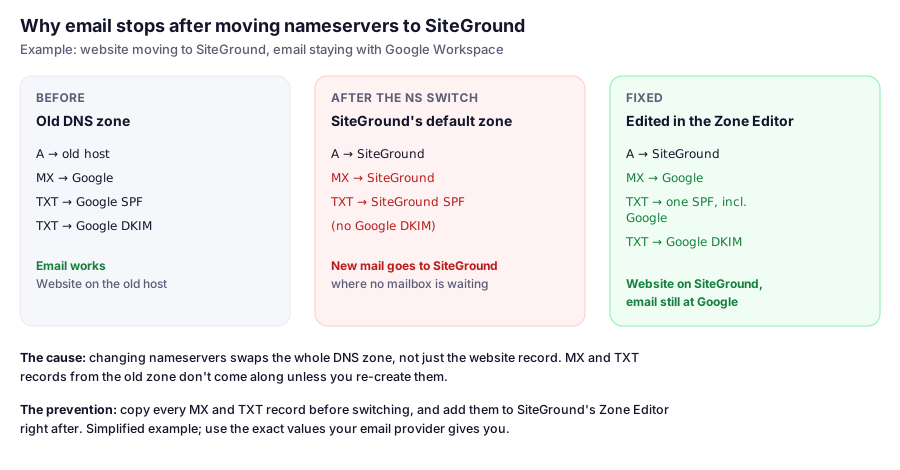
Email is delivered according to your domain’s MX records, not where your website is hosted. When you change nameservers, you don’t move one record; you swap the whole DNS zone for the one at the new host. SiteGround’s zone points mail at SiteGround’s servers, so if your mailboxes live at Google or Microsoft, new mail is delivered somewhere that doesn’t have them.
The same swap also drops the SPF and DKIM records your provider needs, which is why sending can start failing or landing in spam even after incoming mail is fixed.
Confirm It in One Command
Check where mail for your domain is being delivered (macOS or Linux):
dig +short yourdomain.com MXOn Windows:
nslookup -type=MX yourdomain.comIf the answer shows SiteGround’s mail servers but your mailboxes are at Google Workspace or Microsoft 365, that’s the problem. Also check who controls your DNS now:
dig +short NS yourdomain.comIf the nameservers are SiteGround’s, you’ll fix this in SiteGround’s DNS Zone Editor.
Fix 1: Point Email Back to Your Provider
Use this if you want to keep Google Workspace, Microsoft 365, or another provider.
- Get your provider’s exact records. Google and Microsoft publish them in their admin documentation, and their admin consoles show the values for your domain, including your DKIM key.
- In Site Tools, go to Domain › DNS Zone Editor.
- Replace the MX records. Delete SiteGround’s MX records and add your provider’s, with the priorities they specify. Leaving SiteGround’s in place, even at a lower priority, can split mail between two systems.
- Fix SPF. Your domain must have one SPF record. Edit the existing
v=spf1record in Email › Authentication (or the Zone Editor) so it includes your provider. If you still send anything through SiteGround’s mail servers, such as a contact form using SiteGround SMTP, keep SiteGround in the same record too. - Add DKIM. Copy the DKIM TXT or CNAME record from your provider’s admin console exactly, then start DKIM signing there if it asks you to.
- Re-create anything else from your old zone: verification TXT records, CNAMEs for services like your newsletter tool, and the DMARC record if you had a custom one.
If you have the old zone’s records written down or exported, this is a ten-minute job. If you don’t, your email provider’s setup guide lists everything their service needs.
Fix 2: Move Your Email to SiteGround Instead
If you don’t need your old provider, you can use SiteGround’s included email. SiteGround’s default records already point mail at SiteGround, so you only need to create the mailboxes. See setting up business email on SiteGround.
Before you switch providers: existing messages stay with the old provider. Plan how you’ll move them, for example by connecting both accounts in a mail app over IMAP and dragging folders across, before you cancel the old service.
Confirm It’s Fixed
-
Check the records from outside:
dig +short yourdomain.com MX
dig +short yourdomain.com TXT
MX should show your provider, and there should be exactly one
v=spf1record. -
Send a test email from an outside account, such as a personal Gmail, to your business address. Then reply to it.
-
Check authentication. In Gmail, open your reply and choose Show original. SPF, DKIM, and DMARC should all say
PASS.
Changes can take a while to reach everyone, depending on the records’ TTL. Mail servers that try to deliver during that time usually retry, so most mail sent in the gap arrives late rather than being lost, but don’t count on it for anything urgent.
Avoiding This Next Time
Before changing nameservers for any domain with working email:
- Export or screenshot every DNS record, especially MX, TXT (SPF, DKIM, DMARC, verifications), and CNAME.
- Add those records to the new DNS zone before you switch, if the new host lets you edit the zone in advance, or immediately after.
- Or don’t move the nameservers at all. If your email and other services are already set up elsewhere, you can leave DNS where it is and just point the website’s A record to SiteGround. Our DNS guide explains both approaches.
FAQ
Why did my email stop working after I moved my website to SiteGround?
Changing your domain's nameservers to SiteGround replaces its whole DNS zone, including the MX records that pointed to your email provider. SiteGround's default records send mail to SiteGround's servers instead. Re-add your provider's MX, SPF, and DKIM records in the DNS Zone Editor.
How do I check my domain's MX records?
Run dig +short yourdomain.com MX on macOS or Linux, or nslookup -type=MX yourdomain.com on Windows. The answer shows which mail servers receive your email.
Can I host my website on SiteGround and keep Google Workspace email?
Yes. Point your MX records to Google in SiteGround's DNS Zone Editor, include Google in your single SPF record, and add Google's DKIM record. Or keep your DNS where it is and point only the website's A record to SiteGround.
Do I lose emails sent while the records were wrong?
Mail sent while MX pointed to SiteGround may have been delivered there or rejected. Many sending servers retry for a while, so some messages arrive once the records are fixed, but anything delivered to SiteGround in the meantime won't appear in your Google or Microsoft inbox. Ask important senders to resend.
Why do my emails go to spam after moving DNS?
Usually because your SPF record no longer includes your email provider, or its DKIM record wasn't re-created. Fix both in SiteGround's DNS, then check with Gmail's Show original.
Coming Up
DNS controls much more than email. Our guide to managing DNS on SiteGround covers the Zone Editor and the other records you’ll edit as your site grows.