GeneratePress: A Beginner's Setup Tutorial for WordPress's Fastest Theme
Some links on this page are affiliate links. If you buy through them, we may earn a commission at no extra cost to you. It never decides what we recommend —read how we make money.
Most WordPress themes try to impress you with demo content and built-in page builders. GeneratePress does the opposite — it ships nearly empty, loads fast, and gets out of your way. That restraint is exactly why it’s one of the most recommended themes for anyone who cares about site speed.
What GeneratePress Actually Is
GeneratePress is a lightweight WordPress theme built around a simple idea: the theme should handle structure and performance, while you decide the design — either through the Customizer, a page builder like Elementor, or the WordPress Site Editor. The free version on WordPress.org already covers what most sites need: responsive layout, solid typography controls, and a genuinely small footprint. The free theme weighs in at 7.5 KB of page size, with 2 HTTP requests and zero dependencies.
Installing It
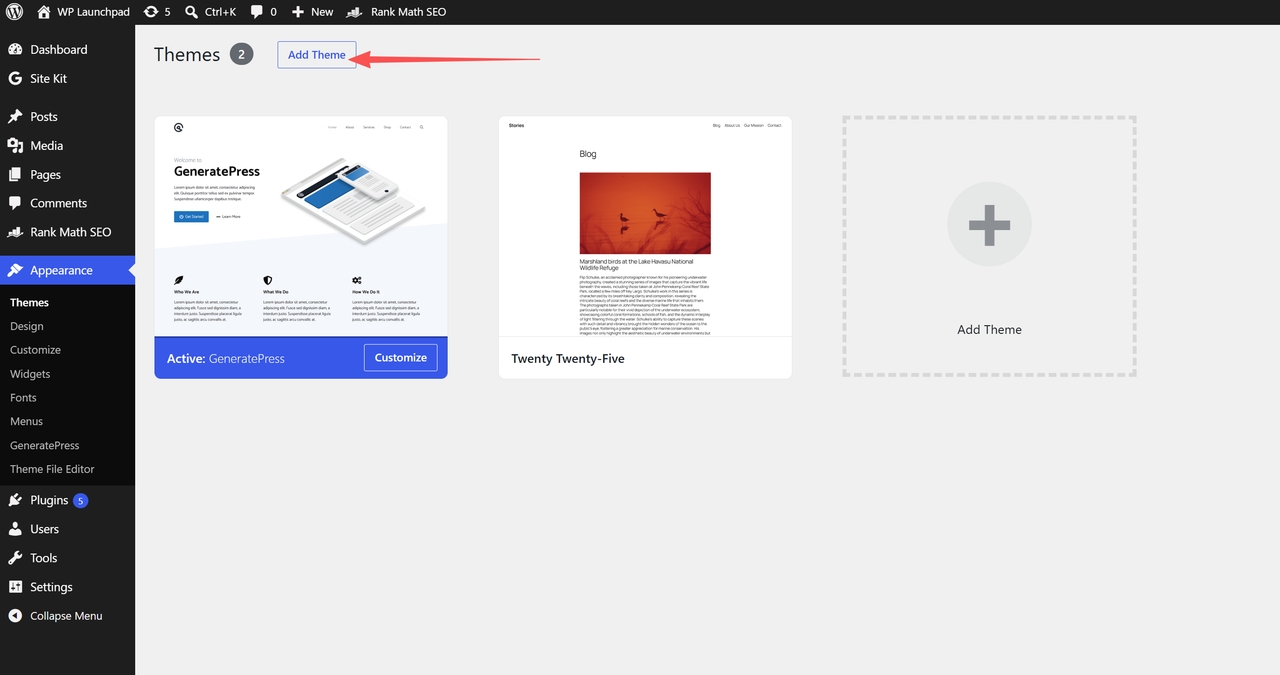
1. Open the theme installer. In your WordPress dashboard, go to Appearance → Themes and click Add Theme at the top of the page.
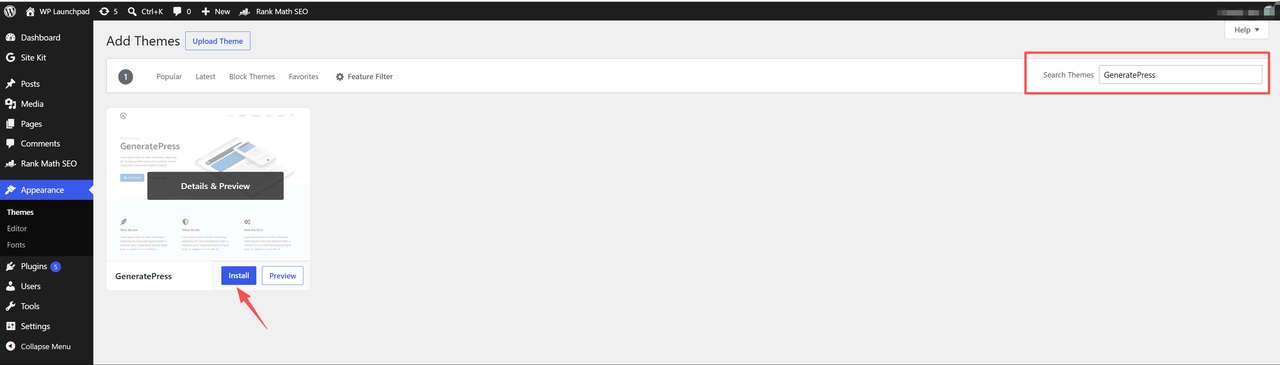
2. Find and install GeneratePress. Type “GeneratePress” into the Search Themes box, click Install on the GeneratePress result, then click Activate once the install finishes.
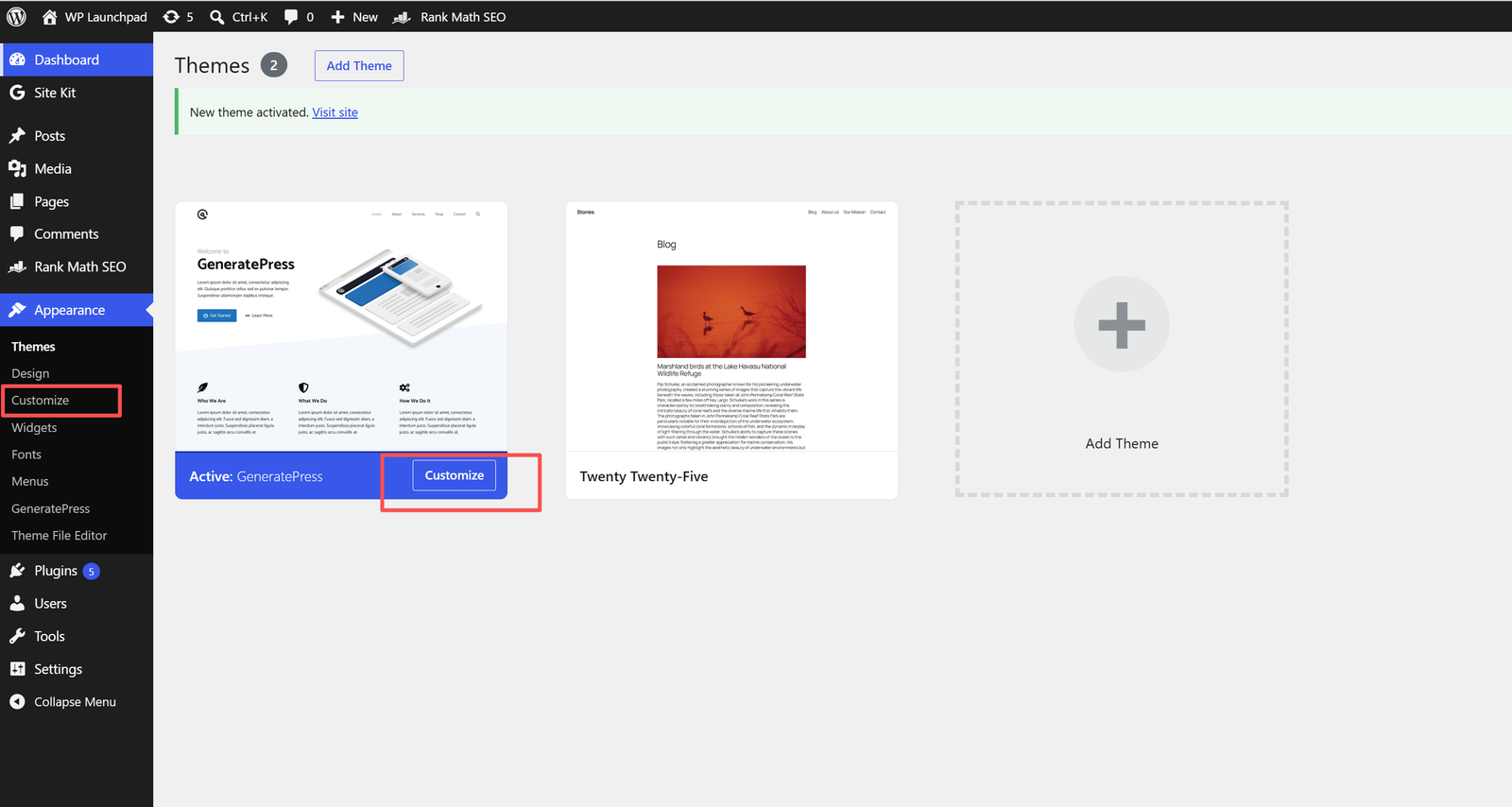
3. Open the Customizer. After activation, WordPress confirms “New theme activated,” and GeneratePress shows as the active theme. A GeneratePress item also appears under the Appearance menu. To start setting up the theme, click Customize on the active theme card, or go to Appearance → Customize.
Setting Up Layout
In the Customizer, open Layout. This is where you control the bones of the page, split into these sections:
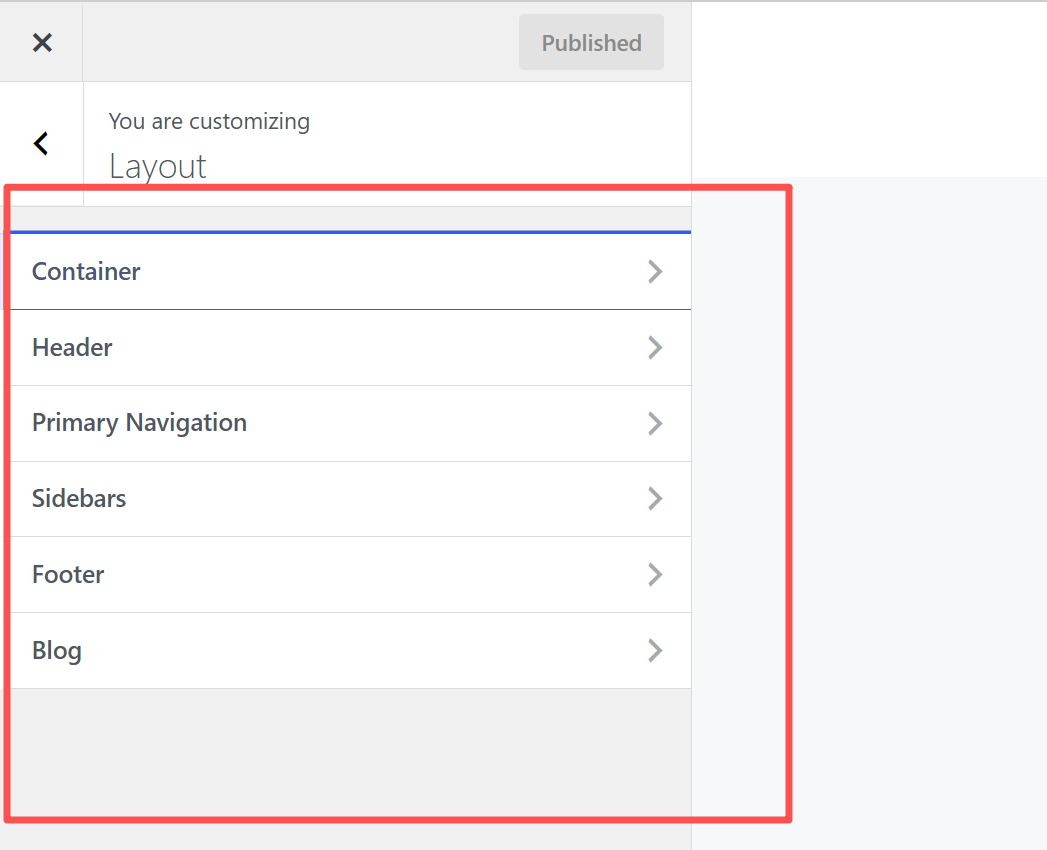
- Container — how wide the main content area is on desktop
- Header and Primary Navigation — how your site header and main menu are arranged
- Sidebars — whether pages show a right sidebar, a left sidebar, or no sidebar (full-width)
- Footer — the layout of your footer area
- Blog — how your blog and archive pages display posts
For a modern site built with a page builder, most people choose no sidebar here and let the builder control layout entirely.
Colors and Typography
Still inside the Customizer:
- Colors lets you set your site’s background, text, link, and accent colors — changes preview live before you publish.
- Typography controls font family, size, and weight for headings, body text, and buttons separately. The free theme’s Font Manager (Customize › Typography) lets you search the full Google Fonts list, so you don’t need a separate font plugin. Those fonts load from Google’s servers by default; GP Premium’s Local Font Library (added in GP Premium 2.5.0) can download them and serve them from your own site instead.
A practical tip: set your heading font and body font early, before writing content — retrofitting typography after a site is full of content takes far longer.
Deciding on GP Premium
The free theme is genuinely usable on its own. GP Premium is a plugin that extends it. It adds:
- Theme Builder — design and build theme elements with blocks in the block editor
- Site Library — professionally designed starter sites you can import
- More styling controls — extra color, typography, spacing, and background image options
- Advanced hook system — place content or code at specific locations throughout the theme
- Mobile header, secondary navigation, and an off-canvas panel — more header and menu layouts
- Advanced layout system and sticky navigation
- Infinite scroll, masonry, and archive columns — more ways to display blog and archive pages
- WooCommerce controls — more flexibility for store layouts
- Import/export, copyright control, and smooth scroll
GP Premium costs $59/year and can be used on up to 500 sites (checked September 2026). For the license terms and a fuller breakdown, see our GeneratePress review.
If you’re building more than a simple blog, and especially if you want custom theme elements, a starter site, or precise content placement with hooks, Premium can save real time. You can pick it up here: GeneratePress Premium.
Pairing GeneratePress With a Page Builder
GeneratePress doesn’t lock you into one way of building pages:
- With Elementor, build your page content inside Elementor while GeneratePress handles the surrounding theme shell. Our Elementor quick start covers the basics.
- With the block editor, GeneratePress’s own tools are the natural fit: the free theme works with WordPress’s blocks, GeneratePress’s separate GenerateBlocks plugin adds layout blocks, and GP Premium’s Theme Builder lets you design theme elements with blocks.
Either way, because the theme itself ships very little code, whatever builder you add stays the dominant factor in your page weight, not the theme underneath it.
Why This Pairs Well With Your Hosting
A lightweight theme and a well-configured host solve two different halves of the same problem: GeneratePress keeps your frontend code minimal, while your host’s server-level caching (covered in the speed optimization guide) handles delivery. Neither one compensates for a weak setup on the other side — you want both working together.
Getting Started
Install the free version first, spend twenty minutes in the Customizer setting layout, colors, and fonts, and get a feel for how the theme behaves before deciding whether Premium’s modules solve a real problem you have. For most simple sites, the free version alone is enough to launch on.