Elementor for Beginners: Build a WordPress Page Without Writing Code
Some links on this page are affiliate links. If you buy through them, we may earn a commission at no extra cost to you. It never decides what we recommend —read how we make money.
Elementor is a drag-and-drop page builder for WordPress. Instead of the standard block editor, you design a page on a live canvas, placing headings, images, and buttons exactly where you want them and seeing the result as you go.
It’s the right tool for pages that need a custom design, such as a homepage or a landing page. For ordinary posts and simple pages, WordPress’s own block editor is often enough; our overview of themes and page builders explains how to split the work.
Getting Started
- Install the plugin. Go to Plugins › Add New Plugin, search for Elementor, then install and activate the free version.
- Pick a light theme to pair with it. Elementor designs the content area; your theme still provides the header, footer, and base styles. A lightweight theme like GeneratePress keeps that foundation fast.
- Open a page with Elementor. Edit a page and click Edit with Elementor. The editor opens with the widget panel on one side and your page on the canvas.
The Building Blocks: Containers and Widgets
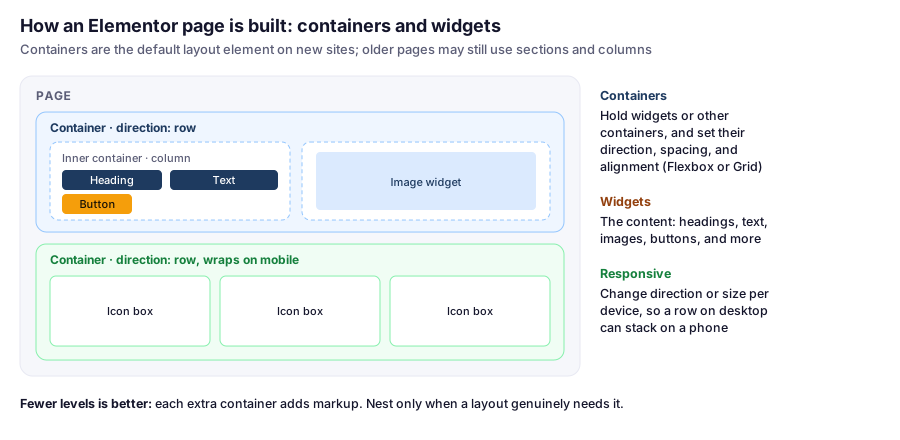
- Containers are the layout boxes. Each one lines its contents up in a row or a column (Flexbox), or in a grid, and controls the spacing and alignment between them. Containers can hold other containers.
- Widgets are the content: headings, text, images, buttons, icons, video, and more.
Containers have been Elementor’s default layout element on new sites since version 3.16. Older sites and tutorials may still use sections and columns; those pages keep working, but new pages are built with containers.
A practical rule: use as few nested containers as the layout needs. Each level adds code to the page, and deeply nested layouts are harder to edit later.
Set Global Colors and Fonts First
Before designing pages, open Site Settings in the editor and define Global Colors and Global Fonts. Then pick those globals in every widget instead of choosing colors by hand.
When you later change your brand color, you change it once and every page updates. It’s the single habit that keeps a multi-page Elementor site looking consistent. If your theme also has color and font settings, set the same values there so the header and footer match.
Build Responsively as You Go
Use the device switcher in the editor to check desktop, tablet, and mobile while you work, not at the end. Common fixes:
- Switch a row container to a column on mobile so items stack.
- Reduce heading sizes and spacing for small screens.
- Hide decorative elements on mobile if they only add clutter.
Free vs Pro: What to Expect
The free version covers the editor, containers, and the core widgets, which is enough to build good-looking pages. Some things people expect are part of Elementor Pro, a paid subscription, including the Form widget and the Theme Builder for designing headers, footers, and templates. For a contact form without Pro, a free form plugin works inside Elementor; see our contact form guide.
Check Elementor’s current plans before buying, and remember Pro is a yearly subscription that renews.
Keeping Elementor Pages Fast
Page builders add weight, so a little discipline goes a long way:
- Fewer widgets and containers per page. Every element adds markup, CSS, and sometimes JavaScript.
- Resize images before uploading, and use WebP where possible.
- Avoid stacking animation and slider add-ons. They’re the usual cause of slow interaction scores.
- Keep caching on, and test pages with PageSpeed Insights after big changes. Our speed optimization guide explains what to look for.
The editor itself runs in your browser and on your hosting account’s PHP resources, so a very slow editor on a small shared plan can be a sign of resource limits. Our guide to shared hosting vs. VPS shows how to check.
FAQ
Is Elementor free?
Yes, the core Elementor plugin is free and includes the editor, containers, and many widgets. Elementor Pro is a paid yearly subscription that adds features like the Form widget and the Theme Builder.
What are containers in Elementor?
Containers are Elementor's layout element. Each one arranges its contents in a row, a column, or a grid and controls spacing and alignment. They've been the default on new sites since version 3.16, replacing sections and columns.
Does Elementor slow down WordPress?
It adds weight compared with the block editor. Keeping pages lean, resizing images, avoiding heavy animation add-ons, and using caching keep Elementor sites fast in practice.
Which theme works best with Elementor?
A lightweight, well-maintained theme, since Elementor handles the page layouts. GeneratePress is a popular choice; the theme still provides the header, footer, and base styles unless you use Elementor Pro's Theme Builder.
Can I switch away from Elementor later?
You can, but pages designed in Elementor rely on it for their layout. Deactivating it leaves those pages without their design, so plan to rebuild them in the new editor.
Where to Go Next
Once you’re comfortable with containers, widgets, and global styles, most of Elementor is exploring what’s in the widget panel. Keep the page count designed in Elementor to the pages that need it, and let the block editor handle the rest.