SEO Optimization on WordPress: The Checklist That Actually Matters
Some links on this page are affiliate links. If you buy through them, we may earn a commission at no extra cost to you. It never decides what we recommend —read how we make money.
Most WordPress SEO advice is a pile of settings with no order to it. That’s why people install a plugin, fill in a green-light checklist, and still have pages that Google has never put in its index.
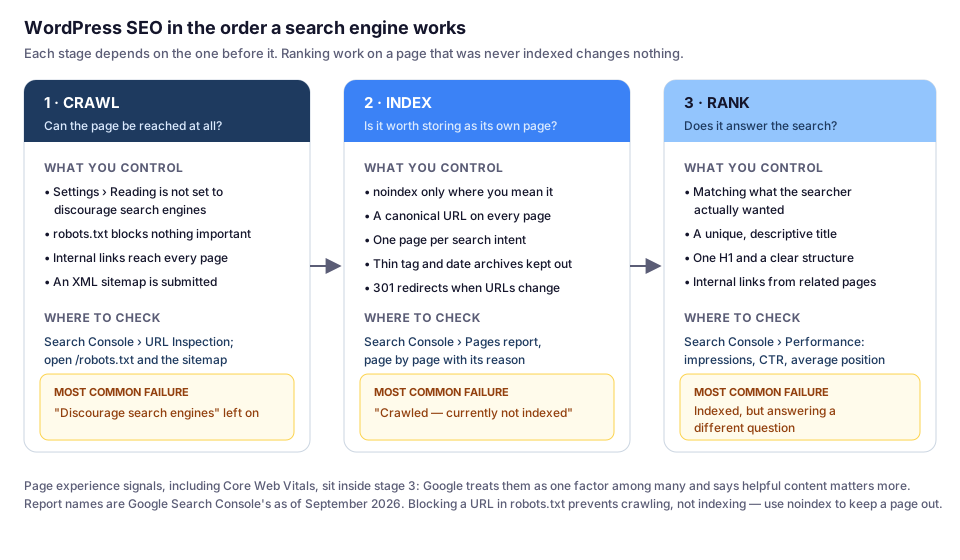
SEO optimization on WordPress is easier to get right when you follow the same sequence a search engine does: it has to crawl the page, then decide to index it, and only then can the page rank for anything. A problem at an earlier stage makes everything downstream pointless — no amount of keyword work saves a page carrying a noindex tag.
This checklist follows that order. Speed matters too, but it’s a different job with different tools: our WordPress speed optimization guide covers it.
Stage 1: Can Search Engines Reach the Page?
Check the Setting That Hides Entire Sites
Under Settings › Reading, WordPress has a checkbox: “Discourage search engines from indexing this site.” It exists so you can build in peace, and it gets left on after launch more often than any other SEO mistake. When it’s ticked, WordPress asks search engines not to index the site at all.
Don’t trust the checkbox alone — look at what the site actually sends:
curl -s https://yourdomain.com/ | grep -i "name=\"robots\""
curl -sI https://yourdomain.com/ | grep -i x-robots-tag
Either one returning noindex means no page below this matters until it’s fixed. A staging site or a password-protected directory can also hide pages from Google, which is the point on staging and a problem in production.
Read Your Own robots.txt
Open https://yourdomain.com/robots.txt. You’re checking that nothing broad is disallowed — a stray Disallow: / or a rule blocking /wp-content/uploads/ will keep your pages or images out of results. Security plugins and migrations from a staging environment are the usual sources of surprises here.
Give Every Page a Route In
Search engines follow links. A page reachable only from a menu that renders in JavaScript, or from nowhere at all, is a page that rarely gets found.
- Link between related posts in the body text. This is the single most underused SEO lever on small sites: it shows search engines which pages are connected and sends readers deeper.
- Use descriptive anchor text — “how to choose WordPress hosting”, not “click here”. The words in the link tell both readers and crawlers what to expect.
- Submit an XML sitemap. WordPress core publishes one at
/wp-sitemap.xml; SEO plugins replace it with their own, usually at/sitemap_index.xml. Either is fine — submit whichever your site actually serves in Search Console, and check it contains the pages you care about and not the ones you don’t.
Stage 2: Will the Page Be Indexed?
This is where Search Console stops being optional. Our guide to connecting Analytics and Search Console covers verification; once it’s connected, the Pages report tells you exactly which pages are in the index and why the rest aren’t.
The statuses worth learning:
| What Search Console says | What it usually means on a WordPress site |
|---|---|
| Discovered — currently not indexed | Google knows the URL but hasn’t fetched it. Common on new sites with few links; more internal links to the page help. |
| Crawled — currently not indexed | Google looked and decided not to bother. The page is usually thin, near-duplicate, or covers something the site has already said elsewhere. |
| Duplicate without user-selected canonical | Several URLs show the same content and none of them declares which is the original. |
| Alternate page with proper canonical tag | Working as intended — this URL points at another as the original. |
| Excluded by ‘noindex’ tag | Intentional if it’s a tag archive you excluded; a problem if it’s a post. |
One URL Per Thing
WordPress happily serves the same content on several URLs: the post, the category archive, the tag archive, the date archive, the author archive, paginated versions. Each one competes with the real page for the same words.
- Set permalinks once. Under Settings › Permalinks, “Post name” is the usual choice. Changing this later changes every URL on the site, so decide before you have traffic.
- Let your SEO plugin output canonical URLs so each page names itself as the original.
- Noindex the archives you don’t maintain. Tag archives with one post each, author archives on a one-person site, and date archives rarely earn a listing. Keeping them out of the index concentrates everything on the pages you actually wrote.
- One page per search intent. Before publishing, check whether you’ve already written about that topic. Two half-articles on the same question compete with each other and lose to a competitor’s one good article.
When URLs Change, Redirect Them
Changing a slug, merging two posts, or moving a page means the old URL starts returning a 404 — along with any rankings and links it had. Send it to its replacement with a 301 redirect, either from a redirect plugin or your host’s panel, and verify:
curl -sI https://yourdomain.com/old-url/ | head -3You want 301 and a location: header pointing at the new page. Redirecting everything to the homepage instead of the closest matching page is a common shortcut that Google tends to treat as a soft 404.
Stage 3: What Makes an Indexed Page Rank?
Match the Search, Not the Keyword
The page that wins is the one that answers what the searcher wanted. Someone typing “siteground renewal price” wants a number, not a 2,000-word introduction to web hosting. Look at what’s already ranking for your target phrase: if the results are all comparison tables, a personal essay won’t displace them, however well optimized.
Titles and Descriptions Do Two Different Jobs
- The title tells search engines and readers what the page covers. Put the main phrase in it naturally, keep it short enough not to be cut off, and make it unique across the site. Google sometimes rewrites the title it displays — that’s normal, and usually means your title didn’t describe the page as well as something else on it.
- The meta description doesn’t affect ranking directly, but it’s your pitch in the results list, and a better pitch means a better click-through rate on the same position.
- One H1 per page, matching what the page is about, with H2s and H3s below it in a sensible order. In WordPress the post title is usually the H1 already, so don’t add a second one in the content.
Write for the Question, Not the Word Count
- Answer the main question early, then go deeper for readers who need it.
- Use headings that describe their section — readers scan, and Google uses them to understand structure.
- Include the things people actually need to decide: prices, requirements, steps, caveats.
- Keep alt text descriptive for images. It serves screen readers first and image search second.
Structured Data, Realistically
An SEO plugin adds structured data (Article, Breadcrumb, FAQ, Product) that describes the page in a machine-readable format. It helps search engines understand what a page is — but a rich result is never guaranteed, and Google decides page by page whether to show one. Treat structured data as accurate labelling, not a lever to pull.
Validate what you output with Google’s Rich Results Test rather than assuming the plugin got it right.
Page Experience Is the Tie-Breaker
Core Web Vitals are part of Google’s page experience signals, and Google is clear that relevant, helpful content matters more. A fast page that doesn’t answer the question won’t rank; a slow page that answers it well often still does. Fix speed because visitors feel it — see our speed optimization guide — not because you expect rankings to jump.
The Plugin Part (It’s Smaller Than You Think)
One SEO plugin, configured once, handles titles, meta descriptions, canonical URLs, the sitemap, noindex rules and structured data. That’s the whole job. Which plugin matters far less than whether it’s set up properly — our comparison of WordPress SEO plugins covers the options and what each one outputs.
Two rules that save trouble:
- Never run two SEO plugins at once. Both will write title tags and canonicals, and the result is duplicated or contradictory output.
- Check what the plugin actually produces. View the page source and look for the title, the meta description, the canonical, and the robots directive. A green light in the plugin’s dashboard isn’t evidence; the HTML is.
curl -s https://yourdomain.com/your-post/ | grep -iE "<title>|canonical|name=\"description\"|name=\"robots\""Three Situations You’ll Recognize
A new site, ten posts, nothing in Google after three weeks. Check the Pages report first. “Discovered — currently not indexed” on a brand-new site is normal impatience — the fix is more internal links to those posts and a submitted sitemap, plus time. “Excluded by ‘noindex’ tag” means the Reading setting or a plugin rule is still hiding the site, which is a five-minute fix.
A site with traffic that suddenly dropped after a redesign. Compare the URLs: if the new theme or builder changed slugs, every old URL is a 404. Export the old URLs from Search Console’s Performance report, redirect each to its closest match, and confirm with curl -sI.
Plenty of impressions, very few clicks. The pages are indexed and ranking — the listing isn’t convincing. In Search Console’s Performance report, sort by impressions and look for pages with a low click-through rate, then rewrite those titles and descriptions to match what the searcher wanted. This is the highest-return SEO work on an established site, and it takes an afternoon.
A Monthly Routine That’s Enough
- Pages report: anything newly excluded that shouldn’t be?
- Performance report: which queries bring impressions but few clicks? Rewrite those titles and descriptions.
- Positions 8–20: these are pages one improvement away from real traffic. Add the section they’re missing, or link to them from a stronger page.
- Broken links: fix internal 404s and redirect anything you renamed.
- Content that’s aged: prices, versions, screenshots. Update the page and its modified date rather than writing a near-duplicate.
FAQ
How do I do SEO optimization on WordPress without a plugin?
You can: WordPress generates an XML sitemap at /wp-sitemap.xml, themes output a title tag, and permalinks are a core setting. A plugin mainly gives you editable titles and descriptions, canonical control, noindex rules and structured data in one place. Doing that by hand means theme code for every case, which is why nearly everyone uses one plugin.
Why isn't my WordPress page showing in Google?
Check Search Console's Pages report for the URL's status. 'Discovered — currently not indexed' means Google hasn't fetched it yet, 'Crawled — currently not indexed' means it decided the page wasn't worth indexing, and 'Excluded by noindex tag' means something on your site is asking Google to skip it — often the Settings › Reading checkbox left on after launch.
Do meta descriptions affect rankings?
Not directly. They influence whether someone clicks your result once it appears, which is why rewriting descriptions on pages with impressions but few clicks is usually the fastest improvement available on an established site.
Should I noindex tag and category archives?
Noindex the ones you don't curate. A tag archive holding a single post is a thin page competing with the post itself. Categories you actually maintain — with a description and several posts — can be useful landing pages and are worth keeping indexed.
How long does WordPress SEO take to work?
Indexing can take days to weeks on a new site. Ranking movement usually takes months, and new sites take longer because there's little to judge them on yet. Judge progress by impressions and average position in Search Console before you judge it by traffic.
Is changing my permalink structure safe after launch?
Only with redirects. Changing the structure changes every URL on the site, so every existing link and ranking points at a 404 unless you map the old URLs to the new ones with 301 redirects. If the site is already live and indexed, the safer answer is usually to leave it alone.
Does site speed affect SEO?
Core Web Vitals are part of Google's page experience signals, but Google says relevance and helpfulness matter more. Speed is best treated as something that helps when competing pages are similarly useful — and that always helps visitors.
What to Do Next
Pick the stage where your site is stuck. If pages aren’t indexed, start in Search Console — our setup guide gets you there. If they’re indexed but not ranking, the work is in titles, intent and internal links.
And when you’re ready for the other half of page experience, our WordPress speed optimization guide covers measuring and fixing what’s slow. For the plugin layer, see our comparison of SEO plugins.