Adding a Contact Form to Your WordPress Site
Some links on this page are affiliate links. If you buy through them, we may earn a commission at no extra cost to you. It never decides what we recommend —read how we make money.
A contact form is often the most important page on a small business site: it’s where a visitor becomes a lead. WordPress doesn’t include one, but free plugins do the job well. The part people skip, and the reason many “working” forms quietly lose messages, is making sure the notification email actually arrives.
Step 1: Choose a Form Plugin
Several free plugins cover a standard contact form:
- WPForms Lite: a drag-and-drop builder with ready-made templates. Beginner-friendly.
- Contact Form 7: long-established and minimal; forms are written with simple tags rather than a visual builder.
- Fluent Forms: a modern builder with a generous free version.
Any of these works. One thing worth checking in whichever you pick: does it save submissions in your dashboard? Some free versions only send an email. If that email fails, the message is gone, so a plugin that also stores entries is a useful safety net.
Step 2: Build and Place the Form
- Create a new form from the plugin’s menu, starting from a simple contact template: name, email, message.
- Only add fields you’ll actually use. Every extra field lowers the number of people who finish the form.
- Add the form to your Contact page using the plugin’s block in the editor (Contact Form 7 also supports its shortcode).
- Set a clear confirmation message, such as “Thanks, we’ll reply within one working day.”
Step 3: Make Sure the Email Arrives
Get the From and Reply-To Right
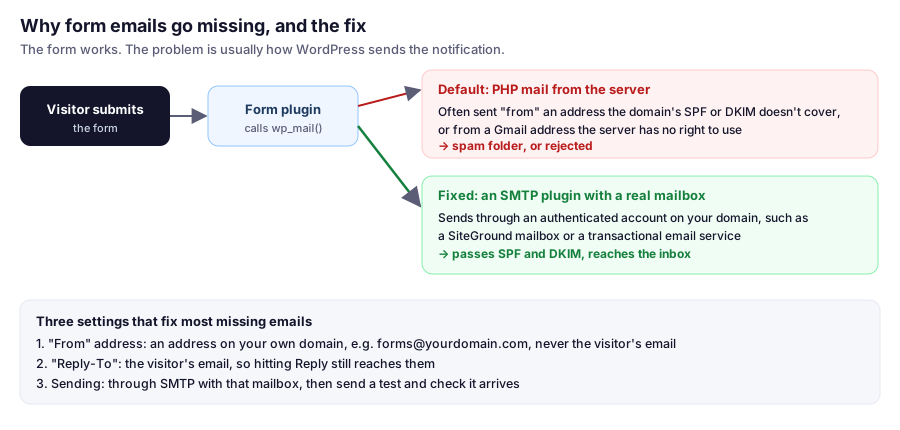
This is the most common mistake. In the form’s notification settings:
- From email: an address on your own domain, such as
[email protected]. Never the visitor’s address. If the notification claims to come from[email protected]but is sent by your server, receiving mail servers see it as forged. - Reply-To: the visitor’s email field. Hitting Reply in your inbox then goes to the visitor.
Send Through SMTP
By default, WordPress hands mail to the server’s PHP mail function. That works on some hosts and fails quietly on others, especially when the From address doesn’t line up with the domain’s email authentication. An SMTP plugin sends through a real, authenticated mailbox instead:
- Create a mailbox for sending, such as
[email protected]. On SiteGround, see setting up business email. - Install an SMTP plugin such as WP Mail SMTP, and choose “Other SMTP.”
- Enter the mailbox’s outgoing server details. For a SiteGround mailbox, use the server shown under Email › Accounts › Mail Configuration › Manual Settings, port 465 with SSL/TLS, and the full email address and password.
- Use the plugin’s test email tool and confirm the message arrives.
For higher volumes, a transactional email service is another option; the plugin connects to those too.
Check Authentication
Your domain’s SPF, DKIM, and DMARC records decide whether receiving servers trust your mail. On SiteGround they’re set up by default when your DNS is there; our business email guide shows how to check them and how to read Gmail’s Show original results.
Step 4: Stop Spam Without Annoying People
Add protection in layers, starting with the least intrusive:
- Honeypot: a hidden field only bots fill in. Most form plugins include it, often on by default.
- Akismet or the plugin’s own spam filter: checks the content of submissions.
- CAPTCHA (Google reCAPTCHA, hCaptcha, or Cloudflare Turnstile): add it only if spam still gets through, since it adds friction and, with some providers, extra privacy considerations.
- Block persistent sources at the server if one IP keeps hammering the form. See blocking IPs on SiteGround.
Step 5: Test Like a Visitor
Before you rely on it:
- Submit the form from a private browser window, using a personal email address that isn’t on your domain.
- Check the notification arrives, and look in spam the first time.
- Hit Reply and confirm it goes to the address you entered in the form.
- Check the confirmation message makes sense, and that the submission appears in the dashboard if your plugin stores entries.
- Repeat after changing email settings, DNS, or hosts.
Privacy
A contact form collects personal data. Say in your privacy policy what you collect and why, don’t add fields you don’t need, and delete old submissions you no longer need. If your form includes a consent checkbox for marketing, keep it unticked by default.
FAQ
Why am I not receiving emails from my WordPress contact form?
Usually because WordPress sends through the server's PHP mail with a From address the domain doesn't authenticate, so it's rejected or filtered as spam. Set the From address to one on your own domain, send through SMTP with a real mailbox, and test.
What should the From address be on a contact form?
An address on your own domain, such as [email protected]. Put the visitor's email in the Reply-To field instead, so you can still reply to them directly.
How do I use SMTP with a SiteGround email account?
Install an SMTP plugin such as WP Mail SMTP, choose Other SMTP, and enter the server shown in Site Tools › Email › Accounts › Mail Configuration › Manual Settings, port 465 with SSL/TLS, plus the mailbox's full address and password. Then send a test.
Which free contact form plugin should I use?
WPForms Lite, Contact Form 7, and Fluent Forms all handle a standard contact form. Check whether the one you choose saves submissions in the dashboard as a backup to email notifications.
How do I stop contact form spam in WordPress?
Start with a honeypot field and a spam filter such as Akismet. Add a CAPTCHA only if spam still gets through, and block persistent IP addresses at the server if needed.
Where This Fits
For many sites, the contact form is where a visit becomes a conversation. Ten minutes spent on email delivery and a real test is worth more than any design change on the page.