Blocking Specific IPs or Countries From Your WordPress Site
Some links on this page are affiliate links. If you buy through them, we may earn a commission at no extra cost to you. It never decides what we recommend —read how we make money.
Sometimes the problem isn’t one attacker but a pattern: the same IP address hammering your login page, a network sending spam comments all day, or bot traffic from a region you don’t serve. Blocking at the server stops those requests before WordPress runs, which also saves your plan’s resources.
On SiteGround, the tool is Blocked Traffic, and it can block single IPs, ranges, and whole countries. This guide covers each, how to decide what to block, and the mistakes that can quietly break your site. Details are from SiteGround’s knowledge base, checked in September 2026.
Pick the Right Tool First
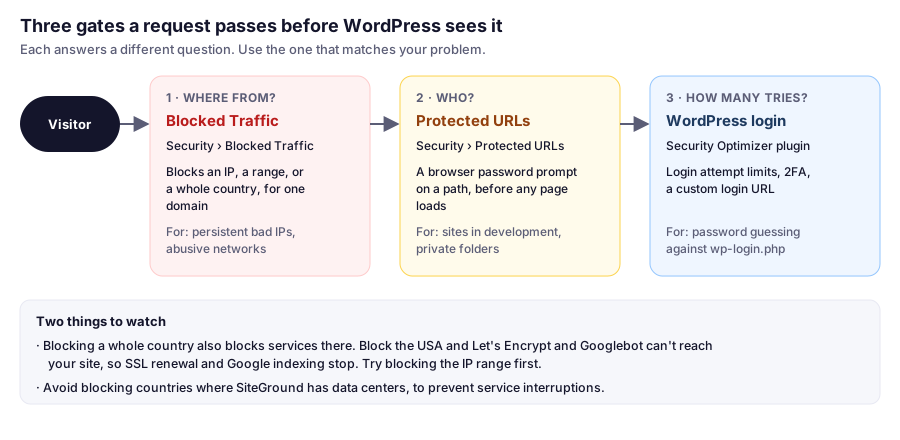
If the problem is password guessing against wp-login.php, blocking IPs one at a time is a losing game: attackers rotate addresses. Login attempt limits and two-factor authentication (in SiteGround’s free Security Optimizer plugin) stop that far more reliably. Use Blocked Traffic for sources that keep coming back.
Step 1: Find What to Block
Don’t block on a hunch. Look at who is actually causing the problem:
- Security Optimizer’s activity log in WordPress shows visitors, blocked requests, and login attempts.
- Your host’s access logs show every request with its IP. On SiteGround, check the statistics and logs areas of Site Tools.
- Look for patterns: one IP making hundreds of requests to
wp-login.phporxmlrpc.php, or many IPs from the same range doing the same thing.
Before blocking an IP, look it up with a public IP lookup service to see who owns it. Blocking a search engine crawler, a payment gateway, or a monitoring service by mistake causes more trouble than the traffic did.
Step 2: Block an IP or a Range
- In Site Tools, go to Security › Blocked Traffic.
- Choose the domain. Blocks apply to the domain you select.
- Enter the IP address, or a range. SiteGround’s documentation shows a wildcard format for ranges, such as
192.168.100.*. - Click Block.
The block takes effect at the server, so blocked visitors never reach WordPress.
Step 3: Block a Country, Carefully
Blocked Traffic can also block entire countries: Security › Blocked Traffic › Block Country, choose the domain and country, then Block.
SiteGround’s own documentation carries two warnings worth taking seriously:
- You block services, not just people. If you block the United States, SiteGround notes, Let’s Encrypt and Googlebot can’t reach your site, so your SSL certificate can’t be issued or renewed and Google can’t crawl you.
- Don’t block countries where SiteGround has data centers, to avoid interrupting its own services to your site.
Travelers, VPN users, and mobile networks that route traffic through other countries get caught too. SiteGround’s advice is to look at the specific IP’s details and block its range before reaching for a whole country.
Removing a Block
In Security › Blocked Traffic, open the list of blocked IPs, or Block Country for countries, click the Delete icon next to the entry, and confirm. Remove temporary blocks once an attack stops, so the list stays short and understandable.
Three Situations
These are illustrative examples.
One IP keeps submitting spam through your contact form. Block that IP in Blocked Traffic, and add a spam filter or CAPTCHA to the form so the next IP doesn’t simply take over. Our contact form guide covers the options.
Thousands of login attempts from rotating IPs. Don’t chase them. Turn on login limits and two-factor authentication in Security Optimizer, and consider a custom login URL.
A local business sees heavy bot traffic from a region it doesn’t serve. Block the specific ranges first. If you do block a country, avoid the one where your data center is, never block the USA, and check SSL and Search Console afterward.
FAQ
How do I block an IP address on SiteGround?
In Site Tools, go to Security › Blocked Traffic, choose the domain, enter the IP address or a range such as 192.168.100.*, and click Block. The block applies at the server, before WordPress loads.
Can SiteGround block a whole country?
Yes. Go to Security › Blocked Traffic › Block Country, choose the domain and country, and click Block. SiteGround warns this also blocks services from that country, such as Let's Encrypt and Googlebot if you block the USA.
Will blocking a country hurt my SEO?
It can. If you block a country that search engine crawlers use, such as the USA for Googlebot, Google can't crawl your site. Block specific IP ranges instead where possible.
Should I block IPs to stop brute-force login attempts?
Usually not as the main defense, because attackers rotate IP addresses. Login attempt limits and two-factor authentication, available in SiteGround's Security Optimizer plugin, are more effective.
How do I unblock an IP or country on SiteGround?
In Security › Blocked Traffic, find the entry in the blocked IPs list or under Block Country, click the Delete icon, and confirm.
What’s Next
For putting a password in front of a folder or a site in development, see Protected URLs on SiteGround. For the full picture of keeping a WordPress site secure, read our security best practices.