Password-Protecting a Folder or Site on SiteGround (Protected URLs)
Some links on this page are affiliate links. If you buy through them, we may earn a commission at no extra cost to you. It never decides what we recommend —read how we make money.
Not everything on your server is meant for the public. A site you’re still building, a folder of client files, or an internal tool sometimes needs a password in front of it, separate from WordPress’s own login. On SiteGround, that tool is called Protected URLs (older guides and other hosts call it “directory protection” or “password-protected directories”).
This guide covers setting it up, what visitors see, and the WordPress quirks to test for. Details are from SiteGround’s knowledge base, checked in September 2026.
Where It Fits
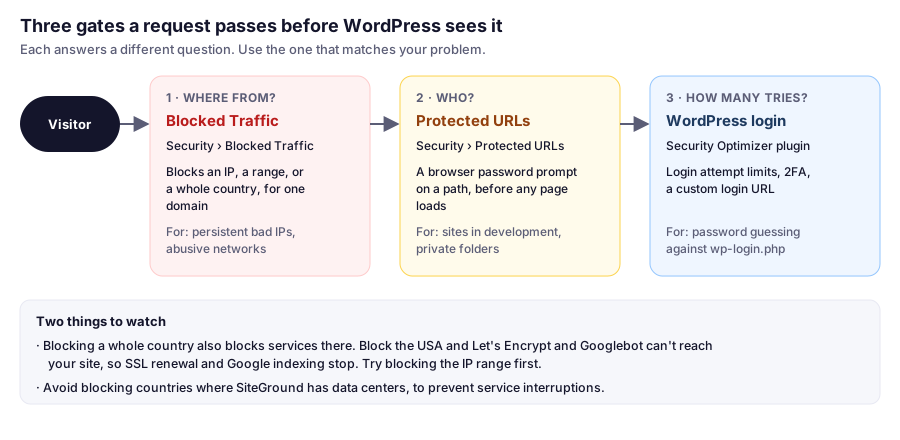
Protected URLs answers the question who may see a path. If your problem is where traffic comes from, use Blocked Traffic. If it’s people guessing WordPress passwords, login limits and two-factor authentication in the Security Optimizer plugin are the better fix; see our WordPress security guide.
Good Reasons to Use It
- A site in development that shouldn’t be seen, or indexed by search engines, before launch
- A folder of files for a client, without creating WordPress accounts
- An extra layer in front of
wp-adminon a site where only a few people ever log in
Setting It Up
- In Site Tools, go to Security › Protected URLs.
- On the URLs tab, choose the Domain.
- Enter the Path to protect. Leave it as
/to protect the whole site, or enter a folder such as/client-filesor/wp-admin. - If you haven’t created a user yet, enter a username and password. If you have, pick one from the User dropdown.
- Click Protect.
Save the username and password in your password manager. They’re separate from your WordPress and SiteGround logins.
Managing Who Has Access
In the Manage Users list, use Manage Access (the key icon) next to a user to choose which protected URLs they can open. Give each person their own user, so you can remove one without changing everyone’s password.
What Visitors See
Opening a protected URL shows the browser’s own username and password box before any page loads. It isn’t a WordPress screen, so it can’t be styled, and it isn’t affected by WordPress plugins. Canceling or entering the wrong details shows a 401 Unauthorized error.
Because the prompt appears before WordPress runs, it also stops search engine crawlers, which makes it a reliable way to keep a site in development out of search results.
WordPress Side Effects to Test
Password-protecting parts of a WordPress site can break things that don’t expect a password prompt:
- Protecting
/wp-admincan break front-end features. Some themes and plugins load data for visitors throughwp-admin/admin-ajax.php. With the folder protected, visitors may get a password prompt or a feature silently fails, such as a filter, a form, or a “load more” button. After protecting it, test the public site logged out, in a private window. - Protecting the whole site blocks services that call it: payment gateway callbacks, uptime monitors, and some plugin license checks. That’s fine for a site in development and a problem on a live store.
- Remember to remove it at launch. A forgotten password prompt on a newly launched site stops visitors and search engines alike.
Removing Protection
- Go to Security › Protected URLs and open the URLs tab.
- Find the path under Manage Protected URLs.
- Click Delete (the bin icon).
Then open the site in a private window to confirm it loads without a prompt.
FAQ
How do I password protect a folder on SiteGround?
In Site Tools, go to Security › Protected URLs. On the URLs tab, choose the domain, enter the path, create or select a user, and click Protect. Visitors then see a browser password prompt before the folder loads.
Is SiteGround's directory protection the same as Protected URLs?
Yes. SiteGround's Site Tools calls the feature Protected URLs. It does what other hosts often call directory or folder password protection.
Can I password protect a whole WordPress site while I build it?
Yes. Protect the path / for the domain. The prompt appears before WordPress loads, which also keeps search engines out. Remove the protection when you launch.
Should I password protect wp-admin?
It adds a layer, but test carefully: some themes and plugins use wp-admin/admin-ajax.php for visitors, and those features can break. Login limits and two-factor authentication are often a simpler way to protect WordPress logins.
How do I remove a Protected URL on SiteGround?
Go to Security › Protected URLs, open the URLs tab, find the path under Manage Protected URLs, and click Delete.
Next: Blocking by Location
Protected URLs control who gets in. To control access based on where visitors connect from, see blocking IPs and countries on SiteGround.