Managing MySQL Databases on Your WordPress Host
Some links on this page are affiliate links. If you buy through them, we may earn a commission at no extra cost to you. It never decides what we recommend —read how we make money.
Every post, page, comment, setting, and order on a WordPress site lives in a MySQL (or MariaDB) database. You can run a site for years without opening it. But the moment you migrate, install WordPress manually, or see “Error establishing a database connection,” knowing how the pieces fit together turns a panic into a five-minute fix.
This guide uses SiteGround’s Site Tools for the examples, with notes for other hosts. SiteGround details are from its MySQL tutorial, checked in September 2026.
How WordPress Connects to Its Database
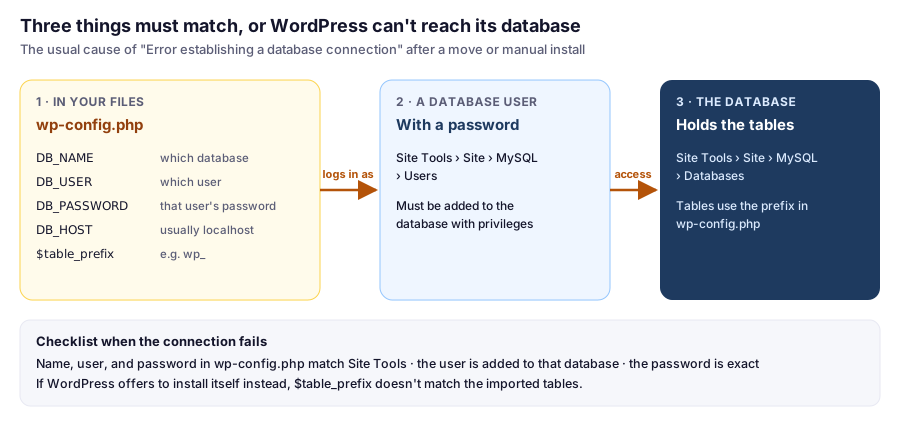
WordPress logs in to the database as a database user, which needs permission on that database, using the details in wp-config.php. All three have to line up. When any one doesn’t, you get the connection error.
Creating a Database and User on SiteGround
You’ll only need this for a manual install or a manual migration; SiteGround’s WordPress installer creates the database for you.
- In Site Tools, go to Site › MySQL.
- On the Databases tab, click Create Database. SiteGround generates the name automatically.
- On the Users tab, click Create User. SiteGround generates the username and password and shows them once; save them in your password manager.
- Give the user access: in the user’s management options, choose Add New Database, select the database, choose the privileges (all privileges for a WordPress site), and Confirm.
- Put the database name, username, and password into
wp-config.php.DB_HOSTis usuallylocalhoston SiteGround and most shared hosts.
On cPanel hosts, the same steps live under MySQL Databases, where you create the database, create the user, then use Add User to Database to grant privileges.
Fixing “Error Establishing a Database Connection”
Work through these in order:
- Compare
wp-config.phpwith Site Tools. IsDB_NAMEexactly the database listed under Databases? IsDB_USERexactly the user? Copy and paste rather than retyping, since generated names are easy to misread. - Check the user is added to the database. A user and a database can both exist without being connected.
- Reset the password if unsure. Change the database user’s password in Site Tools, then paste the new one into
wp-config.php. Passwords containing a single quote need escaping inside the PHP string, so a generated password without one is easiest. - Check the table prefix after an import. If the site loads WordPress’s installation screen instead of an error, the database is reachable but
$table_prefixinwp-config.phpdoesn’t match the imported tables, such aswp_versuswpxy_.
With SSH, WP-CLI can test the connection directly from your site’s folder:
wp db checkWorking Safely in phpMyAdmin
Open it from Site Tools › Site › MySQL › phpMyAdmin. It’s the tool for looking inside tables, exporting, and running queries.
- Export before any change. Select the database, choose Export, and download the
.sqlfile. Our guide to backing up and restoring on SiteGround covers SiteGround’s own database restores too. - Don’t edit tables by hand unless you know exactly what the change affects. Many values in
wp_optionsand post meta are serialized PHP, and changing their length by hand breaks them. For find-and-replace jobs, use WP-CLI’swp search-replace, which handles serialized data. - Check you’re in the right database before deleting anything. Staging copies and old installs often sit side by side.
Why Databases Grow, and What to Do About It
SiteGround’s fair use policy asks you to keep each database under 1,000 MB, and a bloated database slows down uncached pages everywhere. The usual culprits:
| Culprit | Where it lives | What to do |
|---|---|---|
| Post revisions | wp_posts |
Limit future revisions (below); clean old ones with a trusted optimization plugin |
| Expired transients | wp_options |
wp transient delete --expired |
| Plugin logs and statistics | The plugin’s own tables | Check the plugin’s settings for log retention, or remove unused plugins and their tables |
| Leftover tables from deleted plugins | Tables with the old plugin’s name | Remove only after a backup, and only if you’re sure nothing uses them |
| Large autoloaded options | wp_options |
Site Health may flag this; the plugin responsible usually needs a setting changed |
See which tables are biggest over SSH:
wp db size --tablesLimit future revisions by adding this to wp-config.php above the “That’s all, stop editing” line:
define( 'WP_POST_REVISIONS', 10 );Deleting a Database Safely
When you retire a test site or an old install:
- Export a copy from phpMyAdmin and keep it somewhere safe for a while.
- Confirm nothing uses it. Search your sites’
wp-config.phpfiles for the database name. - Delete the database and its user in Site Tools › Site › MySQL.
Deleting is permanent unless you have that export or a backup from before.
FAQ
Where are MySQL databases in SiteGround?
In Site Tools › Site › MySQL. The Databases and Users tabs manage databases and users, and phpMyAdmin is available from the same section.
How do I fix Error establishing a database connection in WordPress?
Check that DB_NAME, DB_USER, and DB_PASSWORD in wp-config.php exactly match the database and user in your hosting panel, and that the user has been added to the database with privileges. Reset the database user's password if unsure.
What is DB_HOST on SiteGround?
Usually localhost, as on most shared hosts. Your host's documentation or panel will say if it's different.
Why is my WordPress database so large?
Common causes are post revisions, expired transients, plugin logs and statistics, and tables left behind by deleted plugins. Run wp db size --tables to see which tables are biggest.
Is it safe to edit the WordPress database in phpMyAdmin?
Only with care. Export a backup first, and avoid editing serialized values by hand. For find-and-replace, use wp search-replace, which handles serialized data correctly.
Why This Is Worth Knowing
Most WordPress work never touches phpMyAdmin. But when a migration, manual install, or connection error does bring you here, understanding the three pieces, and having a backup, turns it from an emergency into a checklist.