Backing Up and Restoring Your WordPress Site on SiteGround
Some links on this page are affiliate links. If you buy through them, we may earn a commission at no extra cost to you. It never decides what we recommend —read how we make money.
A backup only matters the moment something goes wrong: a bad plugin update, a failed migration, a hacked site. By then it’s too late to set one up. This guide explains what SiteGround backs up for you, how to choose the right kind of restore, and how to keep a copy of your own, so the first time you need a backup isn’t the first time you’ve looked at one.
Everything below is done from SiteGround’s Site Tools, as it works in September 2026.
What SiteGround Backs Up Automatically
| What you get | |
|---|---|
| Daily automatic backups | Up to 30 daily copies on shared hosting plans (StartUp, GrowBig, GoGeek) |
| Where they’re stored | On a different server from your site, often in a different geographic location |
| What’s included | Your site’s files, databases, and email accounts |
| Manual backups | 5 free slots on GrowBig and GoGeek. StartUp has none unless you add Premium Backup. Manual backups don’t expire until you delete them. |
| Where to find them | Site Tools › Security › Backups |
Why 30 days matters: some problems aren’t noticed straight away. If malware was injected a week ago, or a plugin has been quietly corrupting data, yesterday’s backup already contains the problem. Thirty days of history lets you go back to before it started.
Premium Backup (Optional, Paid)
SiteGround sells Premium Backup as an add-on. It adds:
- 7 more daily copies, for up to 37 in total on shared hosting
- Hourly backups covering the last 48 hours
- More manual slots: 5 on StartUp, 10 on GrowBig and GoGeek
- Downloads: any backup can be downloaded as a
.tar.gzarchive, with a link valid for 24 hours
For most sites, the free 30 daily copies are enough. Premium Backup is worth considering if you’re on StartUp and want manual backups, run a busy store where an hour’s orders matter, or want one-click downloads.
Taking a Manual Backup Before Risky Changes
The daily backup runs once a day. If you’re about to update a major plugin, switch themes, or run a migration, a backup from five minutes ago is far more useful than last night’s.
On GrowBig or GoGeek:
- In Site Tools, go to Security › Backups.
- Under Create & Restore, enter a Backup Name that says why you made it, such as
before-woocommerce-9-update. - Click Create. The backup is ready in a few minutes.
- Wait until it appears in the list before making your change.
The backup includes your files, databases, email, and even staging copies. Delete old manual backups once you’re confident the change worked, so a slot is free next time.
On StartUp without Premium Backup: you don’t have manual slots, so make your own copy using the steps in Keeping Your Own Copy below, or rely on the daily backup and make changes right after it runs.
Restoring: Choose the Smallest Restore That Fixes It
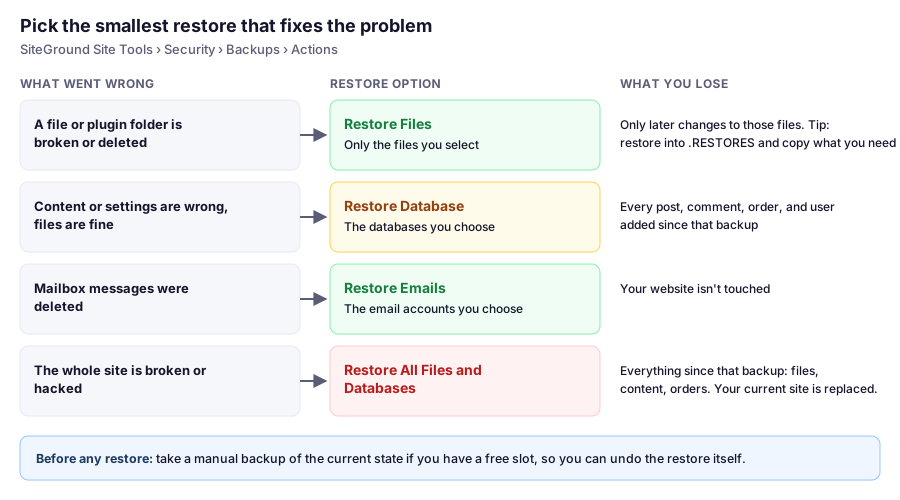
This is where most people lose more than they need to. A full restore rolls everything back to the backup date, including orders, comments, and posts added since. Usually a smaller restore fixes the problem without that cost.
How to Restore
- In Site Tools, go to Security › Backups.
- Find the backup by date, then click the three dots in the Actions column.
- Choose one of:
- Restore All Files and Databases: replaces your current site. SiteGround asks you to confirm that you’re OK with that.
- Restore Files: browse the backup and select specific files or folders. You can restore them to their original location, or to a folder called .RESTORES in your home directory so nothing live is overwritten.
- Restore Database: choose which databases to restore from that date.
- Restore Emails: choose which email accounts to restore.
- Wait for it to finish, then check the site logged out, in a private window.
Why the .RESTORES Folder Is Useful
Restoring files to .RESTORES puts the old copies next to your site instead of on top of it. You can compare them, copy back just the one file you need with File Manager, and leave everything else alone. It’s also the safest way to try a restore for the first time.
Three Situations, and What I’d Restore
These are illustrative examples.
A plugin update white-screened the site. Most of the time, the plugin’s files are the problem. Restore only that plugin’s folder (wp-content/plugins/plugin-name) from last night’s backup with Restore Files. If the update also changed the database and the site still errors, restore the database too, but read the next example first.
You found malware that has been there for a week. Pick a backup from before the infection, and use Restore All Files and Databases. Then change every password (WordPress admins, SFTP, database, hosting) and update everything, or it will happen again. Our WordPress security guide covers the clean-up habits.
A shop’s settings page was broken by a bad import. Restoring the database fixes the settings but deletes every order since the backup. Before restoring, export the current database from phpMyAdmin (see below) so you still have those orders. For a store, consider whether fixing the setting by hand is less costly than a rollback.
Keeping Your Own Copy
SiteGround’s backups live on SiteGround’s servers. Before a migration or redesign, or just a few times a year, it’s worth keeping a copy of your own. Without Premium Backup, it’s a two-step job:
- Files: in Site Tools, go to Site › File Manager, right-click the
public_htmlfolder, choose Archive, then right-click the new archive and Download it. - Database: go to Site › MySQL › phpMyAdmin and export your database.
Together, those two pieces are a complete WordPress backup: files and database. Delete the archive from your hosting account afterward so it doesn’t use storage.
If you’re comfortable with a terminal: SiteGround includes WP-CLI, so over SSH you can export the database from your site’s root folder with one command:
wp db export backup-$(date +%F).sqlDownload the .sql file, then delete it from the server. Our SSH guide covers connecting.
A Sensible Backup Habit
- Manual backup (or staging) before anything risky. Don’t rely on the daily schedule catching a change you’re about to make in ten minutes.
- Your own copy before migrations and redesigns, so you’re not solely dependent on one provider’s retention.
- One practice restore. Restore a single file to
.RESTORESon a quiet day, so the screens are familiar before you need them under pressure. - Know the date you’d go back to. When something breaks, note when it started. That’s how you pick the right backup out of 30.
FAQ
How many backups does SiteGround keep?
Shared hosting plans keep up to 30 daily automatic backups, stored on a different server from your site. The paid Premium Backup add-on raises that to 37 and adds hourly backups for the last 48 hours.
Can I create a manual backup on SiteGround StartUp?
Not without an add-on. GrowBig and GoGeek include 5 free manual backup slots; on StartUp, manual slots come with the paid Premium Backup service. On StartUp, you can still make your own copy with File Manager and phpMyAdmin.
Where are backups in SiteGround Site Tools?
Go to Site Tools › Security › Backups. Create manual backups under Create & Restore, and restore from the three-dot menu in the Actions column next to each backup.
Can I restore just one file or database on SiteGround?
Yes. Choose Restore Files to select specific files or folders, restoring them to the original location or to a .RESTORES folder, or Restore Database to choose specific databases. Restore Emails restores individual email accounts.
Can I download a SiteGround backup?
Downloading backups is part of the paid Premium Backup service. Without it, you can archive and download your public_html folder from File Manager and export your database from phpMyAdmin.
Will restoring a backup delete new content?
A full restore or a database restore replaces your current data with the backup's, so posts, comments, and orders added since that date are lost. Restoring only the files you need, or exporting the current database first, avoids that.
Why This Matters More as Your Site Grows
A brand-new site with no orders, no comments, and little content is easy to rebuild if something goes badly wrong. Once a site has real traffic, customer orders, or months of content, a broken site without a recent backup turns a bad afternoon into a real setback. Thirty daily copies, a manual backup before risky changes, and knowing which restore to choose close that gap.