WordPress Security Best Practices Beyond Your Host
Some links on this page are affiliate links. If you buy through them, we may earn a commission at no extra cost to you. It never decides what we recommend —read how we make money.
A good managed host blocks a lot before it ever reaches WordPress: firewall rules, bot protection, server patches, free SSL. But the host can’t choose your passwords, decide which plugins you install, or remove a former contractor’s admin account. Those gaps are where most of the work is.
This guide covers what’s already handled on a host like SiteGround, the settings that close the remaining gaps, how to check your site from the command line if you’re comfortable there, and what to do if something gets through.
What Your Host Covers, and What It Can’t
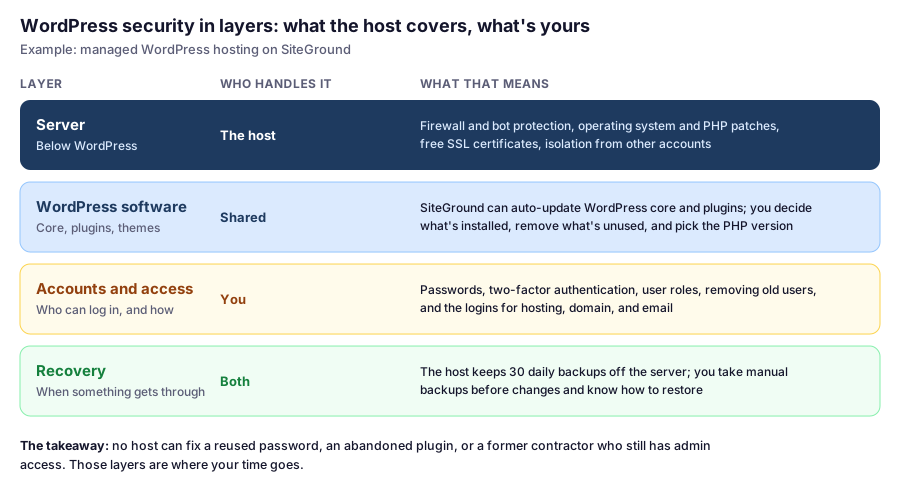
For the full breakdown of who maintains what on shared, managed VPS, and unmanaged hosting, see managed vs. shared hosting.
1. Lock Down Logins
Automated login attempts against wp-login.php are constant on any public WordPress site. The fixes are simple:
- A long, unique password for every admin, generated and stored by a password manager.
- No user called “admin”. It’s the first username automated attempts try. Create a new administrator with a different name, log in as that user, and delete the old one, attributing its content to the new account.
- Two-factor authentication (2FA) for every administrator. Even if a password leaks elsewhere, the attacker also needs the code from your phone.
- Limit login attempts, so repeated failures from one IP address are blocked for a while.
On SiteGround, the free Security Optimizer plugin covers all of this in one place. It offers a custom login URL, limited login attempts (blocking an IP for an hour, then 24 hours, then a week), and two-factor authentication using an authenticator app, required for all admin users. It also works on other hosts.
2. Keep Everything Updated, Automatically Where Possible
Vulnerabilities are found in WordPress plugins and themes all the time, and most attacks use flaws that already have a fix. An update you haven’t installed is an open door.
- WordPress core and plugins on SiteGround: Site Tools › WordPress › Autoupdate. SiteGround applies minor WordPress releases immediately and major ones after 24 hours by default, and can update plugins from the WordPress.org directory at the same time. It backs up the site before updating and reverts if it detects a problem.
- Per-plugin auto-updates in WordPress: on the Plugins screen, each plugin has an Enable auto-updates link. Turn it on for plugins from developers with a good track record.
- Premium plugins and themes often update only through their own license. Keep licenses active for anything you rely on, or replace it.
- Big updates on staging first. For WooCommerce, page builders, and major versions, test on a staging copy before live. Our SiteGround review shows the staging workflow.
Remove What You Don’t Use
A deactivated plugin’s files are still on your server, and a vulnerability in them can still be reachable. If you’re not using a plugin or theme, delete it. Keep one default WordPress theme as a fallback, and nothing else you don’t need.
3. Give People the Least Access They Need
| Person | WordPress role | Hosting access |
|---|---|---|
| You, the owner | Administrator | Full account |
| A developer working on the site | Administrator, for the project only | Site-level access via SiteGround’s collaborator options, never your main login |
| A writer | Author or Editor | None |
| A shop assistant | Shop Manager (WooCommerce) | None |
When someone leaves or a project ends, remove their access the same day: delete or downgrade their WordPress user, remove hosting and SFTP access, and change any passwords they knew.
4. Hardening You Can Verify
A few settings reduce what an attacker can do even after getting in, and each is easy to check.
Disable the built-in file editor. WordPress lets administrators edit theme and plugin code from the dashboard. If an admin account is ever compromised, that editor is the quickest way to plant malicious code. Add this line to wp-config.php, above the “That’s all, stop editing” comment:
define( 'DISALLOW_FILE_EDIT', true );After saving, Appearance › Theme File Editor and Plugins › Plugin File Editor disappear. Security Optimizer can switch this off for you too.
Disable XML-RPC if nothing uses it. It’s an older remote-access interface that’s often targeted by password-guessing tools. The Jetpack plugin and some mobile apps rely on it, so check before switching it off in Security Optimizer.
Check with WP-CLI. SiteGround includes WP-CLI, so over SSH you can run a quick audit from your site’s root folder:
wp user list --role=administrator
wp plugin list --update=available
wp core verify-checksums
wp plugin verify-checksums --all
In order, these list every administrator (look for anyone you don’t recognize), show plugins with pending updates, and compare WordPress core and your WordPress.org plugins against the official files. A checksum mismatch means a file has been changed and deserves a closer look. Premium plugins that aren’t on WordPress.org can’t be checked this way. Our SSH guide covers connecting.
5. Watch for Early Warning Signs
- An administrator you didn’t create. Check Users, filtered by Administrator, once a month.
- Unexpected redirects, especially on mobile or from search results, or spam links that appear only to search engines. Search Console’s Security Issues report flags known problems.
- New files or changed core files, which the checksum commands above will catch.
- A sudden jump in resource usage with no matching rise in real traffic. See shared hosting vs. VPS for where to find your host’s usage graphs.
- Site Health warnings under Tools › Site Health, such as an outdated PHP version or inactive plugins.
If Your Site Is Compromised
Stay calm and work in this order:
- Take a backup of the current state before changing anything, so you have evidence and can undo mistakes.
- Restore from a backup made before the problem started. SiteGround keeps 30 daily copies, so you can usually go back far enough. Our guide to backing up and restoring on SiteGround explains which restore option to use.
- Change every password: WordPress users, hosting account, SFTP and SSH, database, and email. Security Optimizer’s post-hack actions can force all users to reset passwords and log everyone out.
- Update everything and delete unused plugins and themes, so the hole that let the attacker in is closed.
- Check for rogue administrators and remove any you don’t recognize.
- Contact your host’s support if the problem comes back. They can see server-side logs you can’t.
Three Common Setups
These are illustrative examples.
A solo blogger. Turn on SiteGround Autoupdate for core and plugins, install Security Optimizer with 2FA and login limits, disable the file editor, and delete unused plugins. That’s an hour of setup and a few minutes a month of checking.
A small business with staff. Everything above, plus Author or Editor roles for writers, a written offboarding checklist, and a monthly look at the administrator list. Keep hosting access to the owner and the developer.
A freelancer managing client sites. Use collaborator access rather than shared logins, keep one administrator account per person, and run the WP-CLI audit on each site during monthly maintenance. On GrowBig or GoGeek, test updates on staging before deploying.
FAQ
Does SiteGround protect my WordPress site from hackers?
It protects the server: firewall and bot protection, server patching, free SSL, and 30 daily backups stored off the server. It can also auto-update WordPress and plugins. It can't choose your passwords, manage your users, or decide which plugins you install, so those remain your job.
Do I need a security plugin on SiteGround?
It's worth having one for login protection. SiteGround's free Security Optimizer adds two-factor authentication for admins, login attempt limits, a custom login URL, and hardening options like disabling the file editor and XML-RPC. Avoid running several security plugins at once.
How do I enable two-factor authentication in WordPress?
WordPress doesn't include 2FA by default, so use a plugin. On SiteGround, Security Optimizer requires authenticator-app codes for all admin users once enabled. Other security plugins offer similar options.
Should I delete inactive plugins?
Yes. Deactivated plugins still have files on your server, and a vulnerability in them can still be exploited. Delete anything you're not using, and keep one default theme as a fallback.
How can I tell if my WordPress files were modified?
If you have SSH access, run wp core verify-checksums and wp plugin verify-checksums --all with WP-CLI. They compare your core and WordPress.org plugin files with the official versions and report any that changed.
What should I do first if my WordPress site is hacked?
Back up the current state, restore from a backup made before the problem started, then change every password, update everything, delete unused plugins and themes, and remove unknown administrators. Contact your host if the problem returns.
A Reasonable Baseline
For most sites, this covers the realistic risks: automatic updates, unique passwords with 2FA for every admin, the fewest administrators possible, no unused plugins, the file editor disabled, and a backup you know how to restore. None of it is complicated. The sites that get hurt are usually the ones where nobody got around to it.