Shared Hosting vs VPS: When Should You Upgrade? (2026)

Some links on this page are affiliate links. If you buy through them, we may earn a commission at no extra cost to you. It never decides what we recommend —read how we make money.
“Should I move to a VPS?” usually comes up when a site feels slow or a host sends a resource warning. Sometimes a VPS is exactly the fix. Often it isn’t. The real problem is a heavy theme, a slow plugin, or caching that isn’t working, and a VPS just makes the same problem more expensive.
This guide is about making that call with evidence. It covers how to tell a server problem from a site problem, the error codes that mean you’ve hit a limit, the cheaper steps between shared hosting and a VPS, and how to size a VPS if you do need one. If you’re still working out what “managed” means and who maintains what, start with managed vs. shared hosting.
The Short Answer
- Stay on shared hosting if your site is new, your traffic is modest, or you haven’t checked caching yet. That’s most WordPress sites.
- Upgrade only for a resource problem: your host’s usage graphs hit the plan’s limits, or you see limit errors like 508 or 503, even though caching works.
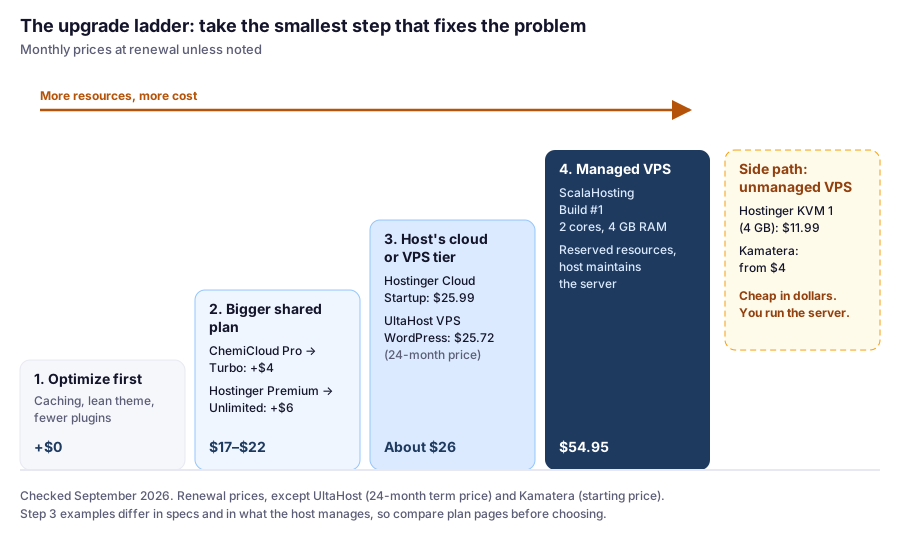
- Take the smallest step that fixes it. A bigger shared plan or your host’s own cloud tier often costs $4–$15 more a month. A managed VPS costs several times a shared plan’s renewal price.
- Choose a managed VPS unless you’re comfortable running Linux. An unmanaged VPS is cheap in dollars and expensive in time.
What Actually Changes When You Move to a VPS
| Shared hosting | VPS | |
|---|---|---|
| Resources | Per-account limits on a shared server | CPU and RAM allocated to your virtual server |
| When you hit the ceiling | Throttling or errors (508, 503) | Your server slows or runs out of memory |
| What you can change | PHP version and some settings | Everything (root access on unmanaged) |
| WordPress tools | Caching, staging, backups usually built in | Depends on the host’s panel; DIY on unmanaged |
| Who maintains the server | The host | The host (managed) or you (unmanaged) |
The row people miss is the second one. A VPS doesn’t remove limits; it changes what they are. On shared hosting, the host caps your account. On a VPS, the cap is the size of your server, and when you reach it, nothing protects you from yourself. A misconfigured VPS with 2 GB of RAM can fall over sooner than a well-run shared account.
Is It the Server or the Site? A Four-Step Diagnosis
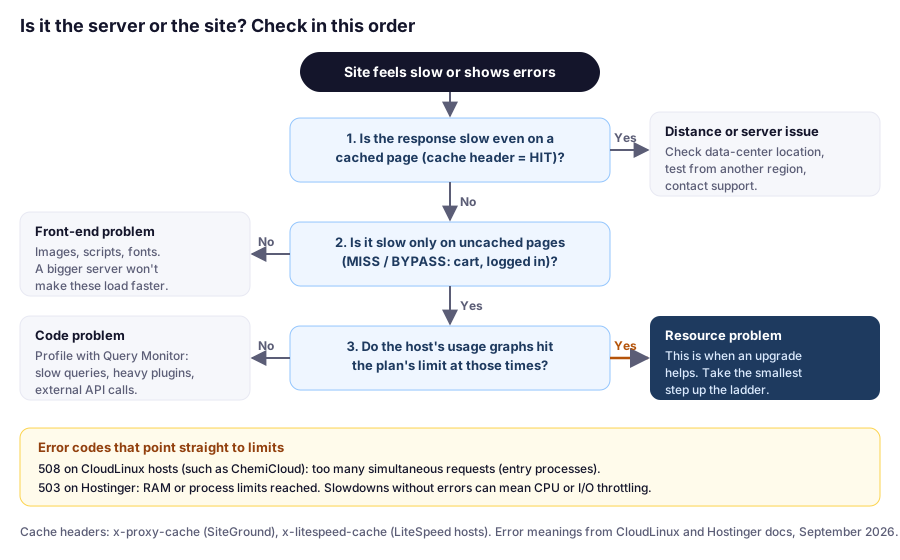
Work through these checks in order. Each one rules out a whole category of causes, and none of them costs anything.
Step 1: Measure Server Response Time on a Cached Page
Time to first byte (TTFB) is how long the server takes to start sending a page. It’s the part of “slow” that hosting actually controls. Google’s web.dev guidance suggests aiming for a TTFB of 0.8 seconds or less.
Run this in a terminal (macOS, Linux, or curl.exe in Windows PowerShell), logged out, with your own domain:
curl -s -o /dev/null -D - -w 'TTFB: %{time_starttransfer}s\n' https://yourdomain.com/ | grep -iE 'cache|TTFB'Run it two or three times. The first request may warm the cache. You’re looking for two things in the output:
- The cache header. On SiteGround it’s
x-proxy-cache; on LiteSpeed hosts like Hostinger and ChemiCloud it’sx-litespeed-cache.HITmeans the page came from cache. - The TTFB on that cached request. A cached page barely involves WordPress, so it should be quick.
If the TTFB is slow even on a HIT, the problem is below WordPress: distance to the data center, the network, or the server itself. Test from a tool that checks several regions, check where your site is hosted relative to your visitors, and contact support. That’s worth fixing, but it isn’t a reason to buy a bigger plan.
If you never see HIT at all, stop here and fix caching first. Our SiteGround review walks through what each cache status means.
Step 2: Compare an Uncached Page
Now test a page your cache skips. Search results (https://yourdomain.com/?s=test) often work, but confirm it: the header should say MISS or BYPASS. For a store, the cart page is the realistic test.
- Uncached pages are fast too, but the site still feels slow in a browser: the server isn’t the bottleneck. It’s front-end weight: images, scripts, fonts, third-party widgets. A bigger server won’t make those download faster. Start with a lighter theme such as GeneratePress and work through our speed optimization guide.
- Uncached pages are much slower than cached ones: that’s WordPress and the database doing work. Go to step 3 to find out whether they’re short of resources or just doing too much.
Step 3: Check Your Host’s Usage Graphs
Every host we cover publishes the limits and shows your usage against them:
| Host | Where to look | What the limit is |
|---|---|---|
| SiteGround | Client Area → Services → Hosting → Settings → Statistics | CPU seconds per hour, day, and month |
| Hostinger | hPanel → Websites → Dashboard → Hosting plan → Resources Usage | CPU, RAM, PHP workers, processes, I/O, inodes |
| ChemiCloud | cPanel → Metrics → Resource Usage | CPU, RAM, entry processes, I/O, IOPS, inodes |
Paths from each host’s knowledge base, checked September 2026.
Compare the graphs with the times your site was slow. If usage touches the limit exactly when problems happen, and caching is working, you have a resource problem. That’s when upgrading helps.
Hostinger’s own guidance gives a useful threshold: if RAM or process limits are hit 10–20 times a month, or CPU stays above 80% at peak, it suggests moving up a plan. Our Hostinger review covers how its limits work.
Step 4: If Resources Aren’t Maxed, Profile the Code
Slow uncached pages without maxed-out resources usually mean WordPress is waiting on something: a slow database query, a plugin calling an external API on every page load, or a cron job running at the wrong time.
The free Query Monitor plugin shows the database queries, PHP errors, hooks, and external HTTP requests behind each page, grouped by the plugin or theme that caused them. Install it, load a slow page while logged in, and check the queries and HTTP API calls panels. One plugin making dozens of slow queries is a common finding, and removing or replacing it costs nothing.
Remove Query Monitor when you’re done. It’s a diagnostic tool, not something to leave running.
Error Codes That Point Straight to Limits
Sometimes the host tells you directly. These errors are worth recognizing:
| What you see | What it usually means |
|---|---|
| 508 Resource Limit Is Reached | On CloudLinux hosts, such as ChemiCloud: too many simultaneous requests (the entry process limit) |
| 503 Service Unavailable | On Hostinger: RAM or process limits reached. On CloudLinux: memory or process limits |
| Slowdowns with no error | CPU or I/O limits: CloudLinux slows the account down rather than failing requests |
| A warning from the host about resource usage | SiteGround sends early warnings and, for extreme or repeated overuse, may limit access to the site until you act; ChemiCloud gets in touch with accounts that exceed their limits 100 times in 24 hours |
From CloudLinux’s documentation and each host’s published policies, checked September 2026.
A 508 is the clearest signal of the lot. It means requests arrived faster than your account is allowed to process them at once. The fix is either fewer uncached requests (better caching, blocking bots that hammer search or filter URLs) or more concurrency, which is what a higher plan or a VPS buys you.
The Upgrade Ladder
Most people jump straight from an entry shared plan to a VPS. There are usually one or two cheaper steps in between that solve the same problem.
Step 2: A Bigger Shared Plan
Higher tiers raise exactly the limits that cause trouble. ChemiCloud publishes them in detail (checked September 2026):
| ChemiCloud plan | CPU | RAM | Entry processes | Intro (36 mo) | Renews at |
|---|---|---|---|---|---|
| WordPress Starter | 1 core | 2 GB | 10 | $1.95/mo | $11.95/mo |
| WordPress Pro | 2 cores | 4 GB | 15 | $2.95/mo | $17.95/mo |
| WordPress Turbo | 3 cores | 6 GB | 30 | $3.95/mo | $21.95/mo |
Going from Pro to Turbo doubles entry processes and adds Redis object caching, which cuts database work on the pages that can’t be cached. If you’re seeing 508 errors, that’s the change that matters. See our ChemiCloud review.
On Hostinger, Premium to Unlimited goes from 1 core, 2 GB RAM, and 40 PHP workers to 2 cores, 3 GB, and 60 PHP workers. On SiteGround, each tier doubles CPU seconds per hour: 1,000 on StartUp, 2,000 on GrowBig, 4,000 on GoGeek.
Step 3: Your Host’s Cloud or VPS Tier
Some hosts sell a bigger tier inside the same lineup, so there’s no migration and the panel stays the same:
- Hostinger Cloud Startup: 4 CPU cores, 4 GB RAM, 100 GB storage, daily and on-demand backups. $7.99/mo on a 48-month term, renewing at $25.99/mo.
- UltaHost VPS WordPress: listed for 300 websites, 100 GB NVMe storage, and about 300,000 monthly visits, at $25.72/mo on a 24-month term (regular price listed at $45.47/mo). UltaHost’s 24-month plans aren’t covered by its refund policy, so read our UltaHost review before committing.
Step 4: A Managed VPS
A managed VPS reserves CPU and RAM for you while the host runs the server. ScalaHosting’s managed cloud is the example we cover in depth:
| ScalaHosting plan | CPU | RAM | Storage | Intro price | Renews at |
|---|---|---|---|---|---|
| Build #1 | 2 cores | 4 GB | 50 GB NVMe | $29.95/mo | $54.95/mo |
| Build #2 | 4 cores | 8 GB | 100 GB NVMe | $44.95/mo | $96.95/mo |
| Build #3 | 8 cores | 16 GB | 150 GB NVMe | $69.95/mo | $170.95/mo |
| Build #4 | 12 cores | 24 GB | 200 GB NVMe | $94.95/mo | $244.95/mo |
Prices checked September 2026. Includes SPanel, automatic offsite backups, and free website migration.
One advantage over shared tiers: you can add CPU and RAM to an existing ScalaHosting server without moving it, so you can start small. See our ScalaHosting review.
Side Path: An Unmanaged VPS
For developers who want full control at the lowest price per resource:
- Hostinger KVM 1: 1 vCPU and 4 GB RAM, $6.49/mo intro, renewing at $11.99/mo. Listed as self-managed.
- Kamatera: cloud servers from $4/mo (1 vCPU, 1 GB RAM), with a 30-day free trial worth up to $100 on one server.
- Evoxt: VPS plans from $2.99/mo, or $5.99/mo for 2 GB RAM.
Prices checked September 2026. Everything in the “unmanaged” column of our responsibility map becomes your job: OS patches, PHP, the firewall, SSL renewals, and backups.
How to Size a VPS for WordPress
If you do move to a VPS, RAM is usually the first thing to run out. A WordPress server runs three memory-hungry things at once: the web server, PHP, and the database. Sizing is simple addition:
RAM needed ≈ operating system + web server + database + (PHP workers × average memory per worker)
PHP is the part that grows with traffic. Each PHP-FPM worker handles one uncached request at a time, and the pm.max_children setting caps how many run at once. Set it too high and a traffic spike uses up the RAM; too low and requests queue.
Measure your real per-worker memory instead of guessing. On a running server:
ps -C php-fpm8.3 -o rss= | awk '{s+=$1; n++} END {printf "%d workers, avg %.0f MB\n", n, s/n/1024}'The process name depends on your PHP version and distribution. Run ps aux | grep php-fpm to find yours.
Worked example: say the OS, web server, and database use about 1 GB between them, and your workers average 80 MB each. On a 2 GB server, that leaves roughly 1 GB for PHP, or about 12 workers. On 4 GB, about 37. Your own numbers will differ with your plugins and theme. That’s why you measure.
A few more practical points:
- Caching changes the math more than RAM does. A page served from cache doesn’t use a PHP worker. Logged-in users, carts, and checkouts do, which is why stores and membership sites need bigger servers for the same traffic.
- Object caching (Redis) helps dynamic pages by keeping repeated database results in memory, at the cost of some RAM.
- Leave headroom. Backups, updates, and cron jobs use memory too. A server running at 95% RAM on a normal day has no room for a spike.
- Hosts’ shared limits hint at worker budgets. SiteGround allows up to 768 MB per process, and Hostinger gives 1,536 MB of PHP memory on Premium. Those are ceilings per process, not typical usage.
Four Scenarios, With the Math
These use prices verified in September 2026 and compare renewal prices, since that’s what you’ll pay long term. The sites are illustrative examples.
Scenario 1: A Blog Post Goes Viral on Hostinger Premium
Symptom: 503 errors for an afternoon while a post gets heavy traffic from social media.
Diagnosis: almost all of that traffic is anonymous visitors reading one article. If x-litespeed-cache says HIT on that post, the spike is being served from cache and the 503s came from something else, such as bots or an uncached page on the same site. If it says MISS, caching isn’t set up correctly, and that’s the fix.
The math: staying on Premium costs $10.99/mo at renewal. Moving to a managed VPS like ScalaHosting Build #1 at $54.95/mo would cost $527.52 more per year to solve a caching problem. If the spikes keep coming with caching working, Unlimited (+$6/mo, 60 PHP workers instead of 40) is the next step.
Scenario 2: A WooCommerce Store Gets 508 Errors During Sales
Symptom: a store on ChemiCloud WordPress Pro shows “508 Resource Limit Is Reached” during promotions. Resource Usage shows entry processes at the limit of 15.
Diagnosis: a genuine resource problem. Carts and checkouts can’t be page-cached, so every shopper uses an entry process.
The math: Turbo doubles entry processes to 30 and adds Redis for $4/mo more at renewal ($48/year). A managed VPS (Build #1) would be $444/year more than Pro at renewal. Try Turbo first. If Resource Usage still hits the limit during normal days, not just sales, that’s the point to move to a VPS.
Scenario 3: A Membership Site Running Out of CPU on SiteGround
Symptom: a course site on GrowBig gets CPU seconds warnings. Most members are logged in, so most pages bypass the cache.
Diagnosis: a resource problem driven by logged-in traffic. Caching can’t help much with those pages.
The math: GoGeek doubles the limit to 4,000 CPU seconds per hour for $15/mo more at renewal ($29.99 → $44.99, $180/year). A ScalaHosting Build #1 costs $24.96/mo more than GrowBig ($299.52/year) and gives the site 2 reserved cores and 4 GB of RAM. At this level, the gap between the top shared tier and an entry managed VPS is small. If the site is still growing, the VPS is probably the better long-term step; if the warnings are occasional, GoGeek is the smaller change.
Scenario 4: A Developer Weighing Unmanaged vs Managed
Situation: a developer needs a custom server setup (a background worker and a specific PHP extension) that shared hosting doesn’t allow.
The math: Hostinger KVM 1 renews at $11.99/mo with 4 GB of RAM; ScalaHosting Build #1 renews at $54.95/mo. The difference is $42.96/mo. That’s what you’re paid to be your own sysadmin. Divide it by what your time is worth: at $50/hour, it covers under an hour of server maintenance a month. If patches, backups, and the occasional late-night fix take longer than that, managed is the cheaper option.
How to Move Without Downtime
- Diagnose first using the four steps above, so you know which limit you’re fixing
- Pick the smallest step that raises that limit: a higher plan, your host’s cloud tier, or a VPS
- Take a full backup of the current site, files and database
- Use the new host’s migration service if there is one. ScalaHosting includes free website migration, for example.
- Test on the new server before switching DNS, using a temporary URL or your computer’s hosts file
- Lower your DNS TTL a day ahead, then update DNS. Check email records carefully. See why business email breaks after DNS changes.
- Keep the old account for a week as a fallback, then cancel
Our migration guide walks through a zero-downtime switch in detail. It’s written for SiteGround, but the process applies to any host.
Which Should You Choose?
- New site, or you haven’t checked caching yet: stay on shared hosting. For beginners we recommend SiteGround; for the lowest long-term cost, Hostinger.
- Hitting entry process or PHP worker limits: a bigger shared tier first, such as ChemiCloud WordPress Turbo.
- Want a VPS-sized WordPress plan from a budget host: UltaHost’s VPS WordPress plan, after reading the refund terms.
- Busy store, membership site, or agency, no sysadmin: a managed VPS like ScalaHosting’s managed cloud.
- Developer who wants full control: Kamatera or Evoxt.
To compare VPS providers side by side, see best VPS hosting for WordPress.
FAQ
What is the difference between shared hosting and a VPS?
With shared hosting, many accounts run on one server and the host caps each account's CPU, RAM, and processes. With a VPS, CPU and RAM are allocated to your own virtual server, and you can change the server software. The host maintains a managed VPS; you maintain an unmanaged one.
Is a VPS faster than shared hosting?
Not automatically. A VPS gives you reserved resources, but it has to be configured well, especially caching and PHP worker settings. A well-tuned shared plan can outperform a poorly configured VPS, and no server upgrade fixes front-end problems like heavy images and scripts.
How do I know if my WordPress site has outgrown shared hosting?
Check your host's resource usage graphs. If usage hits the plan's limits at the times your site is slow or showing errors, and caching is working, you've outgrown the plan. Errors like 508 (on CloudLinux hosts) or 503 during traffic are strong signals.
What does a 508 error mean on WordPress hosting?
On hosts that use CloudLinux, such as ChemiCloud, a 508 Resource Limit Is Reached error means your account had more simultaneous requests than its entry process limit allows. Better caching, blocking abusive bots, or a plan with more entry processes fixes it.
How much RAM does a WordPress VPS need?
Add up the operating system, web server, and database, then the number of PHP workers times their average memory. Measure the real per-worker memory on your server rather than guessing. For a real site on an unmanaged VPS, 1 GB or less is tight; 2 GB or more leaves room to work.
Is there something between shared hosting and a VPS?
Yes. Higher shared tiers raise the limits that usually cause problems, like ChemiCloud WordPress Turbo with 30 entry processes and 6 GB RAM, and some hosts sell cloud or VPS tiers in the same lineup, like Hostinger Cloud Startup or UltaHost's VPS WordPress plan.
Should a beginner use a VPS?
Usually not. Most new sites run well on shared hosting. If you do need a VPS, choose a managed one so the host handles the operating system, security updates, and backups.
The Bottom Line
A VPS solves one kind of problem: running out of resources or control. Before paying for one, check that caching works, compare cached and uncached response times, and look at your host’s usage graphs. If they hit the limit, take the smallest step up the ladder that raises it. For most growing sites, that’s a bigger shared plan or the host’s own cloud tier; for busy stores and membership sites, a managed VPS. Only choose an unmanaged VPS if you’d enjoy running the server yourself.
For every host we cover, see our WordPress hosting comparison.