ChemiCloud Review (2026): cPanel Hosting, Pricing & Pros/Cons
Some links on this page are affiliate links. If you buy through them, we may earn a commission at no extra cost to you. It never decides what we recommend —read how we make money.
ChemiCloud is the host I’d point a cPanel user to first. It pairs the control panel many people already know with modern WordPress tooling: LiteSpeed caching, Redis object caching, JetBackup restores, and one-click staging. It also publishes its resource limits in more detail than most shared hosts.
This review focuses on what those details mean in practice: what three years of prepaid hosting really costs, how CloudLinux limits like “entry processes” affect a WordPress site, where to find the tools that matter in cPanel, and the one staging setting that can wipe out live data if you’re not careful.
ChemiCloud gives cPanel users a capable WordPress stack at a low price, with published resource limits you can plan around. The catches are the 36-month term behind the intro price, renewals about six times higher, and no phone support. WordPress Pro is the plan most people should choose: it adds unlimited sites, staging, 20 daily backups, and double the CPU and RAM for $1/mo more.
Best for
- People who want cPanel on a WordPress plan
- Budget buyers who still want daily backups and staging (WordPress Pro and up)
- Developers who like published CPU, RAM, and process limits
- Buyers who want the longest refund window among the hosts we cover (45 days)
Not for
- Anyone who doesn't want to prepay 36 months for the intro price
- People who want phone support
- Multi-site owners on the cheapest plan (Starter is 1 website with no staging)
Price: WordPress Starter $1.95/mo (36 months, $70.20 upfront) · renews at $11.95/moPrices checked: September 2026
How We Evaluated ChemiCloud
I look at what decides how a WordPress site runs day to day: resource limits, caching, backups, staging, and PHP. That focus comes from my background as a front-end developer since 2016, including custom WordPress and theme development.
Prices, plan limits, and policies here were checked in September 2026. Promotions change, so confirm the final price at checkout.
ChemiCloud Plans and What You Really Pay
| Plan | Intro price | Paid upfront (36 months) | Renews at | Websites | Storage |
|---|---|---|---|---|---|
| WordPress Starter | $1.95/mo | $70.20 | $11.95/mo | 1 | 20 GB NVMe |
| WordPress Pro | $2.95/mo | $106.20 | $17.95/mo | Unlimited | 35 GB NVMe |
| WordPress Turbo | $3.95/mo | $142.20 | $21.95/mo | Unlimited | 50 GB NVMe |
Intro prices require a 36-month term. The discount is applied automatically at checkout, and promotional prices are for new customers on the first term only. Prices checked September 2026.
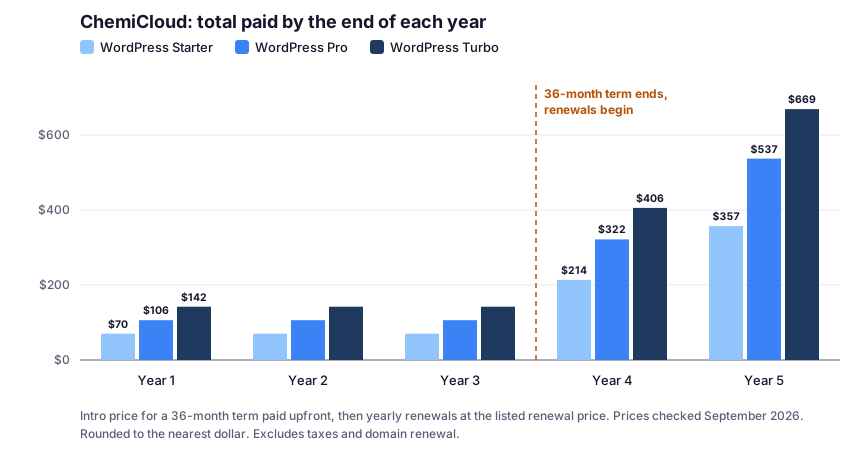
What the chart shows:
- Three years are paid upfront, and the amounts are small: $70.20 to $142.20.
- Year four is where the real price appears. Renewals add $143.40 (Starter) to $263.40 (Turbo) a year.
- Pro and Turbo are close in price but not in resources. Turbo costs $36 more upfront than Pro, and the resource table below shows what that buys.
Resource Limits: What CloudLinux Actually Gives You
ChemiCloud runs its shared hosting on CloudLinux, which gives each account its own set of limits. ChemiCloud’s resource usage policy spells them out:
| Limit | Starter | Pro | Turbo |
|---|---|---|---|
| CPU | 100% | 200% | 300% |
| RAM | 2 GB | 4 GB | 6 GB |
| Entry processes | 10 | 15 | 30 |
| Processes (NPROC) | 100 | 100 | 100 |
| I/O | 10 MB/s | 10 MB/s | 10 MB/s |
| IOPS | 1,024 | 1,024 | 1,024 |
| Inodes | 250,000 | 350,000 | 500,000 |
| Est. monthly visits (ChemiCloud’s estimate) | ~25,000 | ~50,000 | ~100,000 |
Limits checked September 2026.
What These Limits Mean for WordPress
CPU percentage is measured in cores. 100% is roughly one full CPU core, so Pro’s 200% is about two cores and Turbo’s 300% about three. That matches the “1 core / 2 cores / 3 cores” on ChemiCloud’s plan page.
Entry processes are the limit to watch. Entry processes (EP) cap how many dynamic requests your account can run at the same moment, such as uncached PHP page loads. They also count SSH sessions and cron jobs. With 10 on Starter, an eleventh simultaneous uncached request is over the limit, which is when visitors can start seeing “Resource Limit Reached” errors.
- Cached pages barely touch this limit, because they’re served without running PHP.
- Uncached traffic eats it quickly: logged-in users, wp-admin, WooCommerce cart and checkout, search, and form submissions.
- Cron jobs and backups running in the background count too, so a heavy scheduled task at peak time can squeeze real visitors.
This is why Turbo’s jump from 15 to 30 entry processes matters more for a store than its extra RAM.
Inodes count files, not size. Every WordPress file, plugin, image thumbnail, cache file, and email counts. Image-heavy sites and busy mailboxes hit inode limits before storage limits.
What happens when you exceed limits: processes slow down, or visitors see “Resource Limit Reached” errors. ChemiCloud gets in touch if an account exceeds its limits 100 times within 24 hours, to talk through optimizing it.
Where to check: cPanel › Metrics › Resource Usage shows CPU, RAM, entry processes, NPROC, I/O, IOPS, and inodes.
Finding Your Way Around ChemiCloud’s cPanel
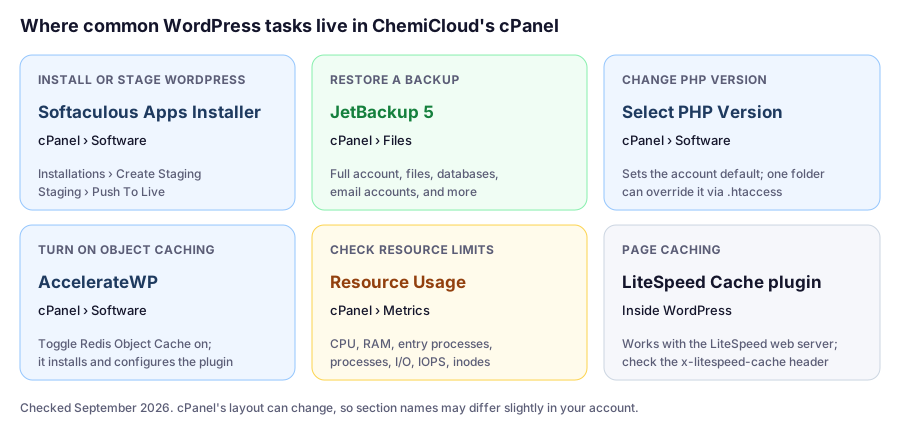
If you’re coming from a host with a custom dashboard, cPanel has more on screen. These are the six tools that matter most for a WordPress site:
Caching: LiteSpeed Plus Redis
ChemiCloud’s WordPress plans use two layers of caching:
- Page caching with LiteSpeed Cache on Starter and Pro. The LiteSpeed Cache plugin works with the LiteSpeed web server to cache your WordPress pages.
- Turbo Cache on Turbo, which adds OPcache, APC, and Redis.
- Redis object caching through AccelerateWP in cPanel (Software › AccelerateWP): click the gear icon for your WordPress site and toggle Redis Object Cache on. That installs, activates, and configures the Redis Object Cache plugin for you.
Redis is available on ChemiCloud’s web hosting, and it’s part of the Turbo plan’s caching stack. If Redis matters for your site, check that AccelerateWP offers the option on the plan you pick.
Why object caching matters here: page caching helps anonymous visitors. Redis helps the requests page caching can’t serve, like cart pages and wp-admin, by keeping repeated database query results in memory. Those same uncached requests are what use up entry processes.
How to Check That Page Caching Works
Because ChemiCloud uses LiteSpeed, the check is the same one LiteSpeed documents:
- Open your site in a private window so you’re logged out.
- Open DevTools › Network, reload, and click the page request.
- Look for
x-litespeed-cachein the response headers.hitmeans the page came from cache, andmissmeans it didn’t this time.
curl -sI https://yourdomain.com/ | grep -i x-litespeed-cacheIf you always see miss, something is wrong with the cache setup.
Backups: JetBackup 5
ChemiCloud’s backups are one of its strengths:
- Daily off-site backups on every plan, with 10, 20, or 30 daily backups kept on Starter, Pro, and Turbo
- Restores through JetBackup 5 in cPanel (Files › JetBackup 5)
- Granular restores: you can restore a full account, individual files, databases, or email accounts. JetBackup 5 also covers cron jobs, DNS zones, SSL certificates, database users, and FTP accounts.
Why granular restores matter: if one plugin corrupts a database table, you can restore just the database from before the problem, instead of rolling back the whole account and losing today’s uploads. And with 20 or 30 days of history on Pro and Turbo, you can recover from a problem you didn’t notice for a couple of weeks.
Staging: Know the Difference Between the Two Push Options
WordPress Pro and Turbo include one-click staging through Softaculous. You create it in cPanel under Software › Softaculous Apps Installer › Installations › Create Staging. ChemiCloud’s guide recommends turning off search engine visibility on the staging copy.
When you’re ready, Push To Live offers two methods, and the difference matters:
| Method | What it does |
|---|---|
| Default | Replaces all live files with the staging files, erases the live database, and imports the staging database |
| Customize | Lets you choose what to push: files, the full database, table structures, or table data |
PHP Versions: Account-Wide, With an Escape Hatch
You set PHP in cPanel under Software › Select PHP Version: choose a version and click Set as current. That sets the version for your whole account, and the exact screen can look slightly different depending on your cPanel version.
The useful detail: ChemiCloud documents how to give a single addon domain or folder a different PHP version by adding a handler line to its .htaccess file. On a Pro or Turbo plan hosting several sites, that means one site with an older plugin doesn’t have to hold the others back on an outdated PHP version.
My recommendation: run every site on a current PHP version. Use the .htaccess override only as a temporary fix while you update or replace incompatible code. Confirm each site’s version in WordPress under Tools › Site Health › Info › Server.
Which Plan Fits? Four Real-World Scenarios
These scenarios use ChemiCloud’s published prices and limits. The site types are illustrative examples.
Scenario 1: One Blog, and You Know cPanel
The site: a single blog with mostly anonymous readers.
Plan: Starter works if you’re sure you’ll only ever run one site and don’t need staging. Caching will keep most requests away from the 10 entry process limit.
Cost: $70.20 for three years, then $11.95/mo.
The case for Pro anyway: for $36 more over three years, you get staging, 50% more entry processes (15 vs. 10), double the CPU and RAM, 20 daily backups instead of 10, and room to add a second site later.
Scenario 2: A Freelancer Hosting Several Small Client Sites
The site: five low-traffic brochure sites.
Plan: Pro. Unlimited websites and staging for testing client updates.
Cost: $106.20 for three years, about $21 per site. After that, $17.95/mo, about $3.59 per site per month.
The catch: limits apply to the whole cPanel account. All five sites share 15 entry processes, 4 GB of RAM, and 350,000 inodes. One busy or badly behaved site affects the others, so keep heavier clients on their own plan.
Scenario 3: A Small WooCommerce Store
The site: a few hundred products and steady orders.
Plan: Turbo. Cart and checkout pages can’t be page-cached, so concurrency matters. Turbo doubles entry processes to 30, adds 6 GB of RAM, Redis-based caching, and Advanced Malware Protection.
Cost: $142.20 for three years, then $21.95/mo.
Watch: entry processes and CPU in Resource Usage during sales or promotions. If you’re regularly near the limits even with caching and Redis working, you’ve outgrown shared hosting. See shared hosting vs. VPS.
Scenario 4: Moving From Another cPanel Host
The situation: your current host’s renewal went up, and you already use cPanel.
Why ChemiCloud fits: the tools will be familiar, migrations are free and usually finish within an hour, and the 45-day money-back window gives you time to confirm everything works.
Before moving: make a full backup at your current host, check that the free-domain terms suit you (see below), and test the migrated site before changing DNS. Our migration guide covers a zero-downtime switch; the checks apply to any host.
Buying Details
- Refund: 45-day money-back guarantee, the longest among the hosts we cover. It doesn’t apply to additional services beyond the core hosting plan.
- Free domain: first year free with a 36-month shared hosting plan. If you cancel within the guarantee period, the refund is reduced by the domain’s regular registration rate.
- Support: 24/7 live chat and tickets, with a target first reply on tickets of under 10 minutes. There’s no phone support.
- Data centers: 16 locations, including Washington D.C. and Portland in the US, and London, Amsterdam, Paris, Frankfurt, Madrid, Milan, and Stockholm in Europe.
- Also on every plan: free Cloudflare CDN, free Let’s Encrypt SSL, unlimited email accounts and databases, and a 99.99% uptime guarantee.
ChemiCloud Pros and Cons
Pros
- cPanel with Softaculous, JetBackup 5, and AccelerateWP
- Detailed published limits, including CPU, RAM, entry processes, I/O, and inodes
- Daily off-site backups with granular restores (10–30 days)
- One-click staging from WordPress Pro, with a selective Customize push
- LiteSpeed caching plus Redis object caching
- Per-folder PHP version overrides via .htaccess
- 45-day money-back guarantee and free migrations
Cons
- Intro price requires a 36-month term
- Renewals are roughly 5–6× the intro price
- Starter: 1 website, 10 entry processes, no staging
- Resource limits are shared across all sites on an account
- Default staging push erases the live database
- No phone support
How ChemiCloud Compares
If cPanel is your main reason for considering ChemiCloud, see WordPress hosting with cPanel. For budget alternatives, see our cheap WordPress hosting comparison, and for every host we cover, our WordPress hosting comparison.
FAQ
Is ChemiCloud good for WordPress?
Yes, especially if you want cPanel. Its WordPress plans combine LiteSpeed caching, Redis object caching through AccelerateWP, daily off-site backups with JetBackup 5, and one-click staging from WordPress Pro, with detailed published resource limits.
What are entry processes on ChemiCloud?
Entry processes limit how many dynamic requests, such as uncached PHP page loads, your account can run at the same time; SSH sessions and cron jobs count too. Starter gets 10, Pro 15, and Turbo 30 (checked September 2026). Cached pages barely use them, so caching matters.
How much does ChemiCloud cost after renewal?
As of September 17, 2026, WordPress plans renew at $11.95/mo (Starter), $17.95/mo (Pro), and $21.95/mo (Turbo). The intro prices of $1.95, $2.95, and $3.95/mo require a 36-month term.
How do I restore a backup on ChemiCloud?
In cPanel, go to Files, then JetBackup 5, choose the backup type (full account, files, databases, or email), pick a date, and click Restore. ChemiCloud keeps 10, 20, or 30 daily backups depending on your WordPress plan.
Is ChemiCloud's staging push safe?
It depends on the method. The Default push erases the live database and imports the staging one, which can lose new orders or comments. The Customize option lets you push only selected files and tables. Take a backup before pushing.
How do I enable Redis on ChemiCloud?
In cPanel, go to Software, then AccelerateWP, click the gear icon for your WordPress site, and toggle Redis Object Cache on. That installs and configures the Redis Object Cache plugin automatically.
Does ChemiCloud have phone support?
No. Support is 24/7 live chat and support tickets.
Final Verdict
ChemiCloud gives cPanel users an unusually complete WordPress toolkit for the price: LiteSpeed and Redis caching, JetBackup restores down to a single database, staging with a selective push, and resource limits clear enough to plan around. For most people, WordPress Pro is the sweet spot.
Go in knowing the terms: a 36-month prepayment for the intro price, renewals several times higher, shared limits across all sites on an account, and a Default staging push that replaces your live database. Use the tools the way this review describes, and ChemiCloud is one of the best values we cover.