SiteGround Review (2026): Pricing, Renewals, Pros & Cons

Some links on this page are affiliate links. If you buy through them, we may earn a commission at no extra cost to you. It never decides what we recommend —read how we make money.
SiteGround is one of the hosts most often recommended to WordPress beginners, including by us. It’s also one of the hosts people most often complain about at renewal time. Both are true.
Most SiteGround reviews stop at the plan list. This one goes further. It covers the resource limits that decide whether a plan fits your site, how SiteGround’s caching works and how to check it in a minute, what its backups and staging tools actually do, and what four realistic types of site owners will pay over three years.
SiteGround is a well-engineered managed WordPress host. It has a layered caching system you can verify yourself, 30 days of daily backups stored away from your server, and a staging tool that backs up your live site every time you deploy. The main drawback is price: after the first 12 months, plans renew at around six times the intro rate. For most people, GrowBig is the plan to get.
Best for
- First-time WordPress site owners who want the server side handled
- Small business sites that need reliable backups and a safe way to test updates
- Freelancers who manage several client sites and want staging, Git, and white-label access
Not for
- Budgets that can't absorb renewal prices of $17.99–$44.99/mo
- Anyone who specifically wants cPanel
- Large stores that will outgrow shared hosting limits
Price: From $2.99/mo prepaid for 12 months · renews at $17.99/moPrices checked: September 2026
How We Evaluated SiteGround
I look at the parts of a host that decide how a WordPress site behaves day to day: resource limits, caching, backups, staging, and PHP versions. That focus comes from my background as a front-end developer since 2016, including custom WordPress and theme development.
Prices, plan specifications, and policies here were checked in September 2026. Hosting offers change often, so confirm the final price at checkout.
SiteGround Plans and Pricing
| Plan | Intro price | Renews at | Websites | Storage |
|---|---|---|---|---|
| StartUp | $2.99/mo | $17.99/mo | 1 | 10 GB |
| GrowBig | $4.99/mo | $29.99/mo | Unlimited | 50 GB |
| GoGeek | $7.99/mo | $44.99/mo | Unlimited | 100 GB |
Intro prices are prepaid for 12 months. Prices checked September 2026.
The intro discount applies to your first invoice only. Here’s what that means over time:
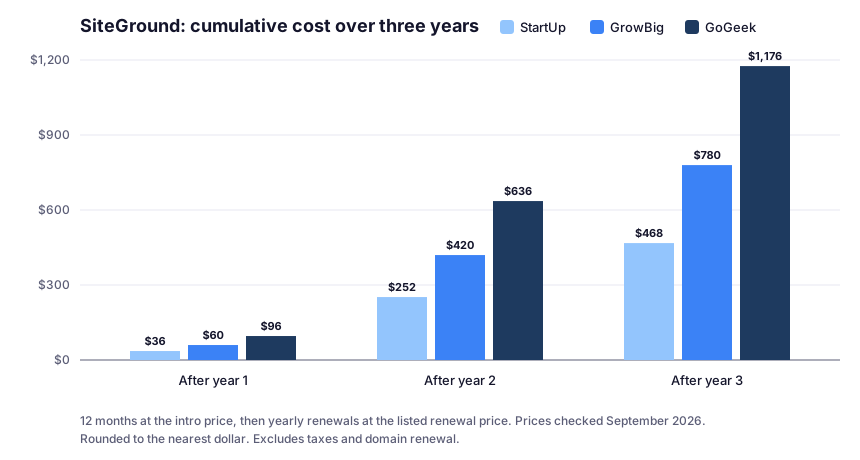
| Plan | Year 1 | Year 2 | Year 3 | 3-year total |
|---|---|---|---|---|
| StartUp | $35.88 | $215.88 | $215.88 | $467.64 |
| GrowBig | $59.88 | $359.88 | $359.88 | $779.64 |
| GoGeek | $95.88 | $539.88 | $539.88 | $1,175.64 |
The pattern is the point: year one is cheap, and every year after costs six times as much. Budget for year two before you buy.
The Resource Limits That Actually Decide Your Plan
“Unlimited traffic” appears on every SiteGround plan, but traffic isn’t what runs out. Server resources are. SiteGround publishes its limits in its fair use policy, and they’re more useful than any marketing table:
| Limit | StartUp | GrowBig | GoGeek |
|---|---|---|---|
| CPU seconds per hour | 1,000 | 2,000 | 4,000 |
| CPU seconds per day | 10,000 | 20,000 | 40,000 |
| CPU seconds per month | 300,000 | 600,000 | 800,000 |
| Inodes (files and folders) | 200,000 | 400,000 | 600,000 |
| RAM per process | 768 MB | 768 MB | 768 MB |
| Database size | 1,000 MB | 1,000 MB | 1,000 MB |
Limits checked September 2026. A site getting more than about 10,000 unique visits a month will usually outgrow StartUp.
What These Numbers Mean in Practice
CPU seconds measure work, not visits. Every time WordPress runs PHP to build a page, it uses CPU time. A page served from cache uses almost none. So two sites with the same traffic can use very different amounts of CPU:
- A cached blog where most visitors read public posts uses little CPU per visit.
- A WooCommerce store uses much more, because cart, checkout, and account pages can’t be served from the page cache (more on that below).
- Heavy plugins, frequent scheduled tasks, and bot traffic hitting uncached URLs all add CPU use.
Inodes are file counts. WordPress core, every plugin and theme, each image and its generated thumbnail sizes, cache files, and email messages all count. An image-heavy site can reach its inode limit before it runs out of storage space.
The 1,000 MB database guideline matters for stores. Orders, customers, logs, and some analytics or security plugins grow the database over time. A small blog rarely gets close; a busy store with years of orders can.
What happens if you exceed limits: SiteGround relies on early warnings where possible, and in cases of extreme or repeated overuse it may limit access to your site. In practice, you’ll usually get a chance to optimize or upgrade first.
How SiteGround’s Caching Works
Caching is the main reason a SiteGround site can stay fast within those CPU limits. SiteGround uses several layers, controlled through its Speed Optimizer plugin:
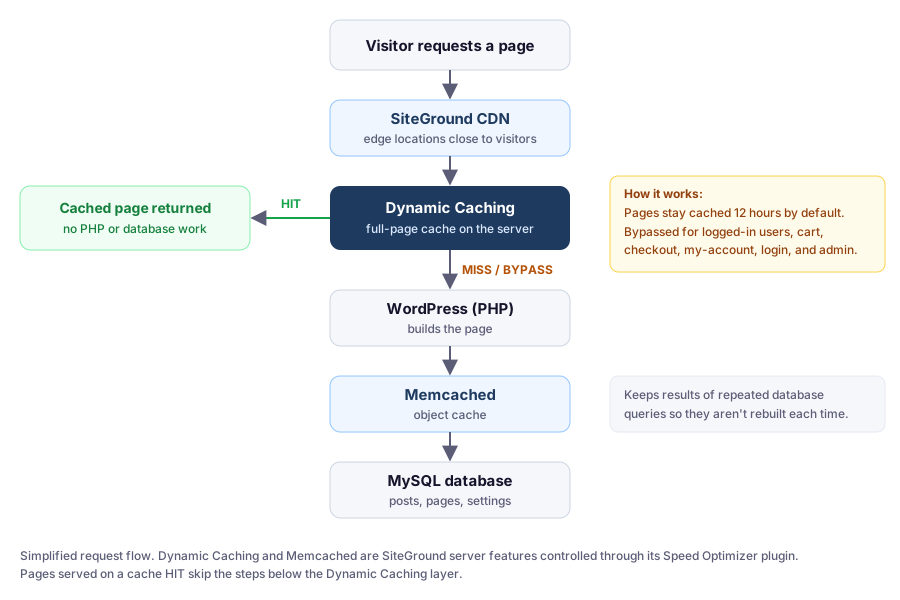
- Dynamic Caching stores full pages on the server. A standard page stays cached for 12 hours by default. When a cached copy exists, the visitor gets it without WordPress running PHP or querying the database.
- Memcached is an object cache. When WordPress does have to build a page, it can reuse the results of repeated database queries instead of running them again.
- File-based caching is also available through the Speed Optimizer plugin.
- SiteGround CDN is included on every plan and serves content from locations closer to your visitors.
What Can’t Be Cached (and Why It Matters)
Dynamic Caching is bypassed for:
- Logged-in users
- Login, admin, cart, checkout, and my-account pages
- WooCommerce-related cookies and cart activity
- Pages that send a
Cache-Control: no-cacheheader
This isn’t a flaw. Those pages are personal to each visitor and shouldn’t be cached. But it explains why a store or membership site uses far more CPU than a blog with the same traffic: much of its traffic can’t be served from the page cache.
How to Check SiteGround Caching Is Working (60 Seconds)
This is a check I’d run on any new SiteGround site. It needs no plugins.
Using your browser:
- Open your site in a private or incognito window. You need to be logged out, since logged-in users bypass the cache.
- Open DevTools (F12), go to the Network tab, and reload the page.
- Click the first request, which is the page itself, and look at Response Headers.
- Find
x-proxy-cache:HIT: the page was served from cacheMISS: the page was built dynamically. Reload once more; the first request after caching or expiry is a MISS.BYPASS: caching was skipped on purpose, for example because you’re logged in or it’s a cart page
Using the command line:
curl -sI https://yourdomain.com/ | grep -i x-proxy-cacheRun it twice. The second response should show HIT for a normal public page.
If you keep getting MISS or BYPASS on public pages, make sure Dynamic Caching is enabled in Speed Optimizer, and check whether a plugin is setting cookies or no-cache headers for every visitor.
Clearing the cache: Speed Optimizer purges the cache automatically when you update content. You can also flush it from the Caching section in Site Tools, or with the WP-CLI command wp sg purge.
Speed Optimizer: What to Turn On First
SiteGround’s Speed Optimizer plugin has 1+ million active installations and a 4.2 out of 5 rating on WordPress.org (checked September 2026). It bundles four groups of features:
| Group | Features |
|---|---|
| Caching | Dynamic Caching*, File-based caching, Memcached* |
| Environment | HTTPS enforce, scheduled database maintenance, Heartbeat control |
| Frontend | Minify HTML, CSS, and JS; combine CSS; defer render-blocking JS; web font optimization and preloading |
| Media | Image compression*, WebP support, lazy loading, maximum image width |
*SiteGround-exclusive features, per the plugin listing. The plugin works on other hosts, but these features don’t.
The order I’d enable things in:
- Caching (Dynamic Caching and Memcached). This has the biggest impact and low risk of breaking anything.
- Media: image compression, WebP, and lazy loading. Also low risk, and often a big win on image-heavy pages.
- Environment: HTTPS enforce, and database maintenance.
- Frontend optimizations last, one at a time. Combining CSS or deferring JavaScript is where layouts and interactive features most often break, because the order and timing of scripts change. Enable one option, check your key pages, including forms, menus, sliders, and checkout, then move on.
Which of these settings is worth your time depends on what’s actually slow. Our WordPress speed optimization guide walks through diagnosing that before you start flipping switches.
Backups: What You Actually Get
Backups are one of SiteGround’s strongest areas, and the details are better than the plan page suggests:
- 30 daily automatic backup copies on shared hosting plans
- Stored on a different server from the one hosting your site, and for most accounts in a different geographic location
- Granular restores: restore everything, or only specific files, specific databases, or email accounts
- Manual (on-demand) backups: 5 free slots on GrowBig and GoGeek. StartUp has none unless you add Premium Backup, which gives StartUp 5 slots and GrowBig or GoGeek 10. Manual backups don’t expire until you delete them.
- Where: Site Tools › Security › Backups
- Premium Backup is an optional paid add-on that adds 7 more daily copies (37 in total), hourly backups for the last 48 hours, extra manual slots, and the ability to download backups
Why the details matter: 30 days of history means that if a problem goes unnoticed for a week, such as a malware injection or a plugin that quietly corrupted data, you can still go back to before it started. Granular restores mean you can recover one deleted folder or database without rolling back the whole site and losing today’s orders or comments.
Our guide to backing up and restoring on SiteGround walks through the restore steps.
Staging: A Safer Way to Update Your Site
Staging is included on GrowBig and GoGeek, and it’s the feature I’d upgrade from StartUp for. Here’s how SiteGround’s staging workflow works:
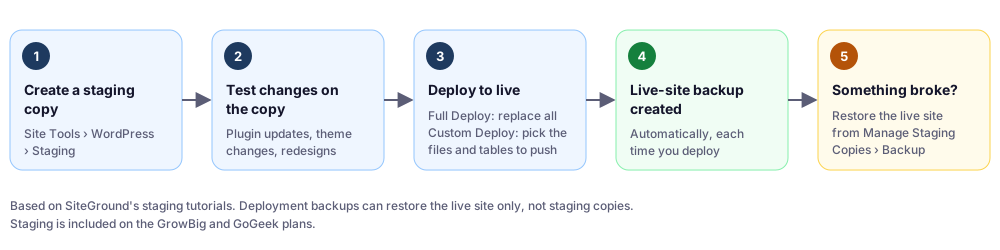
Full Deploy vs. Custom Deploy:
- Full Deploy replaces both the files and the database of your live site with the staging copy.
- Custom Deploy compares the staging copy with the live site and lets you choose which files and database tables to add, update, or delete.
Why Custom Deploy matters for real sites: a full deploy overwrites the live database. If your site received comments, form entries, or orders while you were working on staging, a full deploy would replace that newer data with the older staging copy. Custom Deploy lets you push only what you changed, such as theme files or specific tables, and leave the rest alone. For any site with ongoing activity, I’d default to Custom Deploy.
The safety net: SiteGround creates a backup of your live site every time you deploy a staging copy. If a deployment goes wrong, restore it from Site Tools › WordPress › Staging › Manage Staging Copies › Backup. Those deployment backups can restore the live site only, not staging copies.
A sensible update routine on GrowBig or GoGeek:
- Create a fresh staging copy.
- Update plugins, themes, or WordPress core on staging.
- Click through key pages: the homepage, a post, forms, and checkout if you have a store.
- Deploy with Custom Deploy if the live site has had new activity.
- Check the live site, and restore from the deployment backup if anything’s wrong.
PHP Versions: Managed vs. Manual
PHP is the language WordPress runs on, and its version affects both security and speed. SiteGround gives you two options in Site Tools › Devs › PHP Manager:
- Managed PHP: SiteGround periodically moves sites to a newer stable default PHP version.
- Manual: you pick the version yourself, and SiteGround won’t update it automatically.
My recommendation: stay on Managed PHP unless a plugin or theme is incompatible with a newer version. If you switch to manual to work around an incompatibility, treat it as temporary. Fix or replace the incompatible code, then switch back, so you don’t end up on an outdated version.
You can confirm which version your site runs under Tools › Site Health › Info › Server in WordPress. GrowBig and GoGeek also run on a faster PHP setup than StartUp.
Which Plan Fits? Four Real-World Scenarios
These scenarios use SiteGround’s published prices and limits. The site types are illustrative examples, not case studies.
Scenario 1: A New Personal Blog
The site: one blog, a few posts a week, a few thousand visitors a month at first, no store.
Plan: StartUp. One site, daily backups, and caching are enough. SiteGround’s own guidance is that you’ll outgrow StartUp above about 10,000 unique visits per month.
Cost: $35.88 in year one, $215.88 per year after that, so $467.64 over three years.
When to upgrade: when traffic approaches 10,000 unique monthly visits, when you get resource warnings, or when you want staging to test updates safely. An upgrade runs until your current plan’s expiration, and you pay the price difference for that period. Based on the regular prices, moving from StartUp to GrowBig with 6 months left would be about ($29.99 − $17.99) × 6 = $72. Your exact quote appears in the Client Area.
Scenario 2: A Small Business Website
The site: a company site with a contact form and a blog. Losing leads or showing a broken page would cost real money.
Plan: GrowBig. The reason isn’t traffic. It’s staging and manual backup slots. Being able to test a plugin update before it touches the live site is worth more to a business than the price difference.
Cost: $59.88 in year one, $359.88 per year after that, $779.64 over three years, plus the domain renewal after its free first year.
What I’d set up on day one: Dynamic Caching and Memcached on, image optimization on, a manual backup before every update, and a monthly update routine done on staging.
Scenario 3: A Freelancer Hosting 10 Client Sites
The site: ten small brochure sites for clients, each with light traffic.
Plan: GoGeek. It adds Git integration, white-label access for client-facing work, and priority support.
Cost per site: at renewal, $44.99/mo ÷ 10 sites = about $4.50 per site per month.
The catch: resource limits apply to the whole account, not per site. All ten sites share 4,000 CPU seconds per hour and 600,000 inodes. That’s an average of 400 CPU seconds per hour and 60,000 inodes per site. Fine for light brochure sites, but one busy or badly optimized client site can affect the rest. Keep heavier clients on their own plan.
Scenario 4: A Growing WooCommerce Store
The site: a store with a few hundred products and steady orders.
Plan: GoGeek to start — the plan aimed at average-sized online stores. For large stores, SiteGround’s Cloud hosting is the next step up.
Why stores need more: cart, checkout, and account pages bypass the page cache, so every shopper who adds to cart and checks out makes PHP and the database do real work. Watch CPU seconds as orders grow, and keep an eye on database size, since the fair use policy asks you to keep databases up to 1,000 MB. For store setup, see our WooCommerce setup guide.
When to move up: repeated resource warnings despite caching and optimization. At that point, you’ve outgrown shared hosting. See shared hosting vs. VPS.
Buying Details: Refunds, Support, Migration, and Data Centers
- No free trial. Instead, SiteGround offers a 30-day money-back guarantee on shared hosting. Domain fees and paid services aren’t refundable. Build your site in the first week or two so you have time to decide.
- Support: available 24/7 via live chat, phone, and tickets. Phone support is English-only and may be routed to another channel for complex issues. Priority support is a GoGeek feature.
- Migration: a free SiteGround Migrator plugin, plus one free professional migration. See our migration guide.
- Data centers: 11 locations on four continents, including the US, UK, Netherlands, Germany, France, and Spain. Choose the one closest to most of your visitors at signup.
- Control panel: SiteGround uses its own Site Tools, not cPanel.
- Payments: cards at checkout. PayPal is arranged through support; see how PayPal works with SiteGround.
Ready to buy? Our SiteGround buying guide walks through checkout.
SiteGround Pros and Cons
Pros
- 30 daily backups stored off-server, with file, database, and email-level restores
- Layered caching (Dynamic Caching, Memcached, CDN) you can verify with one header
- Staging with Custom Deploy and an automatic live-site backup on every deploy (GrowBig and up)
- Published resource limits, so you can size a plan realistically
- Managed PHP updates
- Speed Optimizer covers caching, media, and frontend optimization in one plugin
- 30-day money-back guarantee
Cons
- Renewals are about 6× the intro price
- StartUp: 1 site, 10 GB, and no staging
- Resource limits are shared across all sites on an account
- Store-heavy traffic bypasses page caching, so CPU limits matter more
- No cPanel
- No free trial
How SiteGround Compares
SiteGround isn’t the cheapest option. If long-term cost matters most, see SiteGround vs Hostinger. If you want cPanel or specific trade-offs, see SiteGround alternatives. For every host we cover, see our WordPress hosting comparison.
FAQ
Is SiteGround worth it?
For sites where reliable backups, safe updates, and managed caching matter, yes. You're paying for 30 days of off-server backups, staging, and a well-engineered caching stack. It's not the cheapest after renewal, since StartUp renews at $17.99/mo (checked September 2026).
Which SiteGround plan should I choose?
StartUp for a single new site under about 10,000 unique monthly visits. GrowBig for most business sites, because staging and manual backup slots make updates safer. GoGeek for freelancers managing several client sites or average-sized stores.
How do I check if SiteGround caching is working?
Open your site in a private window, open DevTools, go to the Network tab, reload, and check the x-proxy-cache response header on the page request. HIT means it was served from cache, MISS means it was built dynamically, and BYPASS means caching was skipped on purpose, for example for logged-in users.
How many backups does SiteGround keep?
Shared hosting plans keep up to 30 daily automatic backups, stored on a different server from your site. GrowBig and GoGeek include 5 free manual backup slots; StartUp gets manual slots only with the paid Premium Backup add-on.
What are SiteGround's resource limits?
Per SiteGround's fair use policy (checked September 2026): CPU seconds of 1,000, 2,000, and 4,000 per hour for StartUp, GrowBig, and GoGeek; inodes of 200,000, 400,000, and 600,000; up to 768 MB RAM per process; and databases up to 1,000 MB.
Why is SiteGround so expensive at renewal?
The advertised prices are discounted for the first 12 months only. After that, plans renew at $17.99/mo (StartUp), $29.99/mo (GrowBig), and $44.99/mo (GoGeek), checked September 2026.
Does SiteGround use cPanel?
No. SiteGround uses its own control panel, Site Tools.
Final Verdict
SiteGround’s strengths are the unglamorous things that decide whether a site survives a bad day: 30 days of off-server backups, granular restores, a staging tool that backs up your live site on every deploy, and caching you can verify in seconds. Its published resource limits also make it easier than most hosts to judge whether a plan truly fits.
The trade-off is cost after year one. Go in budgeting for the renewal price, choose GrowBig if your site matters to your income, and use the tools covered above. That way you’ll get the value you’re paying for.