How to Buy SiteGround Hosting: Which Plan to Choose (2026)
Some links on this page are affiliate links. If you buy through them, we may earn a commission at no extra cost to you. It never decides what we recommend —read how we make money.
SiteGround’s checkout can feel like more of a decision than it needs to be. There are three plans, a renewal price to understand, a domain step, and some optional extras. This guide takes you through it in order: pick the right plan, understand the real cost, then check out without paying for things you don’t need.
If you’re still deciding whether SiteGround is right for you, start with our SiteGround review and come back here once you’re ready to buy.
Before You Buy: A 60-Second Checklist
- Know how many sites you’ll run. One site can go on StartUp; more than one means GrowBig or GoGeek.
- Decide on your domain. Register a new one during checkout, or use one you already own.
- Know where most of your visitors are. You’ll want a data center close to them.
- Budget for the renewal price, not just the first year. More on that below.
Step 1: Choose the Right Plan
SiteGround’s WordPress hosting comes in three plans:
| StartUp | GrowBig | GoGeek | |
|---|---|---|---|
| Intro price | $2.99/mo | $4.99/mo | $7.99/mo |
| Renews at | $17.99/mo | $29.99/mo | $44.99/mo |
| Websites | 1 | Unlimited | Unlimited |
| Storage | 10 GB | 50 GB | 100 GB |
| Daily backups | ✓ | ✓ | ✓ |
| On-demand backups | —* | ✓ | ✓ |
| Staging | — | ✓ | ✓ + Git |
| Priority support | — | — | ✓ |
Intro prices are prepaid for 12 months. Prices checked September 2026, on SiteGround’s WordPress hosting page. *GrowBig and GoGeek include 5 free manual backup slots. On StartUp, manual backups come only with the paid Premium Backup add-on.
Every plan also includes free SSL, a CDN, email, managed WordPress auto-updates, SiteGround’s firewall and bot protection, free migration tools, and a free domain for the first year.
Which One Should You Pick?
Choose StartUp if you’re launching a single blog, portfolio, or small business site, 10 GB of storage is plenty, and you’re comfortable applying updates without a staging copy. It’s the lowest cost both upfront and at renewal.
Choose GrowBig if you plan to run more than one website, or you want staging. Staging gives you a private copy of your site where you can test plugin updates, theme changes, or a redesign before it touches the live site. From a developer’s point of view, that’s the single most useful upgrade from StartUp. GrowBig also adds on-demand backups, so you can take a snapshot right before a risky change.
Choose GoGeek if you build sites for clients or work like a developer. It adds Git integration alongside staging, white-label access, private DNS, and priority support. For a single personal or small business site, most of that goes unused.
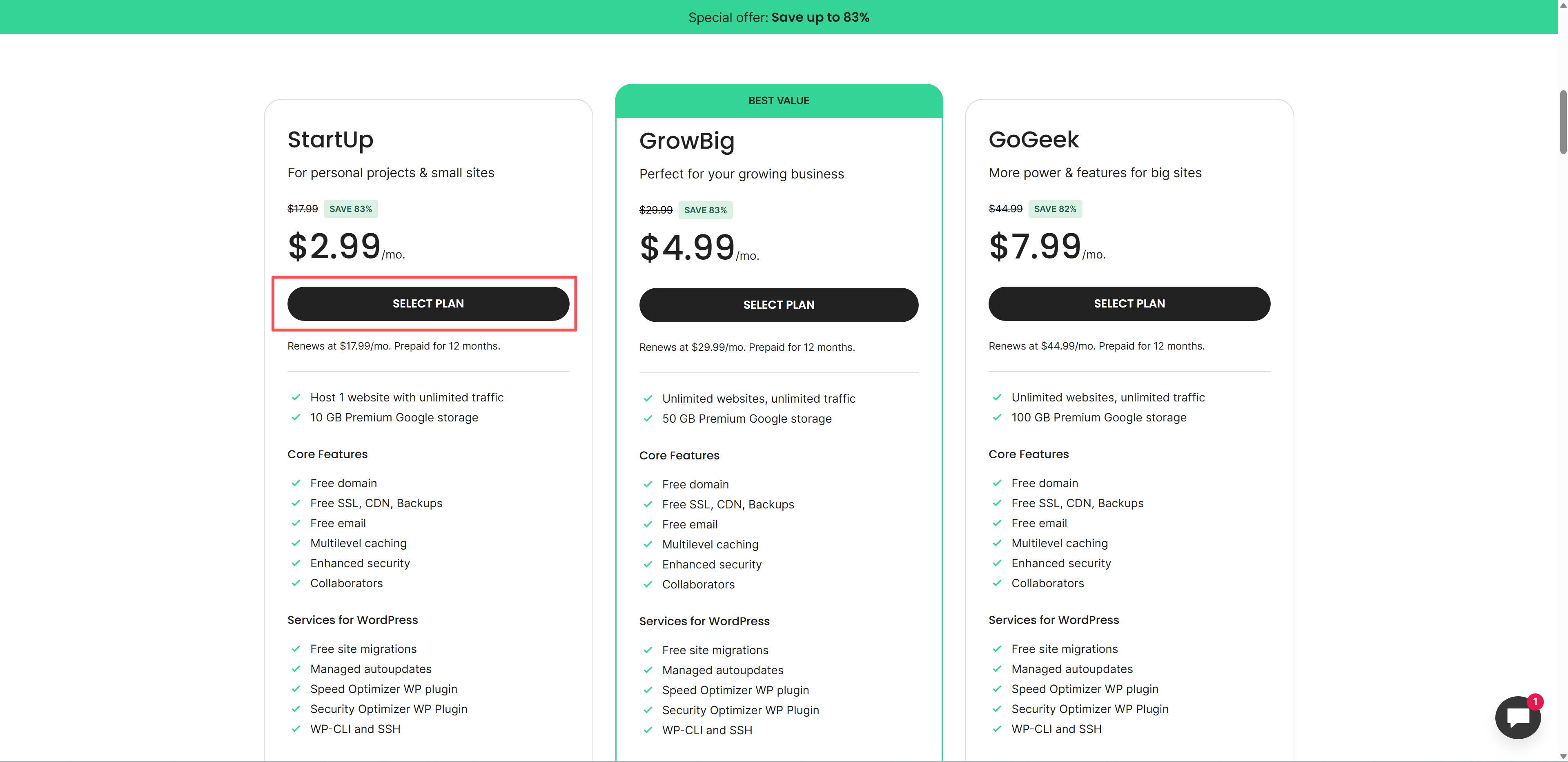
Each plan card shows the discounted first-term rate up front and the regular renewal price below it. Read that second number before you click. It’s the price that applies from your second billing cycle onward.
Step 2: Understand What You’ll Really Pay
The advertised price is an introductory rate for your first invoice. SiteGround’s intro prices are prepaid for 12 months, and plans then renew at the regular rate.
Here’s what that means over three years, assuming you renew yearly at the listed rate:
| Plan | Year 1 | Years 2 and 3 (each) | 3-year total |
|---|---|---|---|
| StartUp | $35.88 | $215.88 | $467.64 |
| GrowBig | $59.88 | $359.88 | $779.64 |
| GoGeek | $95.88 | $539.88 | $1,175.64 |
Based on prices checked September 2026. Excludes taxes and domain renewal after the free first year.
The dates matter as much as the totals. Here’s what happens in your first year, and when you need to act:
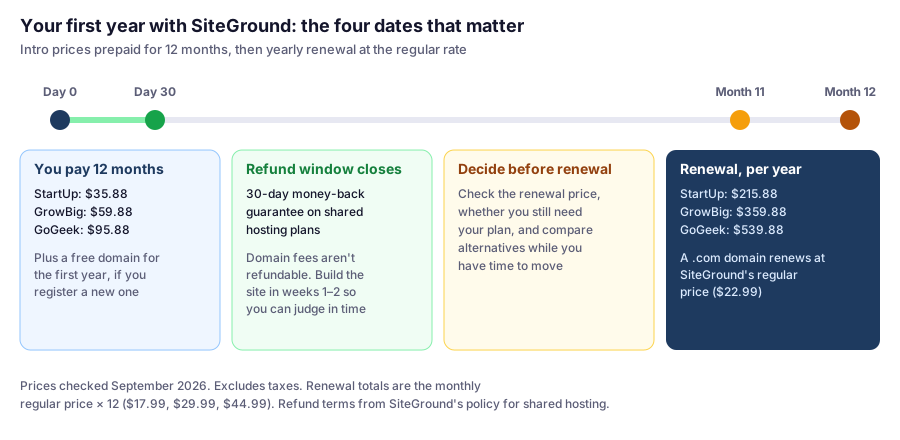
Put two reminders in your calendar the day you buy: day 25, to decide whether to keep the account while you can still get a refund, and month 11, to check the renewal price and your plan before the year-two invoice.
If checkout offers other billing periods, compare the total amount due and the renewal terms for each option, not just the monthly figure. A lower monthly price usually means paying for more months upfront.
Step 3: Add Your Domain
After picking a plan, checkout runs through three steps: choose a plan, add a domain, then review and complete the order.
The domain step gives you two options.
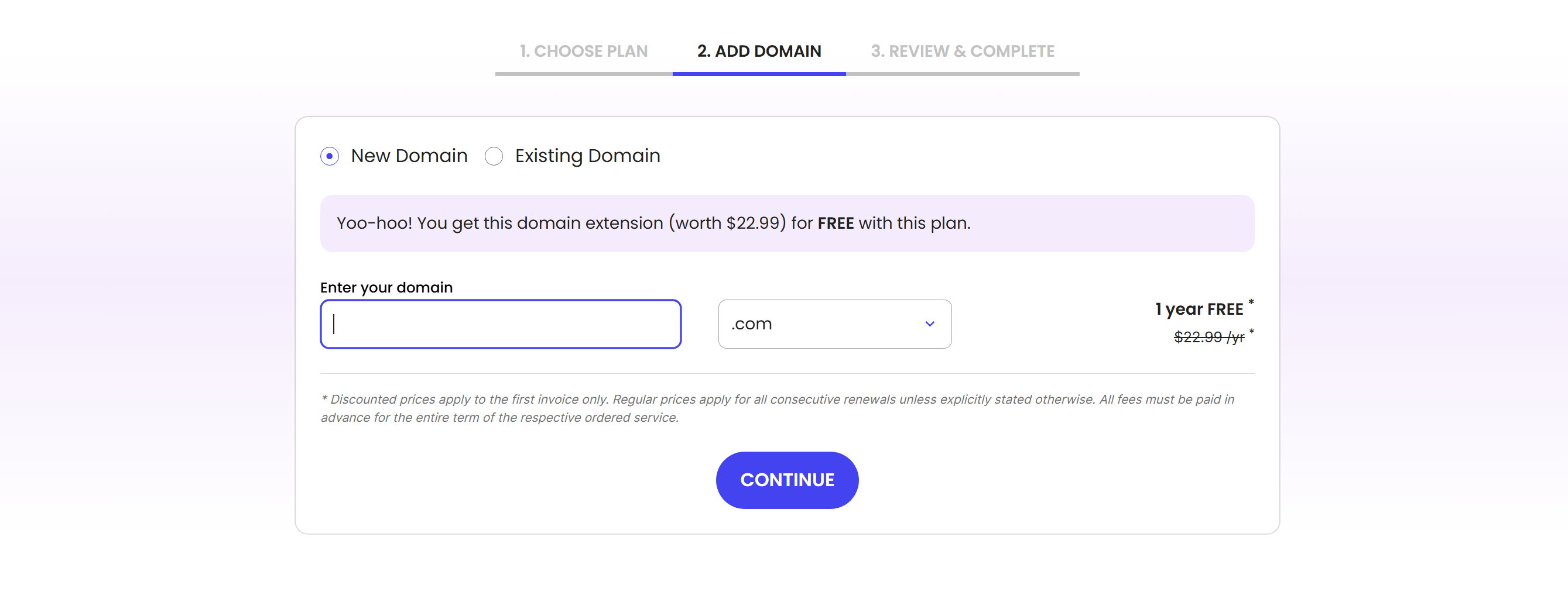
New Domain. Register a brand-new domain as part of checkout. SiteGround currently includes a free domain for the first year with its hosting plans. After that, the domain renews at SiteGround’s regular domain price, so check that price if you plan to keep it long term.
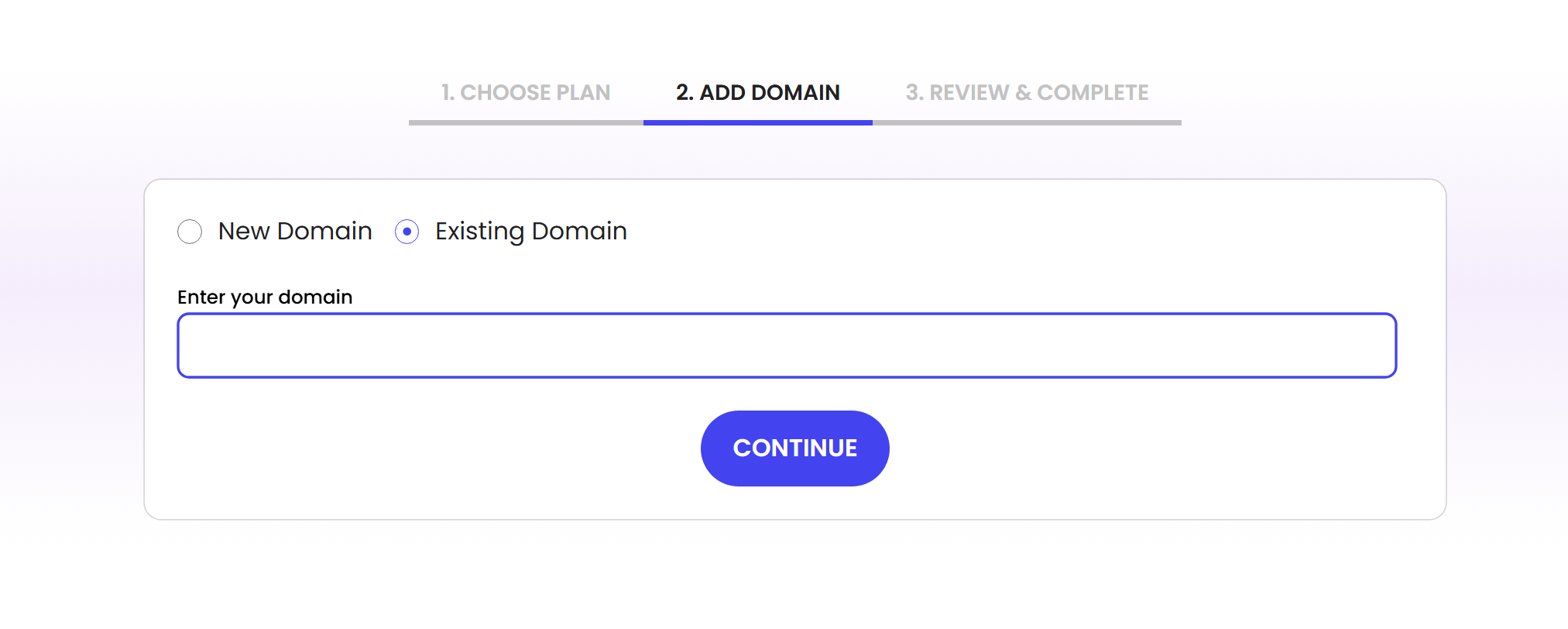
Existing Domain. If you already registered a domain elsewhere, enter it here instead. You’ll point its DNS at SiteGround afterward rather than transferring the registration itself. Not sure which approach is better? Our guide to registering your domain covers the trade-offs.
Step 4: Review Optional Extras
Checkout may offer optional add-ons. Offers change over time, so rather than listing specific prices that may be out of date, here’s how to judge any extra:
- Is it already included? Every plan already includes SSL, daily backups, a CDN, email, and a firewall. Don’t pay twice for something similar.
- Do you need it on day one? Most add-ons can be added later if a real need comes up.
- Does it fit what the site is for? Extra security monitoring, such as SiteGround’s Site Scanner, makes more sense for an online store or client site than for a personal blog.
When in doubt, skip it. A new site rarely needs more than the plan itself.
Step 5: Choose Your Data Center
SiteGround operates 11 data centers across four continents, including locations in the US, UK, Netherlands, Germany, France, and Spain. Pick the one closest to where most of your visitors are:
- Mostly US visitors: a US data center
- Mostly European visitors: a European data center. This also keeps your site’s data stored in the EU.
Server location affects how quickly your site responds, so this is worth a moment’s thought.
Step 6: Pay and Confirm
Enter your payment details, confirm your billing information, and complete the order. SiteGround’s knowledge base lists VISA, Mastercard, American Express, and Discover cards, and notes that available methods can vary by region.
Prefer PayPal? It can be used even though it isn’t shown on the order pages. New customers usually either pay for the first order by card and switch renewals to PayPal later, or contact SiteGround’s team before ordering. Our PayPal guide walks through both routes. If you’re asked to verify your phone number and the code doesn’t arrive, see what to do when SiteGround’s SMS verification stalls.
Once payment clears, your hosting account is set up and you’ll get access to Site Tools, SiteGround’s control panel, where you install WordPress.
After You Buy: Three Quick Checks
Before you install anything, confirm the account is set up the way you expect. Each takes a minute:
-
Your domain points to the right server. In Site Tools, go to Dashboard › IP and Name Servers and note the Site IP. Then run this in a terminal or Command Prompt and compare:
nslookup yourdomain.comIf the addresses differ, DNS hasn’t switched yet. New domains registered at checkout are usually set up for you; existing domains need their DNS pointed at SiteGround.
-
Backups exist. In Site Tools, go to Security › Backups. Once your site has content, you should see daily backups listed there. Knowing where they are before you need them is half the value.
-
Caching works once WordPress is installed. Open your site logged out, open your browser’s developer tools, reload, and check the
x-proxy-cacheheader on the page request.HITmeans SiteGround served the page from its cache. Our SiteGround review explains whatMISSandBYPASSmean.
After You Buy: Your First 30 Minutes
- Install WordPress from Site Tools
- Confirm SSL is active, so your site loads over HTTPS
- Set up a business email address, if you want one on your domain
- Install a lightweight theme like GeneratePress
- Check your backups, so you know how to restore before you ever need to
Moving an existing site instead of starting fresh? Follow our guide to migrating WordPress to SiteGround. SiteGround offers a free Migrator plugin, and your first professional migration is free.
FAQ
Which SiteGround plan is best for beginners?
StartUp is enough for a single simple site. If you plan to run more than one site, or want staging to test changes safely, GrowBig is the better starting point.
How much does SiteGround cost after the first year?
SiteGround's plans renew at $17.99/mo (StartUp), $29.99/mo (GrowBig), and $44.99/mo (GoGeek), checked September 2026. The intro prices of $2.99, $4.99, and $7.99/mo are prepaid for the first 12 months.
Does SiteGround include a free domain?
Yes. SiteGround currently includes a free domain for the first year with its hosting plans. After that, the domain renews at SiteGround's regular domain price. Domain fees aren't covered by the money-back guarantee.
Can I use a domain I already own with SiteGround?
Yes. Choose Existing Domain at checkout, then point the domain's DNS to SiteGround after your account is set up. If the domain already has email, check your email DNS records first so you don't break it.
Can I get a refund if SiteGround isn't right for me?
SiteGround offers a 30-day money-back guarantee on shared hosting plans. Domain name fees, paid support, and third-party services aren't refundable.
Can I upgrade my SiteGround plan later?
Yes. You can upgrade from your Client Area. The upgrade runs until your current plan's expiration, and you pay only the price difference between the two plans for that period.
When should I decide whether to keep SiteGround?
Within the first 30 days, while the money-back guarantee on shared hosting still applies, and again around month 11, before the plan renews at the regular price. Building your site in the first week or two gives you enough time to judge.
Can I pay for SiteGround with PayPal?
Yes, but not from the checkout page. PayPal can be used even though it isn't shown on the order pages. New customers usually pay the first order by card or contact SiteGround's team for help; existing clients can request PayPal renewals from the Help Center (Billing and account management → Renewal of services).