Setting Up a Free SSL Certificate on SiteGround
Some links on this page are affiliate links. If you buy through them, we may earn a commission at no extra cost to you. It never decides what we recommend —read how we make money.
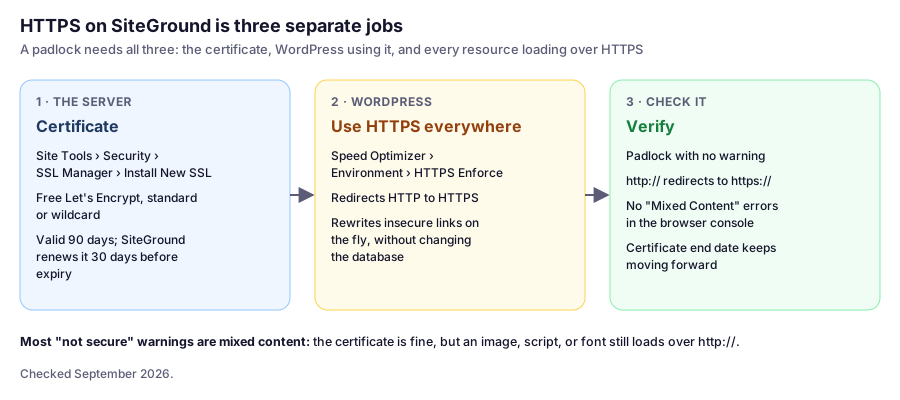
Browsers mark sites without HTTPS as “Not Secure,” and HTTPS is a requirement for every WordPress install. On SiteGround, the certificate is free and renews itself. The part that trips people up is everything after the certificate: getting WordPress to use it and making sure nothing on the page still loads over plain HTTP.
This guide covers all three jobs in order. Details are from SiteGround’s SSL and HTTPS documentation, checked in September 2026.
Job 1: Install the Certificate
New WordPress installs on SiteGround often get a certificate automatically, so check first:
- In Site Tools, go to Security › SSL Manager.
- Look for an active certificate listed for your domain.
If there isn’t one:
- In Install New SSL, select your domain.
- Choose Let’s Encrypt.
- Click Get. SiteGround issues and installs it for you.
Standard or wildcard? SiteGround includes both free. A standard certificate covers the domain you select. A wildcard covers the domain plus all first-level subdomains, such as shop.yourdomain.com and blog.yourdomain.com, which is handy if you add subdomains later.
Job 2: Make WordPress Use HTTPS
A certificate on the server doesn’t make WordPress use it. For WordPress sites, SiteGround recommends doing this through its Speed Optimizer plugin:
- In your WordPress dashboard, open Speed Optimizer › Environment.
- Turn on HTTPS Enforce.
This redirects all traffic to HTTPS and rewrites insecure http:// links in posts, pages, widgets, and the theme on the fly, without changing the database. That makes it safe to switch off later: if you do, check that your site addresses are already https:// first (below).
Then confirm WordPress’s own addresses in Settings › General: both WordPress Address (URL) and Site Address (URL) should start with https://. If they don’t, update them and save; you’ll be logged out and can log straight back in.
Job 3: Check It Properly
A padlock on the homepage isn’t proof that every page is secure. These checks take a couple of minutes.
In the browser. Open a few pages, including a post with images and any page with a form or embed. Open developer tools and look at the Console: “Mixed Content” messages name the exact file still loading over HTTP.
From a terminal (macOS, Linux, or curl.exe in Windows PowerShell). Confirm HTTP redirects to HTTPS; the location line should start with https://:
curl -sI http://yourdomain.com/ | grep -i "^location"And see the certificate’s expiry date:
echo | openssl s_client -connect yourdomain.com:443 -servername yourdomain.com 2>/dev/null | openssl x509 -noout -enddateLet’s Encrypt certificates are valid for 90 days, and SiteGround renews them about 30 days before they expire. If you run the second command a month from now and the date hasn’t moved forward as expiry approaches, check SSL Manager and your DNS.
Fixing “Not Fully Secure” Warnings
If the certificate is active but the padlock shows a warning, it’s almost always mixed content: an image, script, stylesheet, or font on the page still loads over http://. In order of what I’d try:
-
Turn on HTTPS Enforce in Speed Optimizer if you haven’t. It rewrites most insecure links automatically.
-
Find what’s left in the browser console’s Mixed Content messages. Common culprits are images inserted years ago with full
http://URLs, a hard-coded link in a theme file or widget, and third-party embeds that only offer HTTP. -
Fix the source permanently if you’d rather not rely on on-the-fly rewriting. Over SSH, WP-CLI can replace old URLs across the database safely, including serialized data. Run it with
--dry-runfirst to see what would change, and take a backup before the real run:wp search-replace 'http://yourdomain.com' 'https://yourdomain.com' --dry-run wp search-replace 'http://yourdomain.com' 'https://yourdomain.com' -
Replace or remove third-party resources that don’t support HTTPS.
Avoid stacking another SSL plugin on top of Speed Optimizer’s HTTPS Enforce. Two plugins both rewriting URLs or adding redirects can cause redirect loops.
Common Problems
| Symptom | Likely cause | Fix |
|---|---|---|
| “Too many redirects” after enabling HTTPS | Two redirect rules fighting, often another SSL plugin, or a CDN or proxy set to plain HTTP | Keep one method (HTTPS Enforce), and check any external proxy’s SSL setting |
Certificate error on www or a subdomain |
The certificate doesn’t cover that name | Install a wildcard certificate, or one that includes that name |
| Certificate won’t issue | DNS doesn’t point to SiteGround yet | Check with nslookup yourdomain.com and wait for it to resolve |
| Padlock on the homepage but not on some posts | Old http:// image links in those posts |
HTTPS Enforce, or wp search-replace as above |
FAQ
Does SiteGround include free SSL?
Yes. All hosting plans include free standard and wildcard Let's Encrypt certificates. Install them in Site Tools › Security › SSL Manager.
How do I force HTTPS on a WordPress site on SiteGround?
SiteGround recommends using its Speed Optimizer plugin: open Speed Optimizer › Environment and turn on HTTPS Enforce. It redirects traffic to HTTPS and rewrites insecure links on the fly without changing the database.
Does the SiteGround SSL certificate renew automatically?
Yes. Let's Encrypt certificates are valid for 90 days, and SiteGround renews them automatically about 30 days before expiry, as long as your domain still points to SiteGround.
Why does my site still say not secure after installing SSL?
Usually mixed content: something on the page, such as an image or script, still loads over http://. Turn on HTTPS Enforce in Speed Optimizer, then check the browser console for Mixed Content messages that name the remaining files.
Do I need a wildcard SSL certificate?
Only if you use subdomains, such as shop.yourdomain.com. A wildcard certificate covers the domain and all first-level subdomains. SiteGround includes it free with its hosting plans.
Next: Protecting Sensitive Areas
With HTTPS in place, the next layer is restricting access to parts of your site that shouldn’t be public. That’s what directory protection is for. For the bigger picture, see our WordPress security best practices.