The WordPress Dashboard: Your Command Center, Explained
Some links on this page are affiliate links. If you buy through them, we may earn a commission at no extra cost to you. It never decides what we recommend —read how we make money.
The first time you log into WordPress, the admin area can look like a lot of menus with no obvious starting point. (New to the platform? Our guide to what WordPress is covers how the pieces fit together.) It’s easier once you see it grouped by what you’re trying to do: write content, change the look, add features, or adjust site-wide settings.
The Admin Menu, by Job
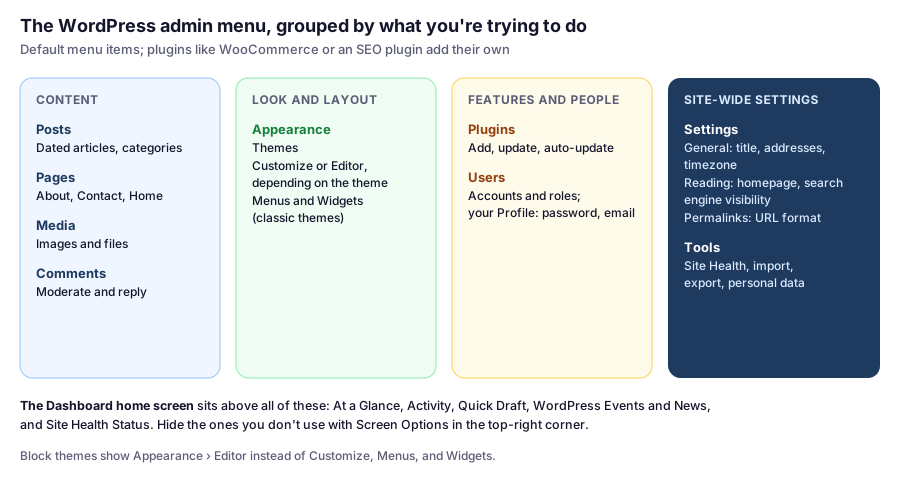
Plugins add their own menu items, often at the bottom of the list or inside Settings and Tools. WooCommerce, SEO plugins, and security plugins all do this, so a working site’s menu is usually longer than a fresh install’s.
Posts vs Pages is the distinction that matters most early on: posts are dated, grouped into categories, and appear in your blog; pages are standalone, like About or Contact.
The Dashboard Home Screen
The Dashboard screen you land on shows a set of boxes, called widgets:
- At a Glance: counts of posts, pages, and comments, plus your WordPress version and active theme.
- Activity: recent and scheduled posts, and recent comments you can approve or reply to.
- Quick Draft: a title and a notes box to save an idea as a draft without opening the editor.
- WordPress Events and News: nearby WordPress events and news from WordPress.org.
- Site Health Status: a summary of WordPress’s own health checks. Click through for details.
- Welcome: a panel of starter links on new sites, which you can dismiss.
Use Screen Options in the top-right corner to hide the widgets you don’t use. It works on most admin screens, including the Posts and Pages lists, where it controls which columns appear and how many items show per page.
Five Settings to Check on Day One
- Settings › General: site title, tagline, timezone (so scheduled posts go out at the right time), and that both addresses start with
https://. - Settings › Permalinks: choose Post name for clean URLs like
/my-first-post/. Do it before you publish, so links don’t change later. - Settings › Reading: choose whether your homepage shows your latest posts or a static page, and make sure “Discourage search engines from indexing this site” is unticked once you launch.
- Settings › Discussion: decide whether you want comments at all, and whether they need approval.
- Users › Profile: check your email address is one you receive, so password resets reach you.
Site Health: Worth a Monthly Look
Tools › Site Health runs WordPress’s built-in checks. The Status tab lists critical issues and recommendations, such as an outdated PHP version, inactive plugins, or missing HTTPS. The Info tab shows technical details: PHP version, memory limit, database version, and more, which is useful when a host or developer asks about your setup.
Not every recommendation needs action, but critical issues do. Our installation requirements guide explains the PHP and memory settings it reports.
Classic Themes vs Block Themes
What you see under Appearance depends on your theme:
- Classic themes, including GeneratePress, use Customize, Menus, and Widgets to control the header, footer, and sidebars.
- Block themes replace those with Appearance › Editor, where you edit templates and headers with blocks.
If a tutorial mentions a menu item you can’t find, this is usually why. Our overview of themes and page builders explains the difference in more depth.
FAQ
Where is the WordPress dashboard?
At yourdomain.com/wp-admin. After logging in, the Dashboard screen is the first item in the left-hand menu.
What's the difference between Posts and Pages in WordPress?
Posts are dated entries grouped by categories and shown in your blog feed. Pages are standalone content, like About or Contact, that don't appear in the feed.
How do I hide dashboard widgets in WordPress?
Open Screen Options in the top-right corner of the Dashboard and untick the widgets you don't want. The same option exists on many admin screens.
Why can't I find Appearance › Customize or Menus?
Block themes replace Customize, Menus, and Widgets with Appearance › Editor. Classic themes, such as GeneratePress, still use the older screens.
What should I set first in a new WordPress site?
Check Settings › General (title, timezone, https addresses), set Settings › Permalinks to Post name, choose your homepage in Settings › Reading, set comment rules in Settings › Discussion, and confirm your email in Users › Profile.
Making the Dashboard Yours
After a few weeks, most site owners check the same three things: Activity, At a Glance, and Site Health. Trim the rest with Screen Options, and the dashboard becomes a quick daily check rather than a wall of boxes.