How to Log Into Your WordPress Dashboard on SiteGround
Some links on this page are affiliate links. If you buy through them, we may earn a commission at no extra cost to you. It never decides what we recommend —read how we make money.
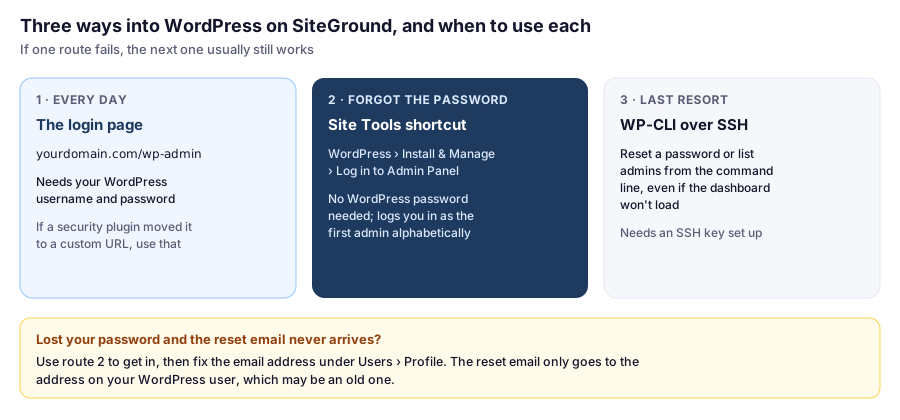
You’ll log into your WordPress dashboard more than any other screen, so it’s worth knowing every route in, and what to do when the usual one fails. On SiteGround there are three, and between them you can almost always get back in.
Route 1: The Login Page
Go to:
https://yourdomain.com/wp-adminWordPress redirects you to the login page (/wp-login.php) if you’re not signed in. Enter your WordPress username or email and password. Bookmark it.
If that address shows a “not found” page, a security plugin may have moved your login to a custom URL. SiteGround’s Security Optimizer, for example, offers this. Check the plugin’s settings once you’re in, and bookmark the new address.
Route 2: From Site Tools, No Password Needed
If you can log in to SiteGround but not to WordPress:
- Open Site Tools for the site.
- Go to WordPress › Install & Manage.
- Under Manage Installations, click the Log in to Admin Panel icon next to your site.
SiteGround opens your WordPress dashboard in a new tab, already logged in. It signs you in as the administrator that comes first alphabetically, which matters if your site has several admins.
This is the easiest way back in when you’ve forgotten your password or the reset email doesn’t arrive.
Route 3: WP-CLI Over SSH
If the dashboard itself won’t load, or you prefer the command line, WP-CLI works directly on the database. SiteGround includes it; connect over SSH (see our SSH guide), go to your site’s public_html folder, and:
wp user list --role=administrator
wp user update YOUR_USERNAME --user_pass='a-new-long-password'
The first command shows the administrator usernames; the second sets a new password for one of them. Change it again from your profile afterward if the password was visible to others on screen.
If You’ve Forgotten Your Password
- On the login page, click Lost your password?
- Enter your username or email address. WordPress emails a reset link to the address on your WordPress user account.
- If the email doesn’t arrive within a few minutes, check spam, then use Route 2 to get in.
- Once in, go to Users › Profile, set a new password, and make sure the email address is one you can receive. An old or mistyped address is the most common reason reset emails “never arrive.”
If your site’s emails generally don’t arrive, the problem is usually how WordPress sends mail. Our contact form guide covers fixing that.
Common Login Problems
| Problem | Likely cause | Fix |
|---|---|---|
| Login page reloads without logging you in | Browser cookies, or a caching or security plugin | Clear cookies for the site, try a private window, then deactivate recently added plugins |
| “Too many failed attempts” or locked out | Login limits from a security plugin | Wait for the lockout to expire, or log in via Site Tools |
/wp-admin shows “not found” |
Custom login URL from a security plugin | Check the plugin’s settings via Route 2 |
| White screen after logging in | A plugin or theme error | Enable debugging or rename the plugin’s folder over SFTP; see our installation requirements guide for the debug log steps |
| Browser asks for a separate username and password first | A password-protected folder | Check Site Tools › Security › Protected URLs |
Keep Your Login Secure
Once you’re in, take a few minutes to make the login harder to attack:
- Use a long, unique password stored in a password manager.
- Turn on two-factor authentication for administrators. SiteGround’s free Security Optimizer plugin includes it.
- Limit login attempts, also in Security Optimizer.
- Remove any user called “admin”, since it’s the first username automated attacks try.
Our WordPress security guide covers the rest.
FAQ
What is my WordPress login URL?
Usually yourdomain.com/wp-admin, which redirects to yourdomain.com/wp-login.php. If a security plugin has set a custom login URL, use that instead.
How do I log in to WordPress from SiteGround?
In Site Tools, go to WordPress › Install & Manage and click the Log in to Admin Panel icon next to your site under Manage Installations. It opens the dashboard without asking for your WordPress password.
Which user does SiteGround's Log in to Admin Panel button use?
It logs you in as the administrator whose username comes first alphabetically.
Why am I not receiving the WordPress password reset email?
The email goes to the address on your WordPress user, which may be old or mistyped, or the site's email may be landing in spam. Log in through Site Tools, then update the email under Users › Profile.
How do I reset a WordPress password without email?
Log in through SiteGround's Site Tools shortcut, or over SSH run wp user update USERNAME --user_pass='new-password' with WP-CLI from your site's folder.
Next Up
Now that you can get in reliably, take a tour of the WordPress dashboard to see what lives where.