What You Need Before Installing WordPress (2026 Checklist)
Some links on this page are affiliate links. If you buy through them, we may earn a commission at no extra cost to you. It never decides what we recommend —read how we make money.
Installing WordPress takes a couple of minutes on most modern hosts. Getting everything around the install right is where people actually lose time. Picking a host that runs outdated software, skipping backups, or launching without HTTPS are all mistakes that are easy to avoid up front and annoying to fix later.
This checklist covers what to have in place before you click “Install,” with WordPress’s official server requirements explained in plain English. If you’re still deciding whether WordPress is the right tool at all, start with what WordPress is.
The Quick Checklist
If you only want the list, here it is. Each item is explained below.
- A domain name you’re happy to keep long term
- Hosting that meets WordPress’s requirements: a current PHP version, a supported database, and HTTPS
- An SSL certificate, ideally free and auto-renewing
- Automatic backups, daily if possible
- A professional email address (optional, but worth deciding now)
- A theme plan: lightweight and fast beats feature-packed
- A rough content plan for your first pages
- A safe place for your logins
1. A Domain Name
Your domain is the address people type to find you. Pick something short, easy to spell out loud, and closely tied to your brand or topic. Avoid hyphens and numbers where you can; they’re easy to mistype and easy to forget.
You can register a domain through your host or through a separate registrar. Both work, and there are real trade-offs in either direction. Our guide to registering your domain walks through how to decide.
2. Hosting That Meets WordPress’s Requirements
WordPress needs a server to run on, and the server’s software matters. Here’s what WordPress.org officially recommends.
The Official Requirements
| Component | Recommended | What it does |
|---|---|---|
| PHP | 8.3 or greater | The programming language WordPress is written in |
| Database | MySQL 8.0+ or MariaDB 10.11+ | Stores your posts, pages, settings, and users |
| HTTPS | Required for every install | Encrypts traffic between your site and visitors |
| Web server | Apache or Nginx | The software that serves your pages |
Checked September 2026. The current versions are always on the official WordPress requirements page.
“It Still Runs” Isn’t the Same as “Recommended”
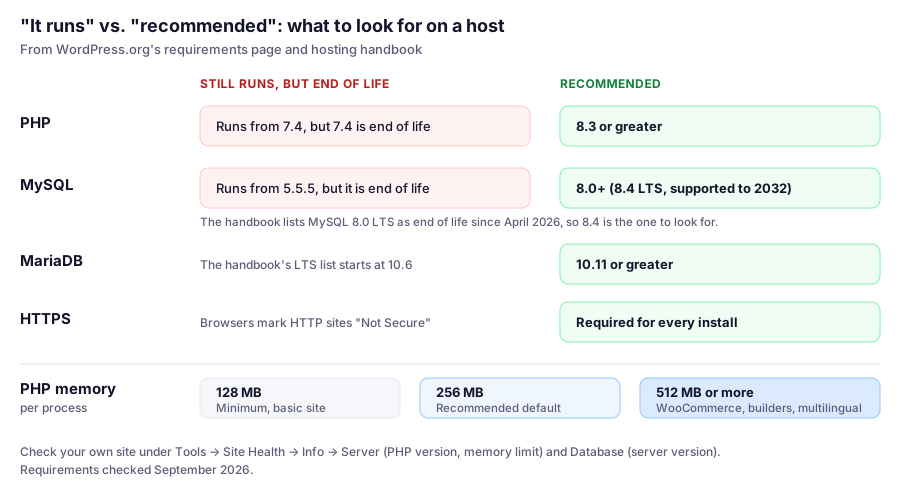
WordPress.org notes that WordPress will still run on PHP 7.4+ and MySQL 5.5.5+, but those versions have reached their official end of life and may expose your site to security vulnerabilities.
That’s the part beginners miss. A cheap or neglected host can technically run WordPress on software that no longer gets security fixes. Your site will load, and you won’t see a warning until something goes wrong.
WordPress’s hosting handbook also lists long-term support database versions: MySQL 8.0 LTS reached end of life in April 2026, and MySQL 8.4 LTS is supported until April 2032. If a host offers MySQL, 8.4 is the one to look for. MariaDB 10.6 LTS or newer is also on the handbook’s list.
PHP Memory Limit
The memory limit caps how much memory a single PHP process can use. WordPress’s hosting handbook suggests:
- 128 MB as a minimum for a basic WordPress install
- 256 MB as the recommended default
- 512 MB or more for heavier sites running WooCommerce, page builders, or multilingual plugins
If you plan to build pages with a visual builder like Elementor, or run a store, the 256–512 MB range is worth confirming before you buy.
How the Hosts We Cover Handle PHP
Being able to change PHP yourself, and knowing how much memory a process can use, are the two things I check first. Here’s how three hosts we’ve reviewed handle them:
| Host | Where you change PHP | Worth knowing | Memory |
|---|---|---|---|
| SiteGround | Site Tools › Devs › PHP Manager | Set per site | Up to 768 MB of RAM per process (fair use policy) |
| Hostinger | hPanel | The version applies to every site on the plan; versions below 8.2 can no longer be selected | PHP memory limit of 1,536 MB (Premium) or 2,048 MB (Unlimited) |
| ChemiCloud | cPanel › Software › Select PHP Version | A .htaccess rule can override the version for one folder |
2, 4, or 6 GB of RAM for the whole account, by plan |
From each host’s documentation and plan pages, checked September 2026. See our SiteGround, Hostinger, and ChemiCloud reviews for details.
All three comfortably exceed WordPress’s recommended 256 MB per process. On shared hosting, the more common limit is how many PHP processes can run at once, which our guide to shared hosting vs. VPS explains.
How to Check Whether a Host Meets These Requirements
Before you buy:
- Look for the PHP and database versions on the host’s plan or features page.
- If they aren’t listed, ask pre-sales support directly: “Which PHP versions can I choose, and which MySQL or MariaDB version do you run?” A clear, specific answer is a good sign.
After you install WordPress:
WordPress has a built-in report for this. Go to Tools → Site Health → Info:
- Server shows your PHP version and PHP memory limit.
- Database shows whether you’re on MySQL or MariaDB, and which version.
- WordPress Constants shows
WP_MEMORY_LIMIT, the limit WordPress itself asks for, which can be lower than the server’s.
The Status tab flags anything WordPress considers a problem, including outdated PHP.
Two more checks take seconds from a terminal (macOS, Linux, or curl.exe in Windows PowerShell). The first confirms HTTP redirects to HTTPS; the location line should start with https://:
curl -sI http://yourdomain.com/ | grep -i "^location"The second shows when your SSL certificate expires. If the date is close and your host auto-renews, it should move forward on its own:
echo | openssl s_client -connect yourdomain.com:443 -servername yourdomain.com 2>/dev/null | openssl x509 -noout -enddateUpgrading PHP Safely
When your host offers a newer PHP version, move up, but not blindly. Old themes and plugins are what break. Here’s the process I use:
-
Update WordPress, your theme, and every plugin first. Most compatibility fixes arrive as ordinary updates.
-
Take a backup, or better, create a staging copy if your plan includes one.
-
Turn on logging on the staging copy by adding these lines to
wp-config.php, above the line that says “That’s all, stop editing”:define( 'WP_DEBUG', true ); define( 'WP_DEBUG_LOG', true ); define( 'WP_DEBUG_DISPLAY', false ); -
Switch PHP on staging and click through the pages that matter: home, a post, a form, checkout if you have one.
-
Read
wp-content/debug.log. Warnings about deprecated code are common and usually harmless; fatal errors name the plugin or theme file that failed. -
Switch the live site, then turn debugging off again.
On Hostinger, remember the version applies to every site on the plan, so test each one.
Managed WordPress Hosting vs. Doing It Yourself
You have two broad options:
- Managed WordPress hosting. The host keeps the server software current, handles security at the server level, and usually includes caching and backups. You manage WordPress, not the server. This is the right choice for almost every first site.
- A self-managed server (VPS). You install and maintain PHP, the database, the web server, and SSL yourself. It’s flexible and can be cheaper per unit of resources, but it’s an ongoing system administration job.
Not sure how “managed” and “shared” fit together? Our guide to managed vs. shared hosting explains the difference and what each costs.
If you don’t want to think about PHP versions at all, managed hosting takes that off your plate. For most beginners, our first pick is SiteGround, which is built around WordPress and includes daily backups on every plan. Our full WordPress hosting comparison covers other options by situation, including cheaper plans, cPanel hosting, and VPS options, with current renewal prices.
3. An SSL Certificate (HTTPS)
HTTPS is required for every WordPress install, and browsers flag HTTP-only sites as “Not Secure” to visitors. There’s no reason to launch without it.
Most reputable hosts provide free SSL certificates, typically through Let’s Encrypt, and renew them automatically. Confirm both before buying. You shouldn’t have to remember to renew a certificate yourself.
If you’re on SiteGround, here’s how to set up and verify SSL, including fixing the “not fully secure” warnings that sometimes appear after switching.
4. Automatic Backups
Before you publish a single post, decide how your site will be backed up. Plugin conflicts, bad updates, and simple mistakes all happen eventually. A recent backup turns those into a quick restore instead of a rebuild.
What to look for:
- Automatic backups, so you don’t depend on remembering
- Daily frequency for any site that changes regularly. Weekly backups can mean losing several days of work.
- Easy restores you can run yourself, without a support ticket
- Offsite storage, so a problem with one server doesn’t take your backups with it
Some entry-level plans only include weekly backups, so check which tier includes daily ones. Our guide to backing up and restoring on SiteGround shows what a good backup setup looks like in practice.
5. A Professional Email Address (Optional)
If your site represents a business, an address like [email protected] looks more credible than a free webmail address. Many hosting plans include email hosting. Decide early whether you’ll use it or a separate email provider, because the choice affects your domain’s DNS settings.
If your host includes email, here’s how to set up a business mailbox. And if you ever move DNS later, this guide explains why email can suddenly stop working and how to fix it.
6. A Theme Plan
Your theme controls how your site looks, and it has a big effect on how fast it loads. Having built WordPress themes myself, I pay close attention to how much code a theme loads. Themes that bundle every feature and demo layout ship far more than a typical site uses.
A lightweight theme gives you a faster starting point, and you add only what you use. That’s why we recommend GeneratePress. Our GeneratePress setup tutorial walks through it, and this overview of themes and page builders explains how the two fit together.
7. A Rough Content Plan
You don’t need every page written, but sketch out:
- Which pages the site needs. Home, About, Services, Blog, Contact, whatever applies.
- Whether you’ll sell anything from day one. If so, plan for WooCommerce, which affects your hosting needs (see the memory limit guidance above). Our WooCommerce setup guide shows what’s involved.
- Whether you’ll use a visual page builder, or whether your theme’s built-in options are enough. Our Elementor quick start will help you judge.
8. A Safe Place for Your Logins
Setting up a site creates a surprising number of accounts: your hosting account, domain registrar, WordPress admin, email, and often an FTP or database user. Store them in a password manager from the start.
Two habits worth adopting before your install:
- Don’t use “admin” as your WordPress username. It’s the first username automated login attempts try.
- Use a long, unique password for your WordPress admin account, and turn on two-factor authentication once the site is live.
Our WordPress security best practices cover the rest once you’re up and running.
Three Starting Points
These are illustrative examples.
A personal blog on a new host. Everything on this list is usually handled for you: a current PHP version, free SSL, and automatic backups. Your jobs are the domain, a lightweight theme, and a password manager. Check Site Health once after installing and you’re done.
A small online store. Confirm the PHP memory limit is 512 MB or more (Site Health shows it), choose a plan with daily backups and staging, and plan your checkout test before launch. Carts and checkouts can’t be page-cached, so resource limits matter more than for a blog. Our WooCommerce setup guide covers the rest.
Moving an old site to a new host. Check the old site’s PHP version in Site Health before you move. If it’s on PHP 7.4, upgrade it on the old host first, using the steps above, so you’re not debugging a PHP jump and a migration at the same time.
Common Mistakes to Avoid
- Choosing a host on intro price alone. Check the renewal price and which PHP versions are offered. Both matter more over time. See how much a website really costs for year-one vs. ongoing budgets.
- Launching on HTTP “for now.” Switching to HTTPS later means fixing mixed-content warnings and redirects. Start with it.
- Assuming backups exist. Confirm the frequency and try a test restore before you need one.
- Picking a heavy theme for its demo. Demo sites look impressive because they’re loaded with features you may never use.
- Skipping the memory limit check when you know you’ll run a store or a page builder.
FAQ
What are the minimum requirements for WordPress?
WordPress.org recommends PHP 8.3 or greater, MySQL 8.0+ or MariaDB 10.11+, and HTTPS. WordPress will still run on PHP 7.4+ and MySQL 5.5.5+, but those versions have reached end of life and may expose your site to security vulnerabilities (per WordPress.org, checked September 2026).
What PHP version should I use for WordPress?
Use the newest PHP version your host offers that your theme and plugins support. WordPress.org currently recommends PHP 8.3 or greater. You can check your current version under Tools → Site Health → Info → Server.
Can I install WordPress on any web hosting?
Most Linux web hosting can run WordPress, but not every host runs current, supported software versions. Check the PHP and database versions before you buy, or choose managed WordPress hosting, where the host keeps them up to date.
Is SSL required for WordPress?
Yes. HTTPS is required for every WordPress install, and browsers warn visitors about sites without it. Most hosts include free, auto-renewing SSL certificates.
How much PHP memory does WordPress need?
WordPress's hosting handbook suggests 128 MB as a minimum for a basic install, 256 MB as the recommended default, and 512 MB or more for WooCommerce, page builders, or multilingual sites.
How do I safely upgrade PHP on a WordPress site?
Update WordPress, your theme, and plugins first, then take a backup or make a staging copy. Switch PHP on staging with WP_DEBUG_LOG turned on, test your key pages, and check wp-content/debug.log for fatal errors before switching the live site.
Do I need to know how to code to set up WordPress?
No. With managed WordPress hosting, installation is point-and-click, and the host handles the server requirements. Coding only becomes useful for advanced customization.
How do I check if my host meets WordPress requirements?
Before buying, look for PHP and database versions on the host's plan pages or ask pre-sales support. After installing, go to Tools → Site Health in your WordPress dashboard. The Info tab shows your server details, and the Status tab flags problems.
Next Step: Install WordPress
Once your domain is registered, your hosting is set up, and SSL and backups are sorted, the install itself is almost anticlimactic. Most hosts offer a one-click installer. Here’s exactly how installing WordPress works on SiteGround, step by step.
Still choosing a host? Start with our WordPress hosting comparison.