Installing WordPress Themes and Shaping Your Site's Design
Some links on this page are affiliate links. If you buy through them, we may earn a commission at no extra cost to you. It never decides what we recommend —read how we make money.
Once WordPress is installed, the next decision is what your site looks like. Three tools share that job: your theme, WordPress’s built-in block editor, and, optionally, a page builder like Elementor. Knowing which one should handle what is the difference between a site that looks consistent and loads quickly, and one that fights itself.
Who Designs What
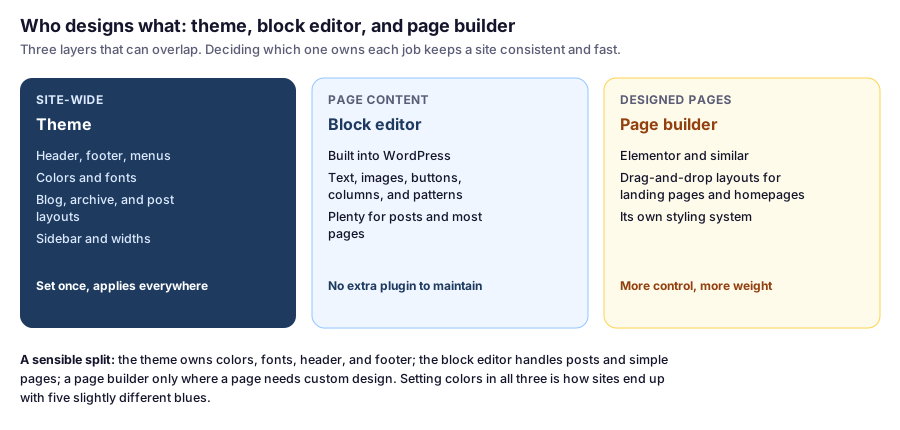
A lot of sites don’t need a page builder at all. A lightweight theme plus the block editor’s columns and patterns covers blogs, business sites, and most service pages. Add a builder when a specific page, usually the homepage or a landing page, needs a layout the editor can’t manage comfortably. Our Elementor quick start shows what that looks like.
Classic Themes vs Block Themes
WordPress themes now come in two kinds, and they change which screens you see:
| Classic themes | Block themes | |
|---|---|---|
| Examples | GeneratePress, most long-established themes | WordPress’s default “Twenty” themes of recent years |
| Where you customize | Appearance › Customize, plus Menus and Widgets | Appearance › Editor, editing templates with blocks |
| Header and footer | Theme settings in the Customizer | Edited as blocks in the Site Editor |
| Good for | Proven workflows, page builder sites, speed-focused setups | Designing the whole site with blocks, no builder |
Neither is wrong. If a tutorial mentions a menu you can’t find, it’s usually written for the other kind of theme.
Installing a Theme
- Go to Appearance › Themes and click Add New Theme.
- Search the free directory by name, or browse by features.
- Click Install, then Activate.
- For a premium theme bought elsewhere, click Upload Theme and choose the
.zipfile you downloaded.
Our GeneratePress setup tutorial walks through the whole process with one popular lightweight theme.
Judging a Theme Before You Commit
On a theme’s WordPress.org page, and before buying a premium theme, check:
- Last updated: a theme that hasn’t been updated in a long time may break with new WordPress or PHP versions.
- Active installations and ratings: widely used themes have had their rough edges found by others first.
- Required WordPress and PHP versions: they should match what your host runs. See our requirements guide.
- Weight: open the theme’s demo site and run it through PageSpeed Insights. A demo that’s slow with nothing on it won’t be faster once your content is added.
- What it bundles: themes that ship with sliders, page builders, and many required plugins are harder to leave later.
Changing Themes on a Live Site
Your content (posts, pages, media) stays when you switch themes. What can change is everything the theme controlled:
- Menus and widgets may need reassigning to the new theme’s locations.
- Theme-specific features, such as custom post types, shortcodes, or page layouts provided by the old theme, stop working.
- Customizer settings like colors and fonts don’t carry over.
The safe way: try the new theme on a staging copy first. SiteGround’s GrowBig and GoGeek plans include staging; our SiteGround review shows the workflow. Without staging, use Live Preview on the Themes screen to look before activating, and take a backup first.
Customizing Without Losing Changes
- Use the theme’s settings for colors, fonts, and layout. They survive theme updates.
- Don’t edit the theme’s files directly. The next theme update overwrites them. For code changes, use a child theme, which inherits the parent theme and keeps your changes separate.
- Keep one source for colors and fonts. If you use a page builder, point it at the same palette, or set global styles in one place, so you don’t end up with slightly different blues on every page.
Keep Only What You Use
Every installed theme needs updates, even when inactive. Delete themes you’re not using, keeping one default WordPress theme as a fallback for troubleshooting.
FAQ
How do I install a WordPress theme?
Go to Appearance › Themes, click Add New Theme, search for the theme, then click Install and Activate. For a premium theme, use Upload Theme and select its .zip file.
Will I lose my content if I change WordPress themes?
No. Posts, pages, and media stay. Menus and widgets may need reassigning, theme settings don't carry over, and features provided only by the old theme, like shortcodes, stop working. Test on staging first.
What's the difference between a classic theme and a block theme?
Classic themes are customized in Appearance › Customize, with Menus and Widgets screens. Block themes replace those with Appearance › Editor, where you edit templates, headers, and footers with blocks.
Do I need a page builder like Elementor?
Not necessarily. A lightweight theme with the block editor covers most sites. A page builder helps for custom-designed pages like a homepage or landing page, at the cost of extra weight and another plugin to maintain.
Should I edit my theme's files directly?
No. Theme updates overwrite those changes. Use the theme's settings, or a child theme for code changes.
Next: Making It Fast
A site can look right and still lose visitors if it loads slowly. Our guide to WordPress speed optimization covers measuring and fixing that.