Sharing SiteGround Access Safely: Collaborators, Clients, and FTP
Some links on this page are affiliate links. If you buy through them, we may earn a commission at no extra cost to you. It never decides what we recommend —read how we make money.
Sooner or later, someone else needs access to your site: a developer fixing a bug, a designer building a new theme, a writer adding posts. Handing over your own SiteGround login is the easy option and the wrong one. That login controls billing, domains, and every site on your account, and the only way to take it back is to change your password everywhere.
SiteGround doesn’t use the “sub-account” system some older hosts have. Instead, it gives you several narrower ways to share access, each scoped to one site or one folder. This guide covers which to use for whom, how to set each up, and how to remove it cleanly. Details are from SiteGround’s knowledge base, checked in September 2026.
Which Kind of Access to Give
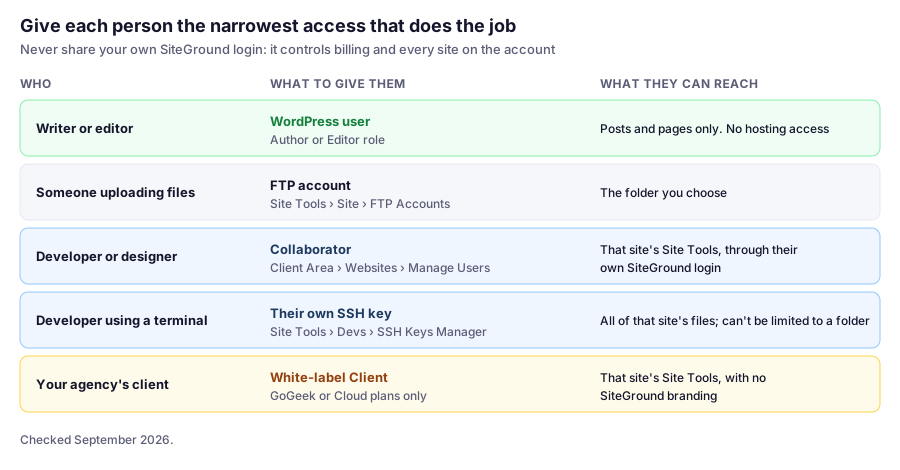
The rule of thumb: start at the top of that list and only move down when the job needs it. Most people who “need access to the site” actually need a WordPress login, not hosting access.
Option 1: A WordPress User (No Hosting Access)
For writers, editors, and marketers, create a WordPress user under Users › Add New User with the lowest role that works:
- Author: writes and publishes their own posts
- Editor: manages everyone’s posts and pages
- Shop Manager (WooCommerce): orders and products, without site settings
- Administrator: only for people who genuinely manage plugins, themes, and settings
They never see Site Tools, files, or databases.
Option 2: A Collaborator (Site Tools for One Site)
For a developer or designer who needs the hosting side of one site, such as File Manager, databases, PHP settings, or staging, add them as a collaborator. That role is meant for people who set up, manage, troubleshoot, and maintain a service on your behalf.
To add a collaborator:
- In the SiteGround Client Area, go to Websites.
- Next to the site, open the Actions menu and choose Manage Users.
- Click Add Users, then pick someone you’ve worked with before or enter a new person’s name and email.
- They get an email and must accept within 48 hours, or the invitation expires.
How they log in: with their own SiteGround credentials. The shared site appears under Client Area › Websites › Collaborations, where they click Site Tools. They never need your password.
WordPress sites can have several collaborators. SiteGround’s Website Builder and Ecommerce sites are limited to one collaborator at a time.
Option 3: A White-Label Client (Agencies)
If you host client sites on your own SiteGround account, the Client role gives your client access to their site’s Site Tools without SiteGround branding. It’s available only on GoGeek and Cloud plans. On Cloud plans, you can also define custom client roles that limit which parts of Site Tools they see.
Use this when the client should manage their own site’s email, DNS, or files. For clients who only edit content, a WordPress user is simpler.
Option 4: An FTP Account Limited to One Folder
For someone who only needs to upload files, such as a designer delivering theme files or a photographer uploading images, create an FTP account restricted to a single folder:
- In Site Tools, go to Site › FTP Accounts.
- Enter an Account Name (your domain is added to it) and a strong Password, then click Create.
- From the account’s menu, choose Change Home and set it to the folder they should work in, such as
public_html/wp-content/uploads. - Send them the details from Actions › FTP credentials.
You can also set a storage quota on the account. Our guide to creating FTP accounts on SiteGround covers connecting with an FTP client.
Option 5: An SSH Key (Developers Using a Terminal)
Developers who use Git, WP-CLI, or SFTP can connect with an SSH key. Create a separate key for each person in Site Tools › Devs › SSH Keys Manager, rather than sharing yours, so you can remove one person without affecting anyone else. SiteGround uses port 18765 for SSH and SFTP.
Our SSH guide walks through connecting.
Removing Access When the Work Is Done
This is the step people forget. Do it the day the work ends, not “eventually”:
| Access type | How to remove it |
|---|---|
| Collaborator | Client Area › Manage Users › Actions › Remove Collaborator (one site) or Delete User (all sites) |
| White-label client | Client Area › Manage Users, then remove the client from the site |
| FTP account | Site Tools › Site › FTP Accounts › account menu › Delete |
| SSH key | Site Tools › Devs › SSH Keys Manager › delete that person’s key |
| WordPress user | Users › delete, and attribute their content to another user |
Then change any passwords they may have seen, such as a database password in wp-config.php or an email account’s password.
Three Common Situations
These are illustrative examples.
A freelancer is redesigning your site. Add them as a collaborator so they can use staging and File Manager, and create a WordPress Administrator account for them on the staging copy. When the launch is done and checked, remove both.
A virtual assistant publishes your blog posts. Give them an Editor account in WordPress. They don’t need Site Tools at all.
An agency hosts 12 client sites on GoGeek. Clients who manage their own email and DNS get the white-label Client role; clients who only edit pages get WordPress Editor accounts. The agency’s developers are collaborators with their own SSH keys, so removing someone who leaves takes a minute.
If You Already Shared Your Main Login
Change your SiteGround password now, and turn on two-factor authentication for your account if you haven’t. Then give the person the right kind of access from the options above. Changing your password won’t undo anything they already did, so if you have any doubts, review your site’s users and recent changes too. Our WordPress security guide covers what to check.
FAQ
Does SiteGround have sub-accounts?
Not in the traditional sense. SiteGround shares access through collaborators, who get Site Tools access to a specific site with their own login, and white-label clients on GoGeek and Cloud plans. For narrower access, use FTP accounts, SSH keys, or WordPress users.
How do I add a collaborator on SiteGround?
In the Client Area, go to Websites, open the Actions menu next to the site, choose Manage Users, and click Add Users. The person receives an email and has 48 hours to accept before the invitation expires.
What's the difference between a collaborator and a client on SiteGround?
Collaborators are people who help you run a site, such as developers or designers. Clients are your own customers, whose sites you host on your account; they get white-label access to Site Tools without SiteGround branding. Client access is available only on GoGeek and Cloud plans.
Can I limit an FTP account to one folder on SiteGround?
Yes. In Site Tools › Site › FTP Accounts, use the account's Change Home option to set the folder it can access. SSH keys can't be limited this way; they reach all of the site's files.
How do I remove a collaborator's access?
In the Client Area, go to Manage Users, open the Actions menu next to the site, and choose Remove Collaborator. To remove them from every site, choose Delete User.
Does a developer need my SiteGround password?
No. Add them as a collaborator so they log in with their own SiteGround account, or give them an FTP account, SSH key, or WordPress user depending on the work. Never share your own login.
Next: File Access Without Site Tools
If someone only needs to move files around, an FTP account is usually all they need. Our guide to creating FTP accounts on SiteGround walks through it.