Creating an FTP Account on SiteGround (and When to Use SFTP)
Some links on this page are affiliate links. If you buy through them, we may earn a commission at no extra cost to you. It never decides what we recommend —read how we make money.
SiteGround’s File Manager covers most day-to-day file jobs in the browser. A desktop client connected over FTP or SFTP is the better tool when you’re moving lots of files, resuming a large upload, or giving someone file access without sharing your SiteGround login.
On SiteGround, those are two different setups with different trade-offs, and it’s worth knowing which is which before you create anything. Details are from SiteGround’s knowledge base, checked in September 2026.
FTP Account or SFTP: Which Do You Need?
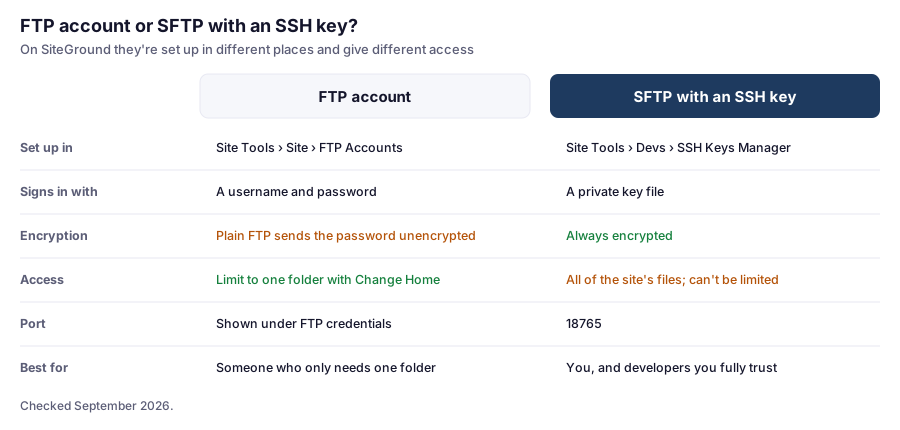
The key point: on SiteGround, SFTP doesn’t use your FTP account. SFTP connects with an SSH key, which reaches every file on the site. An FTP account can be locked to a single folder, but plain FTP isn’t encrypted. So:
- For your own work, use SFTP with an SSH key. It’s encrypted, and you need access to everything anyway.
- For someone who only needs one folder, an FTP account limited to that folder is the safer choice, as long as you delete it when the job is done.
Creating an FTP Account
- In Site Tools, go to Site › FTP Accounts.
- Enter an Account Name. SiteGround adds your domain to it, so the full username looks like
[email protected]. - Enter a strong, unique Password, or generate one.
- Click Create.
Limit It to One Folder
By default, the account can reach the whole site. To restrict it, open the account’s menu (the three dots) and choose Change Home, then pick the folder they should work in:
| Who | Sensible home folder |
|---|---|
| A photographer uploading images | public_html/wp-content/uploads |
| A designer delivering a child theme | public_html/wp-content/themes/your-child-theme |
| A developer fixing one plugin | public_html/wp-content/plugins/that-plugin |
The same menu lets you Change Password, set a storage Quota, rename, or Delete the account.
Connecting With an FTP Client
Open the account’s menu and choose FTP credentials. It shows the hostname, username, and port to use. Enter them in a client like FileZilla or Cyberduck, along with the password you set.
If your client offers an encrypted option such as “Require explicit FTP over TLS,” try it first; if it connects, you’re protected from password snooping on public networks. If it doesn’t, avoid using plain FTP on public Wi-Fi.
Connecting With SFTP Instead
- In Site Tools, go to Devs › SSH Keys Manager and create a key, or import a public key you already have.
- From the key’s Actions menu, open its credentials to see the hostname and username.
- In FileZilla or Cyberduck, choose SFTP, use port 18765, and point the client at your private key file.
Create a separate key for each person who needs this access, so removing one person doesn’t lock out anyone else. Our SSH guide covers the same credentials for terminal use.
Two Things That Commonly Go Wrong
- Uploading into the wrong folder. WordPress lives in
public_html. Files uploaded one level above it won’t appear on the site. If your FTP account’s home is already a subfolder, paths in your client start from there. - Overwriting a live file without a copy. Before replacing a theme or plugin file, download the current version first, or take a backup. Our guide to backing up and restoring on SiteGround covers restoring a single file if you need to.
When the Work Is Done
Delete the account from Site › FTP Accounts the day the job ends, or delete that person’s SSH key. An FTP account nobody uses is just a password waiting to leak. For other ways to share access, such as collaborators and WordPress users, see sharing SiteGround access safely.
FAQ
How do I create an FTP account on SiteGround?
In Site Tools, go to Site › FTP Accounts, enter an account name and password, and click Create. Use the account's Change Home option to limit it to one folder, and FTP credentials to see the hostname and port.
Can I use my SiteGround FTP account for SFTP?
No. SiteGround's SFTP connections use SSH keys created in Site Tools › Devs › SSH Keys Manager, on port 18765. FTP accounts are for FTP connections.
Can I limit an FTP account to one folder on SiteGround?
Yes. Open the account's menu in Site Tools › Site › FTP Accounts and choose Change Home, then select the folder. SSH keys can't be limited this way; they reach all of the site's files.
What port does SiteGround use for SFTP?
Port 18765. For FTP accounts, the port is shown in the account's FTP credentials.
Is FTP safe to use?
Plain FTP sends your username and password unencrypted, which is risky on public networks. Use SFTP with an SSH key for your own work, and for FTP accounts, try your client's FTP-over-TLS option if it offers one.
What’s Next
For anyone comfortable with a command line, SSH is a faster way to manage the same files, and it unlocks WP-CLI for WordPress tasks.