Managing Your Domain's DNS on SiteGround
Some links on this page are affiliate links. If you buy through them, we may earn a commission at no extra cost to you. It never decides what we recommend —read how we make money.
DNS is the address book that tells the internet where your website and email live. Most people set it once and forget it, until they connect an email service, verify a domain for Google, or move hosts. Then a single wrong record can take email or the whole site offline.
This guide starts with the question that causes the most confusion, where your DNS actually lives, then covers the records you’ll edit, how to change them safely, and how to check the result.
First: Which Panel Controls Your DNS?
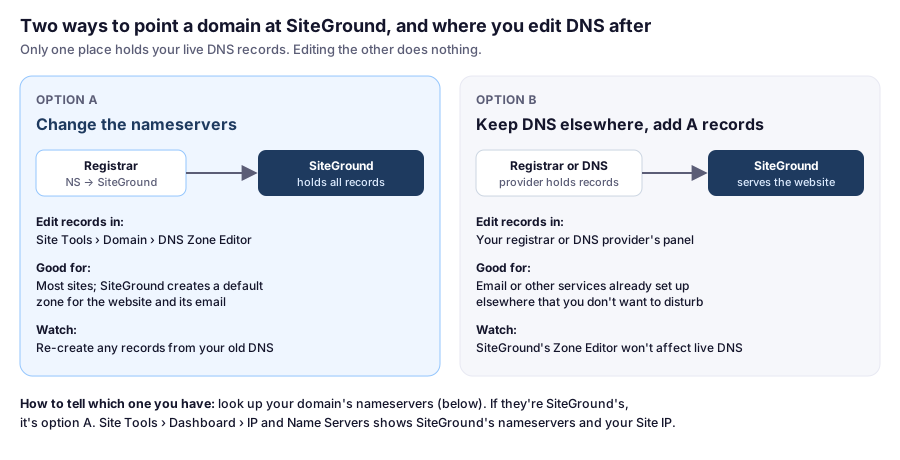
Only one place holds your live DNS: whichever service your domain’s nameservers point to. If they point to SiteGround, you edit records in SiteGround’s Zone Editor. If they point to your registrar or a service like Cloudflare, you edit records there, and changes in SiteGround’s Zone Editor do nothing.
Check your nameservers in a terminal (macOS or Linux):
dig +short NS yourdomain.comOn Windows, use Command Prompt or PowerShell:
nslookup -type=NS yourdomain.comCompare the result with the nameservers shown in Site Tools › Dashboard › IP and Name Servers. If they match, SiteGround holds your DNS.
Finding the DNS Zone Editor
- Log in to Site Tools.
- Go to Domain › DNS Zone Editor.
- Select the domain, if you have more than one on the account.
The Records You’ll Actually Edit
| Record | What it does | Typical example |
|---|---|---|
| A | Points a name to an IPv4 address | yourdomain.com → your SiteGround Site IP |
| CNAME | Points a name to another name | shop.yourdomain.com → a store platform’s address |
| MX | Says which servers receive email for the domain | Your email provider’s mail servers, with priorities |
| TXT | Holds text used for verification and email security | SPF, DKIM, DMARC, Google Search Console verification |
Two rules save a lot of trouble:
- A name can’t have a CNAME and other records at the same time. That’s why the root domain (
yourdomain.com) uses A records rather than a CNAME. - Only one SPF record per domain. SPF is the TXT record starting with
v=spf1. If two services each ask you to add one, combine them into a single record, for examplev=spf1 include:service-one.example include:service-two.example ~all, using the exactinclude:values each provider gives you. Two separate SPF records cause SPF checks to fail.
Common Reasons to Edit DNS
- Using a third-party email service such as Google Workspace or Microsoft 365: replace the MX records and add their SPF and DKIM TXT records. Remove the old MX records, or mail can split between two providers.
- Verifying a domain for Google Search Console or an email marketing platform: usually one TXT record, copied exactly.
- Pointing a subdomain elsewhere, such as
app.yourdomain.comon another service, with the CNAME or A record that service gives you. - Adding a subdomain for a WordPress install on SiteGround itself. See installing WordPress on a subdomain.
Making a Change Safely
- Write down or screenshot the current records before changing anything, so you can put them back.
- Copy values exactly from the service you’re connecting. A missing character in a TXT or DKIM record is the most common reason verification fails.
- Change one thing at a time, and check it before moving on.
- Be careful with MX records. Deleting or changing them affects email immediately after the change spreads. Read why business email breaks after DNS changes first.
Why Changes Take Time: TTL
Each record has a TTL (time to live): how long other servers may cache it before asking again. Until that time runs out, some visitors can still get the old answer. That’s why changes can look instant from one place and not from another. If you’re planning a big change, like moving hosts, lowering the TTL a day in advance makes the switch faster.
Checking That a Change Took Effect
Don’t rely on refreshing your browser; your computer and internet provider cache DNS too. Ask directly:
dig +short yourdomain.com A
dig +short yourdomain.com MX
dig +short yourdomain.com TXT
On Windows, the equivalents are nslookup yourdomain.com, nslookup -type=MX yourdomain.com, and nslookup -type=TXT yourdomain.com.
To see what the rest of the world sees, add a public resolver to the end of the command, for example dig +short yourdomain.com A @8.8.8.8. If that shows the new value, most visitors will soon see it too. Web-based tools that query many locations at once are handy for the same check.
Three Situations
These are illustrative examples.
Adding Google Workspace email to a SiteGround-hosted site. In the Zone Editor, replace SiteGround’s MX records with Google’s, add Google’s SPF include to your single SPF record, and add the DKIM TXT record Google provides. Then check with dig +short yourdomain.com MX and send a test email from an outside account.
Verifying Search Console. Add the TXT record Google gives you, wait a few minutes, confirm it with dig +short yourdomain.com TXT, then click Verify. Leave the record in place; removing it can unverify the property.
Your DNS is at Cloudflare, but you edited SiteGround’s Zone Editor and nothing changed. That’s option B from the diagram: the live records are at Cloudflare. Make the change there instead.
FAQ
Where is the DNS Zone Editor on SiteGround?
In Site Tools, go to Domain › DNS Zone Editor and select your domain. Changes there only take effect if your domain's nameservers point to SiteGround.
Why didn't my DNS change on SiteGround take effect?
Either your nameservers point somewhere else, so SiteGround's Zone Editor isn't the live DNS, or the old record is still cached until its TTL runs out. Check your nameservers with dig NS or nslookup -type=NS first.
How long do DNS changes take?
It depends on the record's TTL and on caching. Many changes are visible within minutes to an hour, but cached answers can linger longer. Lowering the TTL before a planned change speeds up the switch.
Can I have two SPF records?
No. A domain should have exactly one SPF record. If two services each need SPF, combine their include values into a single TXT record starting with v=spf1.
How do I check a DNS record from my computer?
Use dig on macOS or Linux, for example dig +short yourdomain.com MX, or nslookup on Windows, for example nslookup -type=MX yourdomain.com. Add @8.8.8.8 to a dig command to ask a public resolver instead of your own.
What’s Next
If you want a separate section of your site at its own address, a subdomain is the next step. And if email is involved in any DNS change, read how to avoid breaking business email before you save.